Web Guide
How-to guide for every feature on the Supatimer web dashboard. Each section includes step-by-step instructions.
Video Tour
Watch a 7-minute walkthrough covering bot setup, team configuration, and all key features.
Chapters
Questions or feedback? Join our Discord community for help.
Join DiscordStart here
Getting Started
The onboarding flow walks you through setting up Supatimer for the first time. It covers channel configuration, team setup, and member management.
How to use
- 1When you first add the bot to a server, a getting started checklist appears on the Settings page for that server.
- 2The checklist guides you through: configuring channels, posting your first calendar, setting up teams, and configuring members in Settings.
- 3You can also start the guided tour from the welcome banner by clicking 'Take the tour'.
- 4The tour highlights each part of the dashboard with step-by-step explanations.
- 5You can skip steps and come back later - the checklist tracks your progress.
- 6Already completed steps are automatically marked as done.
Watch
Dashboard Overview
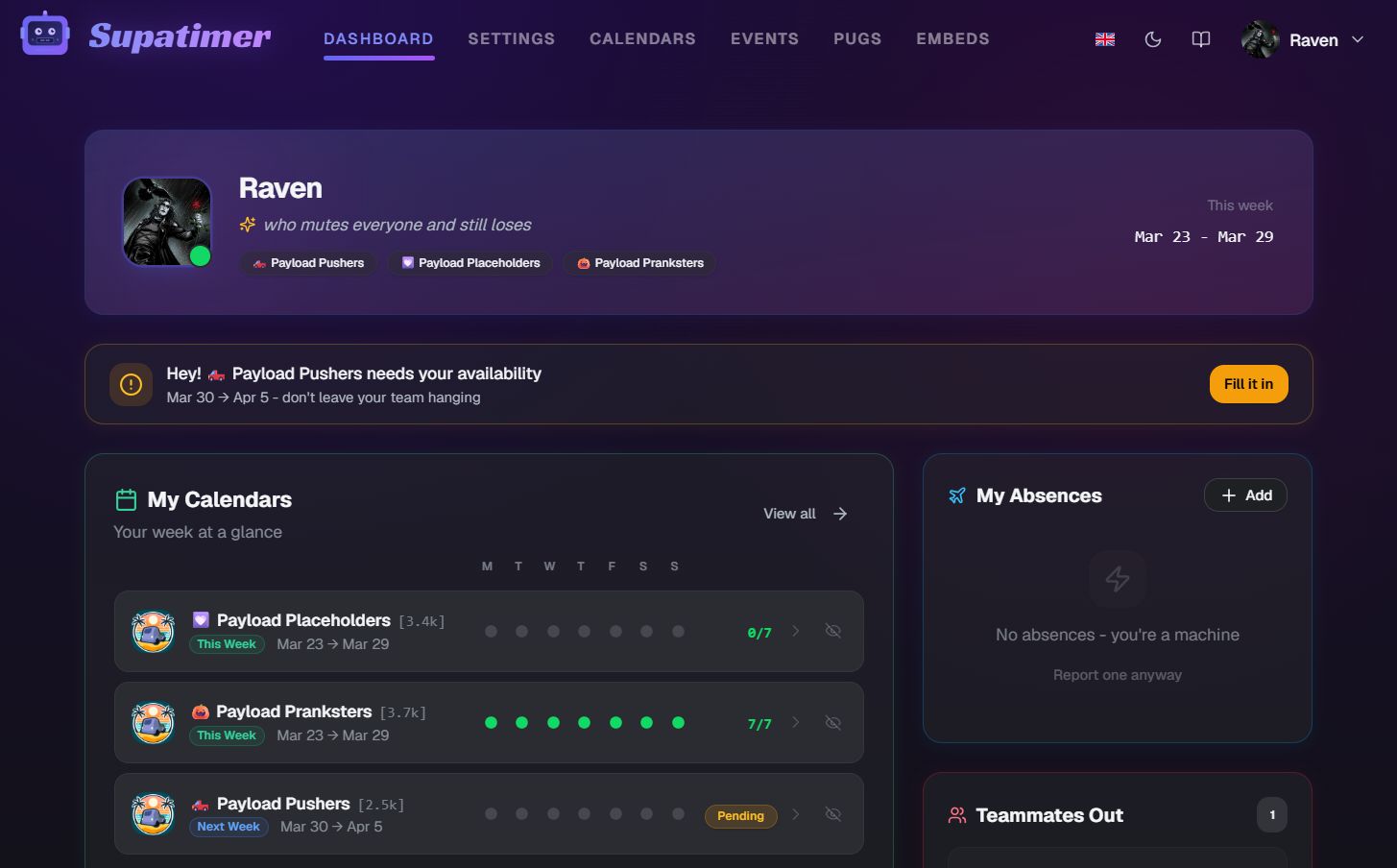
The dashboard is your home base. It shows your teams, your scrims this week and next, who is out, and any polls waiting for you, at a glance.
How to use
- 1At the top you'll see an action banner if any calendars need your response. Click it to jump straight to the calendar.
- 2The My Teams card groups your calendars by team. Open a team for its action tiles and two week slots: this week and next week, each showing how many players have answered. A week nobody has posted yet is a dashed slot - it says when auto-post will post it, or offers Post now. Click a posted week to see who has answered and ping the rest.
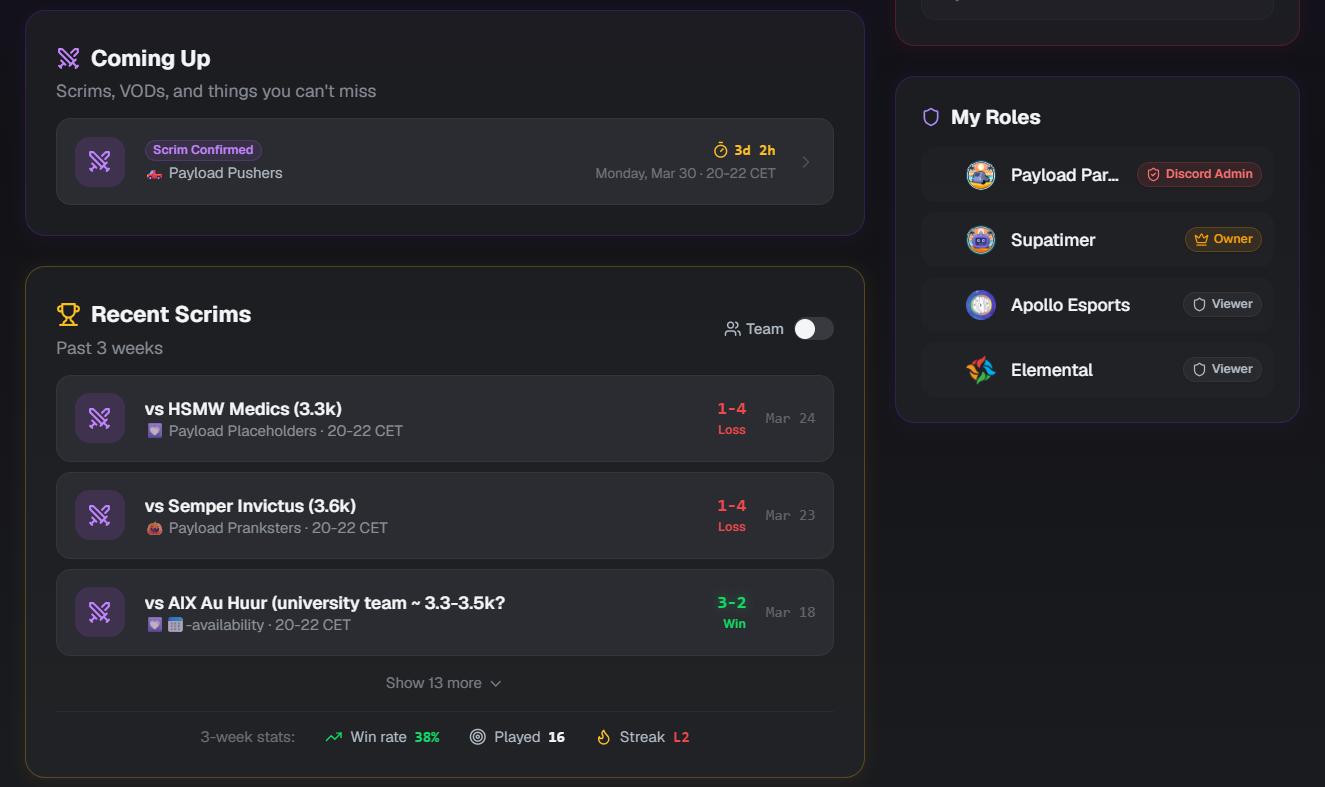
- 3The Scrims card shows this week and next week as day cells - every scrim, lineup and activity posted for your teams, three per day and then '+n more'. Flip List for one timeline instead: coming up on top with countdowns, played scrims below with their scores. Click a coming-up scrim to see who is in and who has reacted on the post, and ping the ones who have not; click a played scrim for your own line from the log - heroes, elims, deaths, damage, map by map; click a day for everything on it and your availability answer. Mine shows only the posts you are tagged in; Team shows every team you are on, with your avatar on the rows you are in and the others faded, and a gear to untick the teams you do not want on the card - a Hidden count under the header says how many are out (kept on this device). Week starts Mon / Sun moves the strip to your own week and is saved to your account.
- 4Under the strip: the last three weeks as a form guide, and your win rate, played count and streak for the scope you are on, with Full stats leading to your stats pages. A played scrim with a log attached shows a chart mark, one without shows an upload mark, and the card counts the missing ones. The bottom edge of the card connects your Google Calendar, or says it is synced.
- 5The side column has the Absences card - your own line on top with Add, then teammates out grouped this week, next week and later - and Poll Requests. On a wide screen the Scrims card moves up beside My Teams.
Watch
Screenshots
Search
Find any page or setting from anywhere in the dashboard - by name, or by what it does.
How to use
- 1Press Ctrl+K (Cmd+K on Mac), or click Search in the top bar. On smaller screens it sits in the menu.
- 2Type what you want to change. Matching works on what settings do, so "ping" finds Who gets pinged.
- 3Results cover pages, settings sections, individual settings, guide chapters, and bot commands. Team and calendar settings appear once per team or calendar - only for teams you manage.
- 4Pick a result and you land on the exact spot, highlighted for a moment so it is easy to find.
Note: Search is part of the dashboard, so it works on every dashboard page once you are signed in. The public docs pages do not have it.
Availability & calendars
Calendars
Weekly availability calendars are posted by the bot in Discord and visible on the web. Each calendar shows time slots and who is available.
How to use
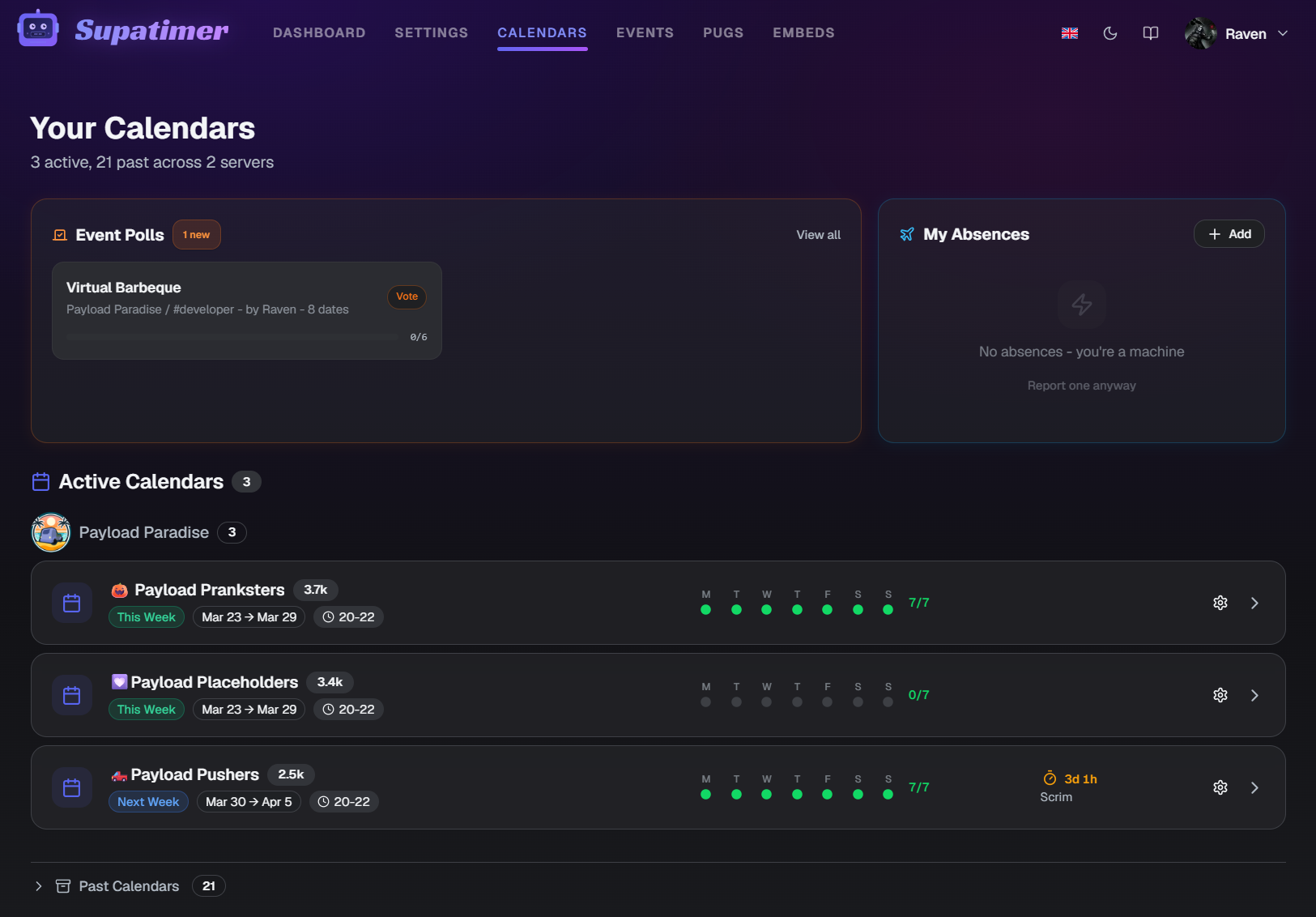
- 1Navigate to 'Calendars' from the top nav. Every team gets one card: its form, this week and next week, the next scrim, and the team's actions.
- 2Each team card shows the team's form on top - the last three weeks as four tiles, a six-week line and the last eight results - then This week and Next week with how many have answered and who is still missing, and the next scrim between them.
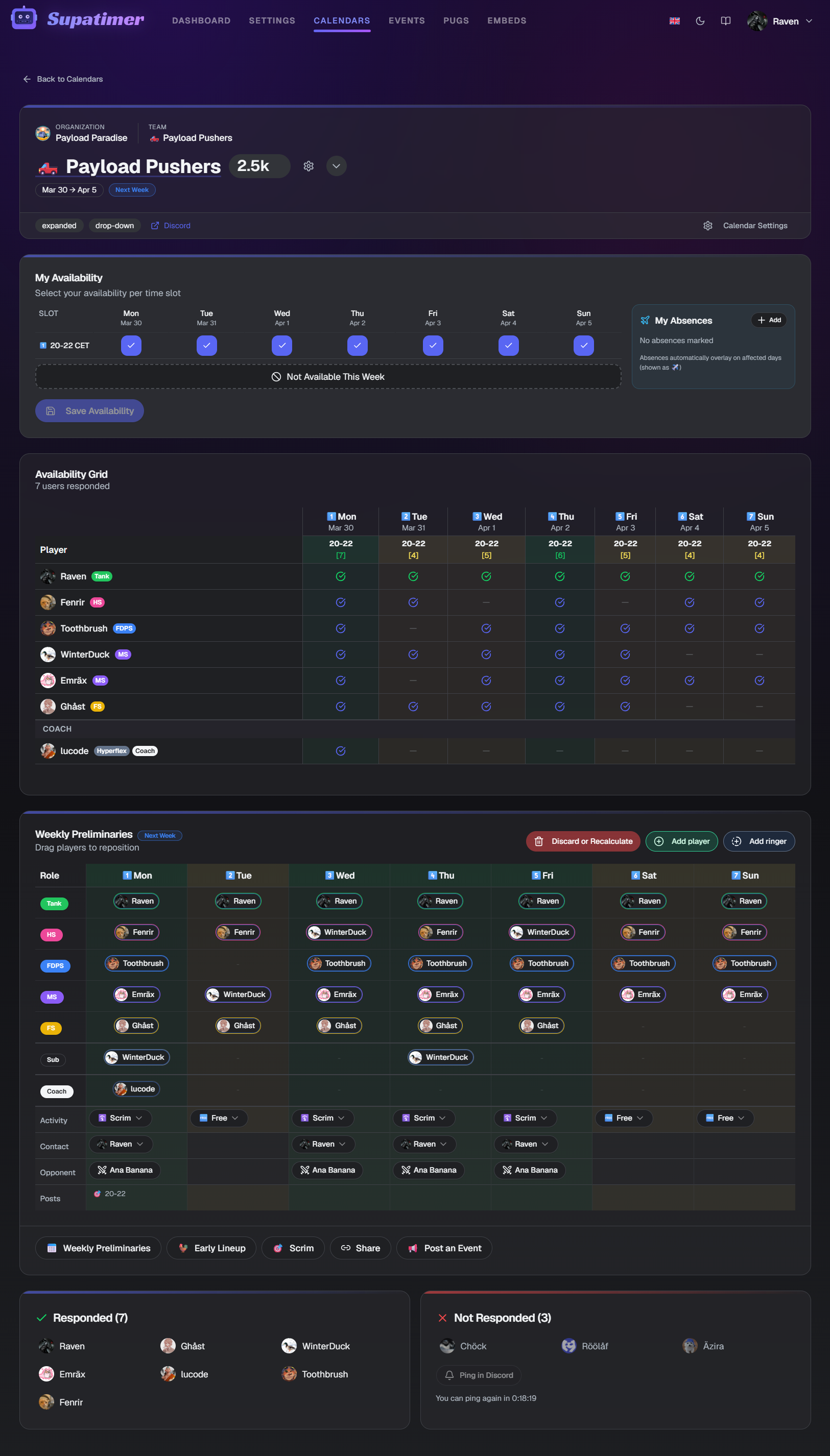
- 3Click the This week or Next week tile to open that week's calendar with the full availability grid. A week nobody has posted yet says when auto-post will post it, or offers Post now.
- 4Under each card: Book scrim, Early lineup, Go to calendar, Go to stats, Members and Team settings. The arrows and the eye on a card order or hide it - the order follows you to the dashboard's My Teams; with two or more servers, each server gets its own band you can order and hide too.
- 5Past calendars are collapsed at the bottom of the page. Click to expand them.
- 6Open a calendar's settings (the gear on the calendar page) to edit its ping roles and schedule. The Discord look section there links straight to the team's Post messages, Discord Names and Calendar/Post Layouts in Team Settings - they apply to the whole team, so they live in one place.
- 7Click a cell in My Availability to cycle your answer: unset, yes, then maybe. Maybe only appears when your team has Allow "maybe" switched on, and it still counts toward a lineup, so it shows a question mark instead of a check. Team managers can set the same three answers for anyone from the Availability Grid.
- 8When you edit an already-posted scrim confirmation, the modal shows how many of the tagged players have reacted to the post (e.g. 3/5 confirmed) and who is still missing - and the Ping non-reactors button mentions exactly those players in Discord. Once per hour per post, and only reactions on Supatimer's own post are read.
- 9In Discord, the availability board is drawn with Supatimer's own emoji tiles: hour columns are labeled with the actual hour, and cells are green for yes, a blurple ? for maybe and gray for no. The totals row counts everyone who can play, and that count sits on a green tile when the day or hour can field a full lineup - the same rule that green-marks a day on the dashboard. Green with a yellow corner means the lineup only stands up if the maybes show; a plain yellow corner means the count includes a maybe the lineup does not need. Boards with several hourly slots post as one message per day under a week header. Pick the tile color (blurple, violet, or dark) and the maybe style on the Board emoji style card in Server Settings or Team Settings.
Watch
Screenshots
Calendar Types
Every calendar runs in one of three modes. Pick the one that matches how your team schedules - you can switch on the Schedule Configuration card.
How to use
- 1Time Slots - the classic weekly calendar. Members answer availability for named time windows (like 20:00-22:00), and the calendar shows one tab per slot.
- 2Time range - a continuous hourly grid, now in public beta. Members mark the hours they can play, and managers book scrims, practices, and events onto exact spans, then drag players into them. Click any player on the grid to swap them for a ringer or another server member, or take them off. Inside a booked block it applies to that block; on an hour with no block, it asks whether you mean that hour or the whole evening.
- 3Recurring - fixed practice days. Set your weekly days and a default time window; members confirm each week or report changes instead of filling in full availability.
- 4Switch modes on the Schedule Configuration card - it lives on Server Settings, Team Settings, and Calendar Admin.
Note: Time range is in public beta - it works today and keeps getting new features and polish. If something looks off or you have an idea, tell us on our Discord (invite at the bottom of this page).
Weekly Preliminaries
Supatimer turns everyone’s availability into a suggested lineup for each day of the week. Nothing is posted to Discord until you say so.
How to use
- 1Open the calendar and find the Weekly Preliminaries card. On a brand new calendar it is empty - press Auto Calculate Weekly Preliminaries to build the week for the first time.
- 2What you get is a draft, one lineup per day, built from who marked themselves free. Click any player to swap them for a ringer or another server member, remove them, or edit their roles - your edits stay until you recalculate.
- 3You can build the week before anyone has answered. The seats start empty and fill in as people mark when they are free.
- 4Recalculate rebuilds the whole week from the current answers. It clears bookings and hand-placed players on purpose, so treat it as starting the week over.
- 5Posting comes after. A Scrim Confirmed, lineup, or event post needs that day’s lineup to exist first - that is why those dialogs send you here when the week has not been built. Booked a scrim for a later day? Pick that day in the Scrim Confirmed dialog and press Save & post later: the bot posts it that day at the hour you choose, or keeps it for you to post yourself.
Note: Only team managers can build or recalculate lineups. Everyone else sees the week once it exists.
Absences
The absences system lets team members declare upcoming unavailability. Admins and team managers can see all absences for planning.
How to use
- 1Your absences appear in the Absences card on the Dashboard and in the My Absences card on the Calendars page.
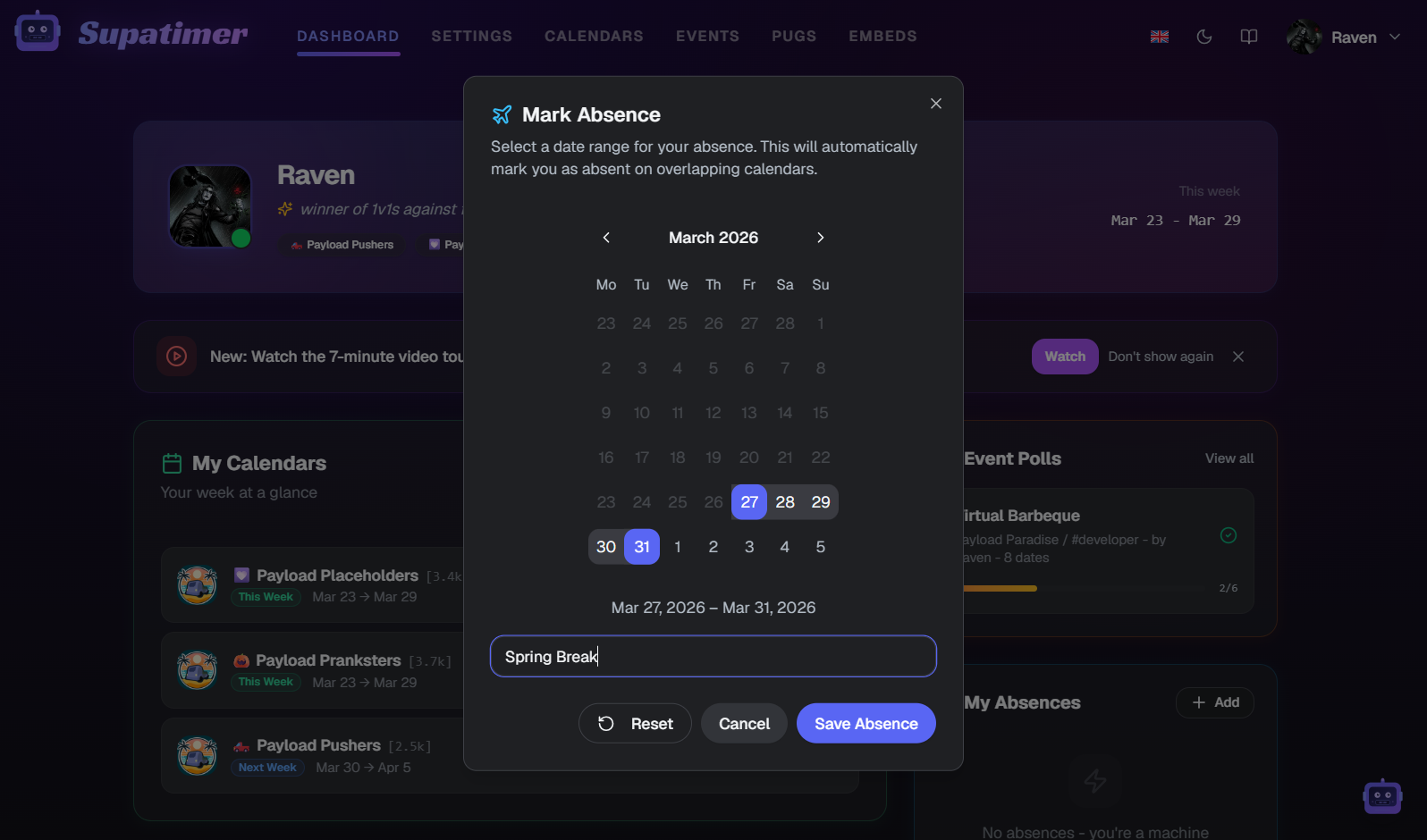
- 2Click 'Add' to create a new absence. Set the date range and an optional reason.
- 3Edit or delete existing absences by clicking on them in the list.
- 4Team managers see a 'Team Absences' card showing who on the team is unavailable and when.
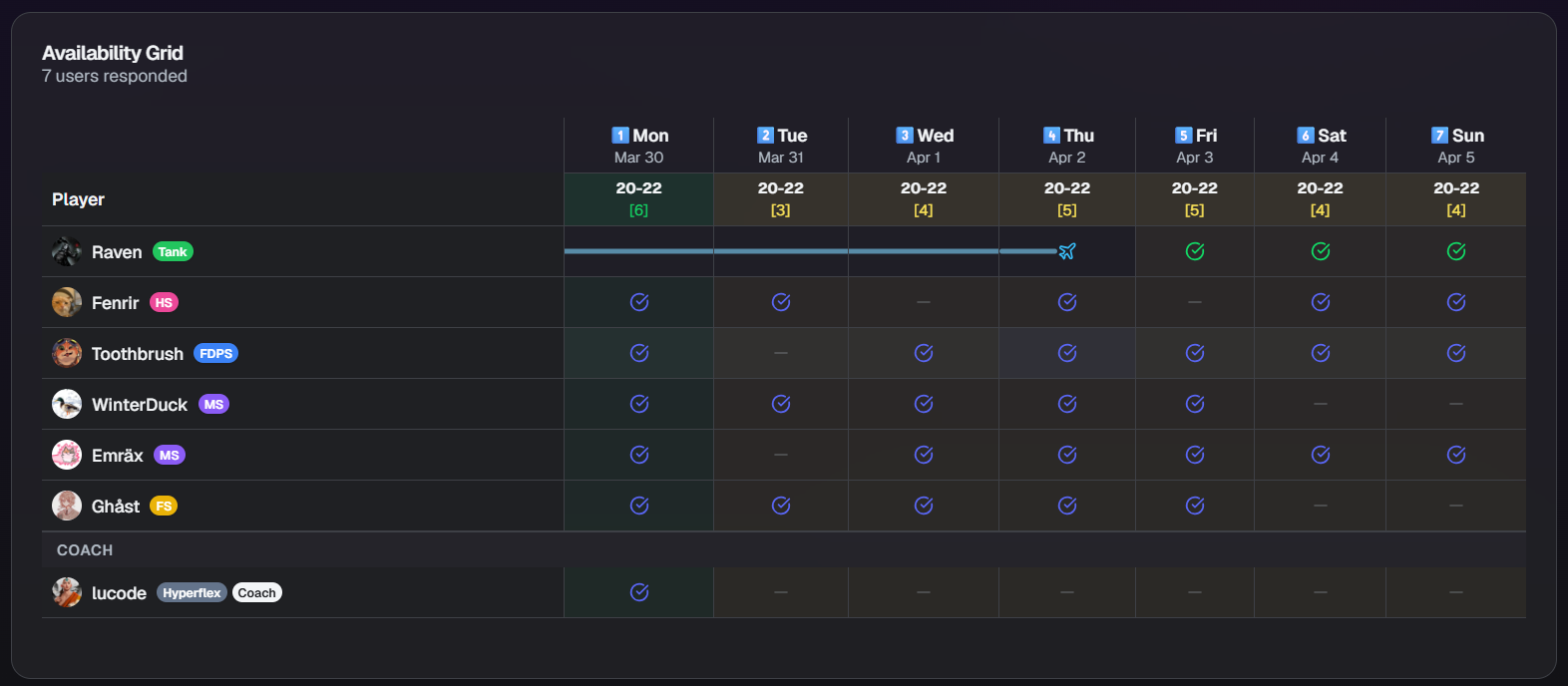
- 5Absences are factored into calendar availability - days you're marked absent will show as unavailable. An absence only silences the ping reminders when it covers the whole week - if you are back mid-week, you are still asked for the days you can play.
Screenshots
Google Calendar Sync
Booked scrims land in your own Google Calendar automatically. Supatimer creates one dedicated "Supatimer" calendar in your Google account and keeps it in sync - it cannot see or touch anything else in your account.
How to use
- 1Open your Account page (user menu, top right) and click 'Connect Google Calendar' on the Google Calendar card - or use the Google Calendar band at the bottom of the Scrims card on your dashboard.
- 2Approve the Google consent screen. Supatimer asks only for the right to manage calendars it created itself, plus your email address for display.
- 3That's it. Every upcoming scrim you're tagged in appears in the new "Supatimer" calendar within a minute, and new bookings show up seconds after they're posted.
- 4Edits follow along: a moved scrim updates its event, a lineup change adds or removes you, and a cancelled scrim disappears from your calendar.
- 5Disconnect any time from the same card. Syncing stops, but the Supatimer calendar and its events stay in your Google Calendar - delete them there if you want them gone.
Note: The Supatimer calendar is a normal secondary calendar in Google: show, hide, or recolor all your scrims as one unit, on every device where you use Google Calendar.
Auto-post Calendar
Supatimer posts the weekly availability calendar for you, on a schedule - no more remembering /avail.
How to use
- 1Open Team Settings and find the Auto-post calendar card in the Scheduling group.
- 2Turn it on, pick a day and a time (in the team's timezone). The card shows exactly when the next post lands and which week it covers.
- 3Posting on Monday posts the week starting that same Monday; any other day posts the upcoming week, so players can fill it in before the week starts.
- 4If that week's calendar is already posted, the auto-post skips - never a duplicate. If posting fails, team managers get a DM with the reason and the bot tries once more 3 hours later.
Note: Auto-posting is in closed beta - join our Discord server (invite at the bottom of this page) and ask Raven for access, and we'll switch your server on.
Scrims & stats
Ping Reminders
Supatimer tracks who has reacted to each scrim confirmation post and helps you nudge the rest - by hand for free, or automatically in the closed beta.
How to use
- 1Reaction tracking is on for every team: the bot counts reactions on its own scrim confirmation posts, and the post's dialog on the calendar page shows how many of the tagged players have confirmed.
- 2Click 'Ping non-reactors' in that dialog to mention everyone who has not reacted yet, with an optional short message. Anyone who can respond to calendars can use it.
- 3The button re-checks reactions live before sending, and two 1-hour cooldowns (post age and time since the last ping) keep it from spamming the channel.
- 4Automated reminders live on the Ping reminders card in Team Settings: up to 3 offsets each for scrim starts and for the start of the week (in the team's timezone), always firing on the full hour - a 20:15 scrim with a 1-hour reminder pings at 19:00.
- 5Switch on Auto cleanup (recommended) to have Supatimer delete each reminder an hour after it was posted - the channel keeps the scrim post and the conversation.
Note: Automated reminders are in closed beta - ask for access on our Discord server (invite at the bottom of this page) and we'll switch your server on. Reaction tracking and manual pings are free for everyone.
AI Auto-fill
Paste an opponent's Discord DM and let AI fill in the team name, rank, battletag and map pool for you - no retyping.
How to use
- 1Open a scrim confirmation post (or the Set opponent popover on the weekly calendar) and find the AI auto-fill section.
- 2Paste the opponent's message. You can also attach a screenshot of their map pool (up to 5MB).
- 3Click 'Parse info'. The opponent fields prefill, anything the AI could not match is listed for you to add by hand, and a map-pool comparison is appended to the notes.
- 4Check the prefilled fields before saving - the AI is a head start, not a source of truth.
Note: AI auto-fill is in closed beta for Overwatch and Marvel Rivals teams - join our Discord server (invite at the bottom of this page) to get on the beta list. Pasted text and images are sent to the AI provider for parsing, and a counter on the card shows your remaining parses.
Scrim Stats
Turn SupaScrim recordings of your Overwatch scrims into scores and per-player stats - no manual bookkeeping.
From lobby to stats
- One-time setupEveryone
One Overwatch client setting, once per player who records - nothing else in this section works without it.
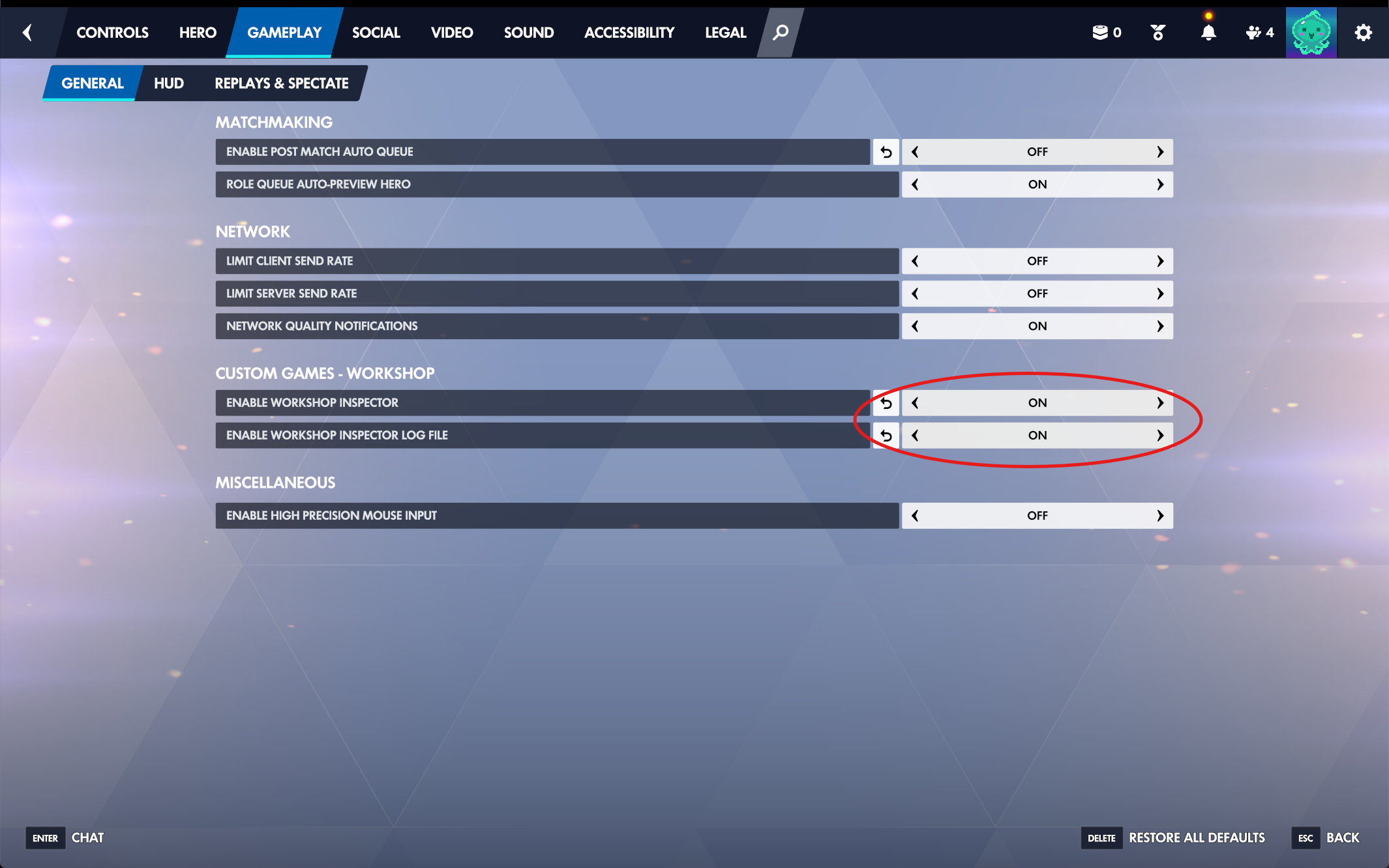
- 1In Overwatch, open Options > Gameplay and turn on 'Enable Workshop Inspector Log File'. It is off by default - without it, custom games write no log at all.
- 2The setting is per player: only players who have it on save files, and only for maps they are in. Make sure at least your usual lobby host enables it.
- Record every mapEveryone
Each scrim, one player hosts the lobby with the SupaScrim workshop mod - that is the whole recording job.
- 1Host the custom game with workshop import code M3FFX (SupaScrim, our own workshop mod). Everything is already set: log generator on, 1% payload and 5% point steps, kill cam off - nothing to toggle before a lobby.
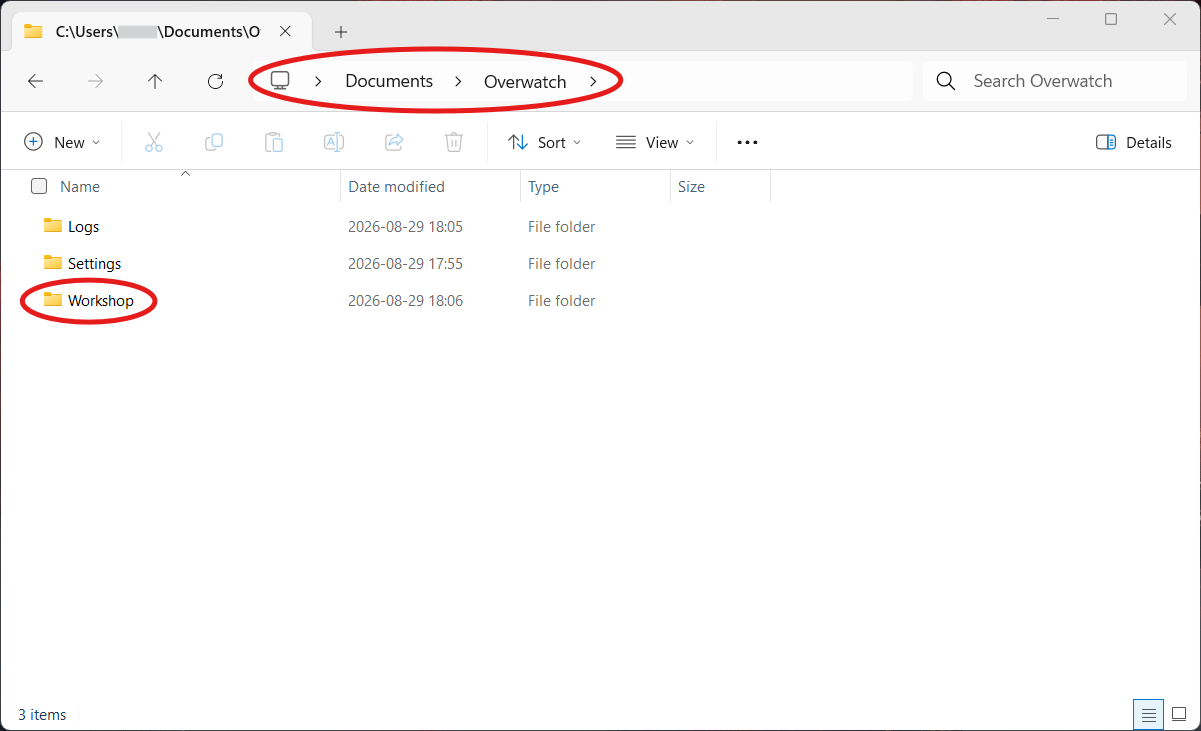
- 2Play as usual and stay in the lobby for the whole map - every finished map saves one Log_*.txt under Documents\Overwatch\Workshop on the host's PC.
- Upload and reviewTeam Manager
After the scrim, the night's files become scores and per-player stats on the dashboard.
- 1Open Stats in the top navigation and pick your team, then click Upload logs (the Stats button on the Teams list works too). Straight from Discord, the Stats & logs button under a Scrim Confirmed! post opens that scrim's own stats once its logs are in, and the team's stats page before they are.
- 2Drop the evening's files - every map parses into a score and per-player stats, with duplicates and cut-short logs flagged.
- 3Confirm the player matches - linked Battle.net accounts match automatically; assign the rest once and your team remembers them.
- 4Attach the upload to the scrim on your schedule - suggested automatically when the date is unambiguous, and otherwise your last scrim is assumed and marked as a guess. The import waits until a scrim is picked, and an empty scrim score fills itself from the parsed maps.
- 5Read the results: maps summary first, then evening totals, then per-map tables for both teams. Each history row carries a Score/Log segment that turns amber only for what you can still add - click Score to enter one (the same form the dashboard uses) - and the green Stats cell beside the score opens the full analysis. Inside an upload, click a map's result or score to correct it, and click any incomplete stat marker (+ or ?) to see which heroes the workshop mod never records.
- 6Split a map by half: above the per-map table, Escort and Hybrid maps offer Attack and Defense, and modes with no attacking side offer Round 1, 2 and 3. It appears only when a map has a split stored - older maps show it after a Re-analyze, as long as their original log is still inside your history window.
- 7Post the results back to Discord: fill in each map's replay code, then press Post to Discord in the scrim's header. Supatimer sends a code block under the Scrim Confirmed! message with every map, its score, its replay code and W, D or L. Post it again later and you choose between updating that message or deleting it and posting a fresh one. Push maps read 0-0, the way Overwatch shows them, unless a team pushed the robot all the way, which reads 1-0; a map the log could not decide reads (?) instead of a guess. Once every code is in, Supatimer asks whether to post - and takes no for an answer. The Score line on the Scrim Confirmed message is refreshed in the same press, so it stops disagreeing with the block underneath it: the maps decide it, unless you chose Keep manual on the score banner. The dialog shows you that line, and the score it replaces, before you post.
Screenshots
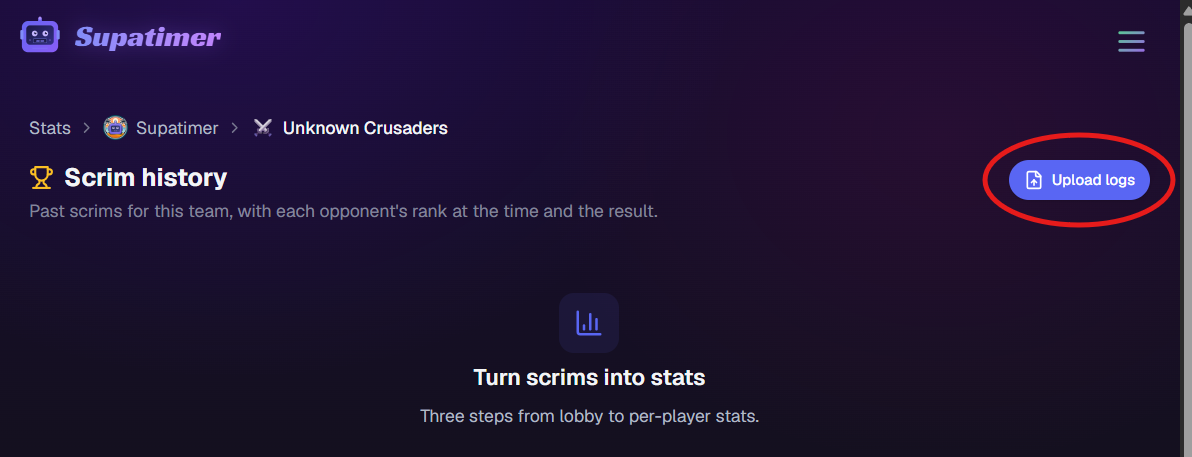
Note: Dry-run tip: before your first real scrim, load the M3FFX lobby solo for a minute, end the match, and check that a Log_*.txt appeared. Link Battle.net accounts on the Account page (avatar menu) so stats attach to players automatically. Raw log files are kept for 60 days; each team keeps full stats for its last 50 scrims, and a scrim's result is kept for good. The Stats access section in Team Settings decides who can see a team's stats and who can upload logs - grant either to a role or to one person, such as a coach or a spectator.
Battle.net Accounts
Link your Battle.net accounts to your Supatimer profile so scrim stats attach to you automatically - verified once, matched forever.
How to use
- 1Open your Account page (user menu, top right) and click 'Connect a Battle.net account' on the Battle.net accounts card.
- 2Log in on Blizzard's own page. Supatimer never sees your password - Blizzard only confirms which BattleTag is yours.
- 3You land back on the Account page with the account listed as verified. Repeat for alt accounts - you can link as many as you play on.
- 4From then on, uploaded scrim logs match your stats to you automatically, and verified BattleTags win over hand-typed ones everywhere.
Note: A Battle.net account can only be linked to one Supatimer user. Unlinking stops future matching but keeps the stats already attributed to you. Discord stays the only way to log in - Battle.net linking is identification, not a login.
FACEIT
Link your FACEIT account once. Your level then shows on your team's roster and in opponent search, and a FACEIT night is one more event type on the calendar.
How to use
- 1Open your Account page (user menu, top right) and click 'Link FACEIT account'. Log in on FACEIT's own page - Supatimer only ever sees your nickname and your levels.
- 2Your level for the team's game appears on the Members page beside your name, and your team's level range shows under Opponent discovery in Team settings.
- 3Searching for an opponent shows each discoverable team's FACEIT level range - when they have chosen to share it. Picking one fills the rank field as verified.
- 4On the calendar, pick FACEIT as the event type, choose Ranked PUGs or a match vs a team, fill the seats and post. A seat whose player has not linked FACEIT is ringed so you can see who cannot queue.
Note: FACEIT only shows for games FACEIT runs - Overwatch to start. One FACEIT account per person; unlinking removes your level from every roster.
Events, PUGs & extras
Event Planner
Event Planner lets admins ask the team questions and collect votes. Polls appear both in Discord and on the web.
How to use
- 1Navigate to 'Event Planner' from the top nav. Polls are grouped by status: open, closed, and past.
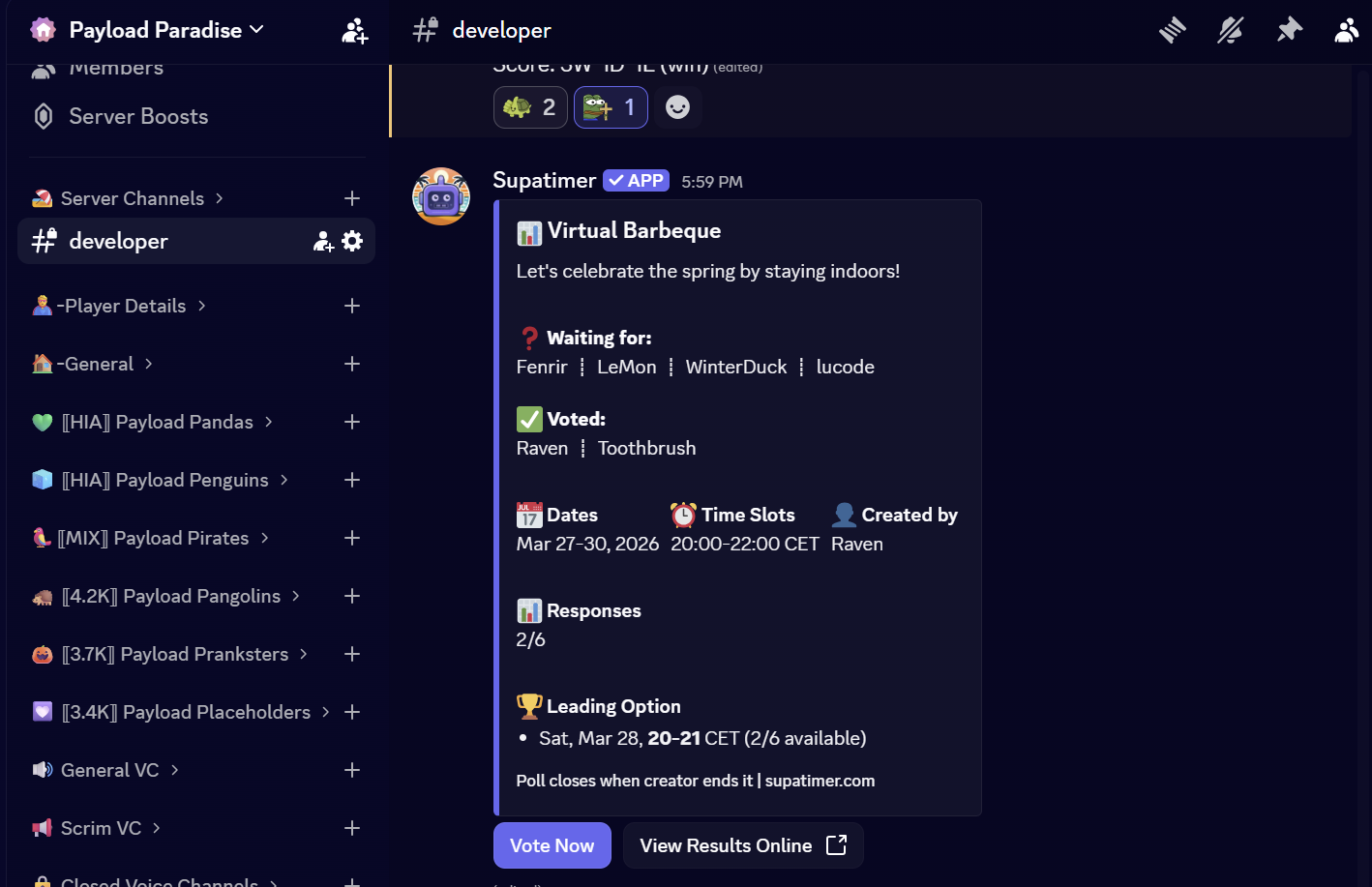
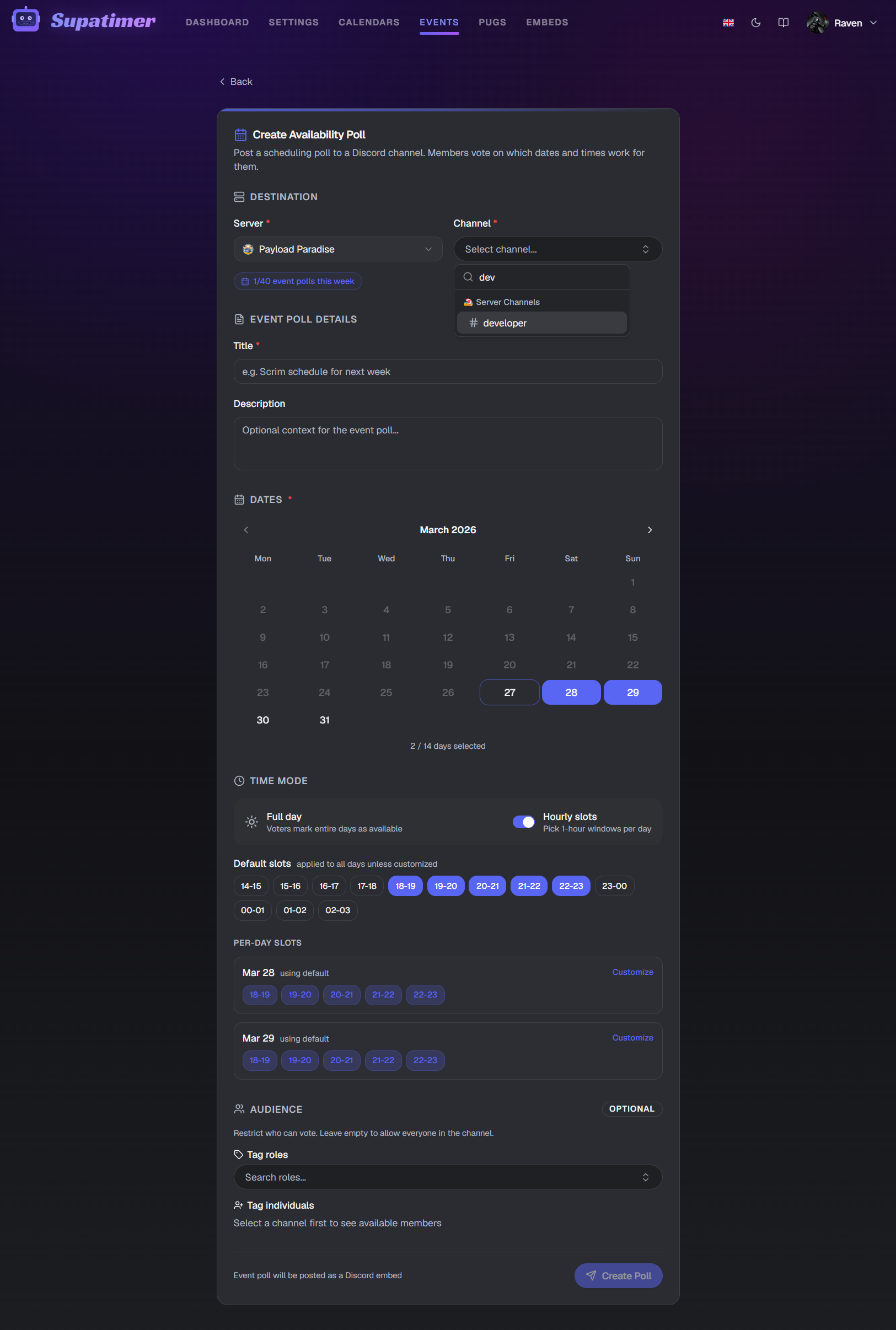
- 2Click 'Create Event' to start a new event. Set a title, options, and which server/channel to post in.
- 3Team members can vote directly on the web, or click 'Vote Now' on the Discord embed to open a personal menu with their available slots pre-selected.
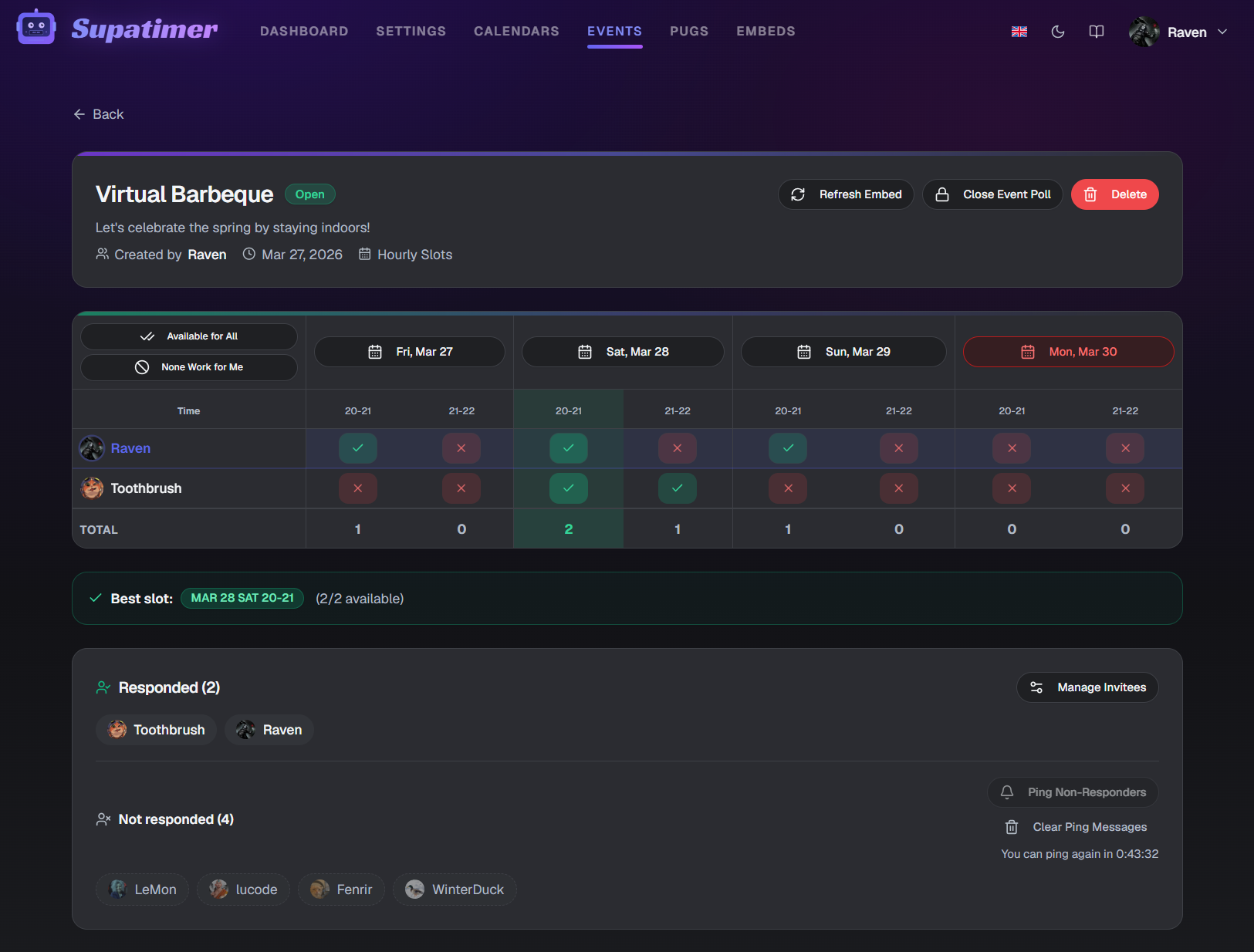
- 4Click an event card to see the detail page with vote counts and who voted for what.
- 5Each server has an event quota shown as a badge (e.g. 3/5). When the quota is exceeded, new events are blocked until the weekly reset.
- 6On an event's detail page, click the eye icon on a voter's row to hide voters you don't need to see. A bar above the grid lists who you've hidden, so you can bring back one or everyone. It only changes your own view (saved in your browser) and never affects the vote counts.
Watch
Screenshots
PUGs Planner
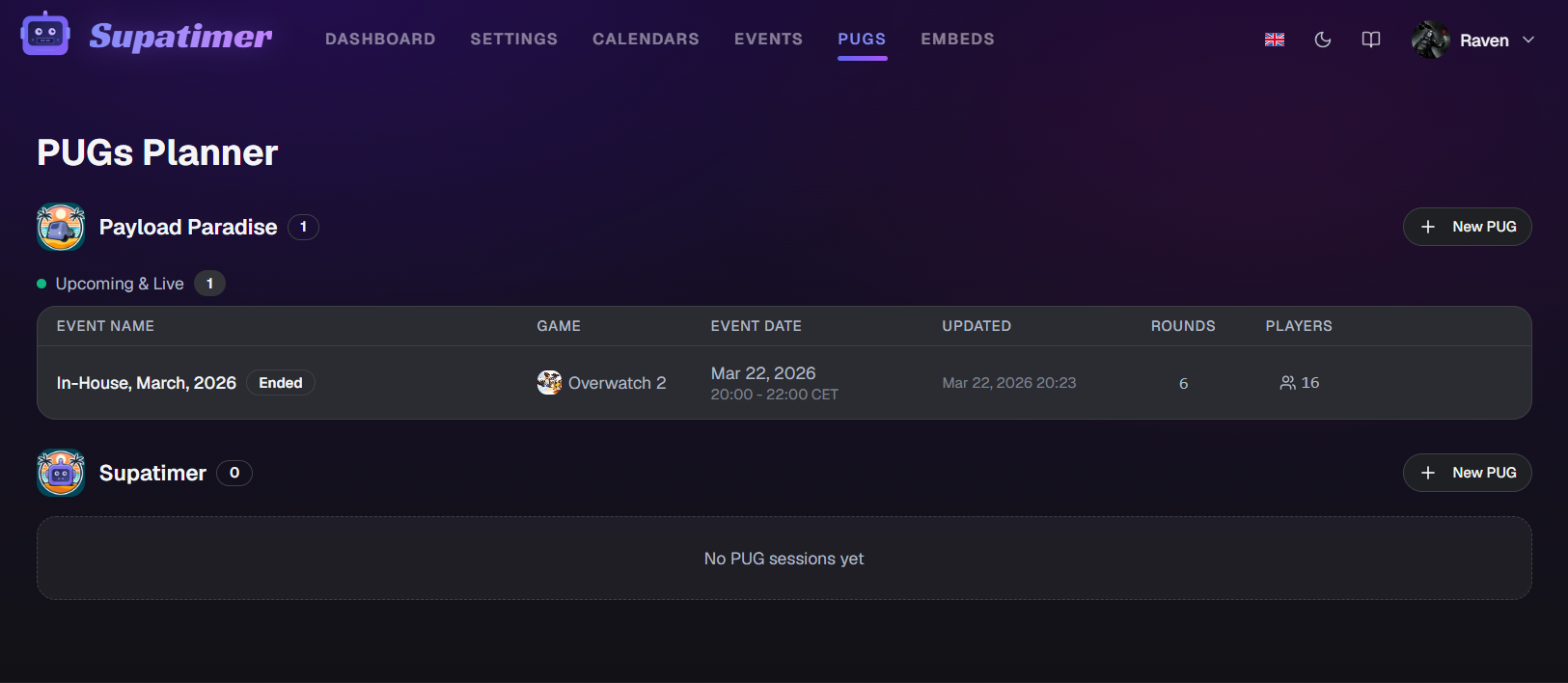
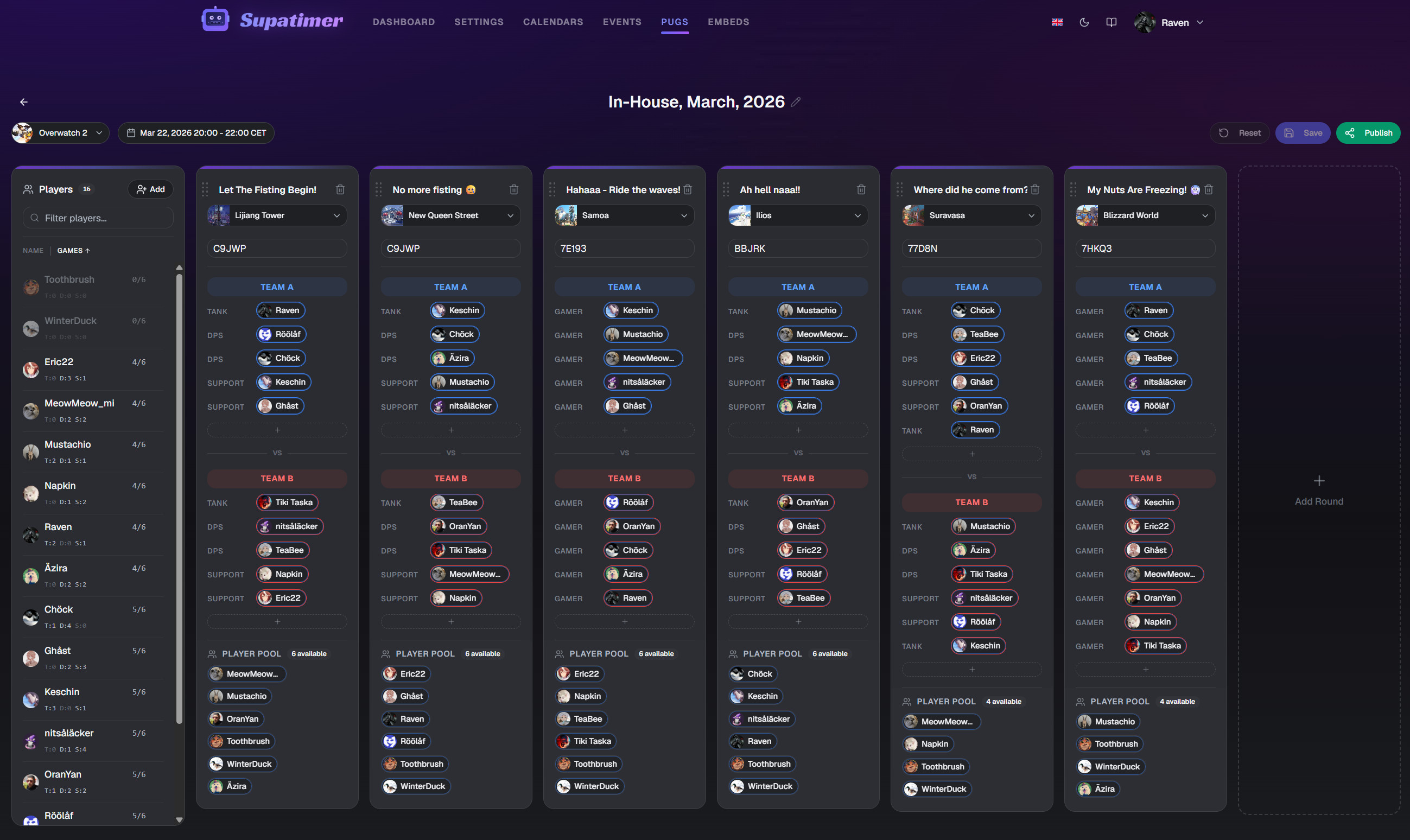
The PUGs Planner helps you organize pick-up game sessions. Build a roster from your server members, set up multiple rounds with role-based team slots, and share the result with your server.
How to use
- 1Navigate to 'PUGs Planner' from the Tools menu. You'll see your active and past PUG sessions grouped by server.
- 2Click 'Create PUG' to start a new session. Give it a name and optionally set a scheduled start and end time.
- 3Add players from your server to the session roster using the 'Add Players' dialog.
- 4Create rounds and assign players to team slots. Drag and drop players between roles (tank, DPS, support, flex) to build balanced teams.
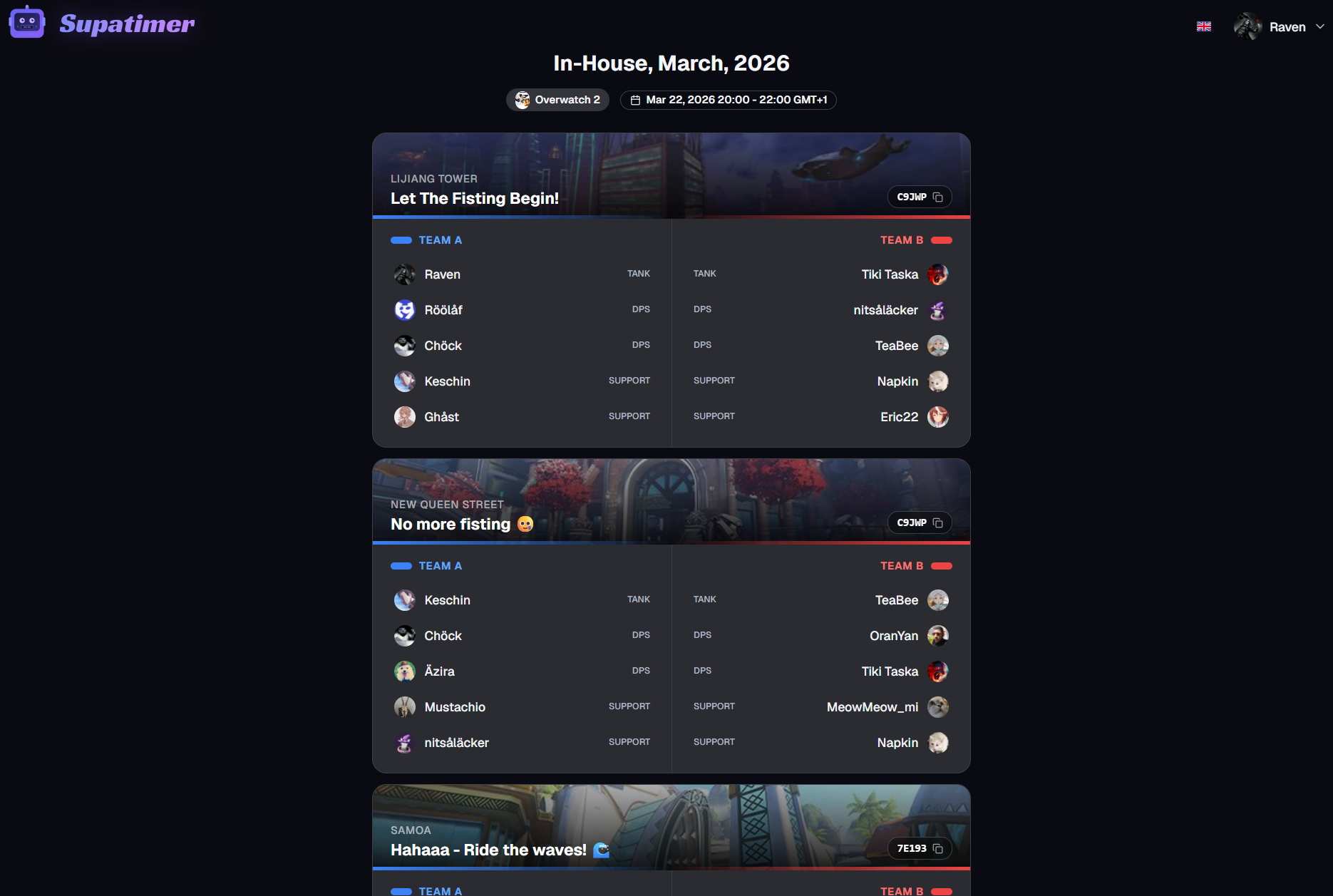
- 5Click the share button to generate a public link. Anyone with the link can view the session lineup without logging in.
- 6Use 'Post to Discord' to send an embed to a channel so your server knows the lineup is ready.
Screenshots
Fun Commands
Supatimer includes lighthearted social commands you can use in any channel. Server admins can toggle each command on or off in Server Settings.
How to use
- 1Type /roast and pick a server member from the target option. The bot posts a random burn mentioning that player publicly in the channel.
- 2Roasts are randomly selected from over 700 lines - a mix of gaming and everyday humor. Each one starts with the target's @mention.
- 3Admins can disable /roast for a server in Server Settings under Fun Commands. When disabled, anyone who tries the command gets a notice.
- 4New servers have /roast enabled by default. Toggle it off any time if you prefer a more serious atmosphere.
Setup & admin
Settings
Settings lists every Discord server where you and the bot are both present. Pick a server to open its management areas. What you see depends on your role: everyone can view calendars; team managers and admins get additional tools.
Areas inside a server
- Server SettingsAdmin
Configure allowed channels, roles, time slots, and bot-wide options for this server. This is the web equivalent of /config.
- Team SettingsTeam Manager
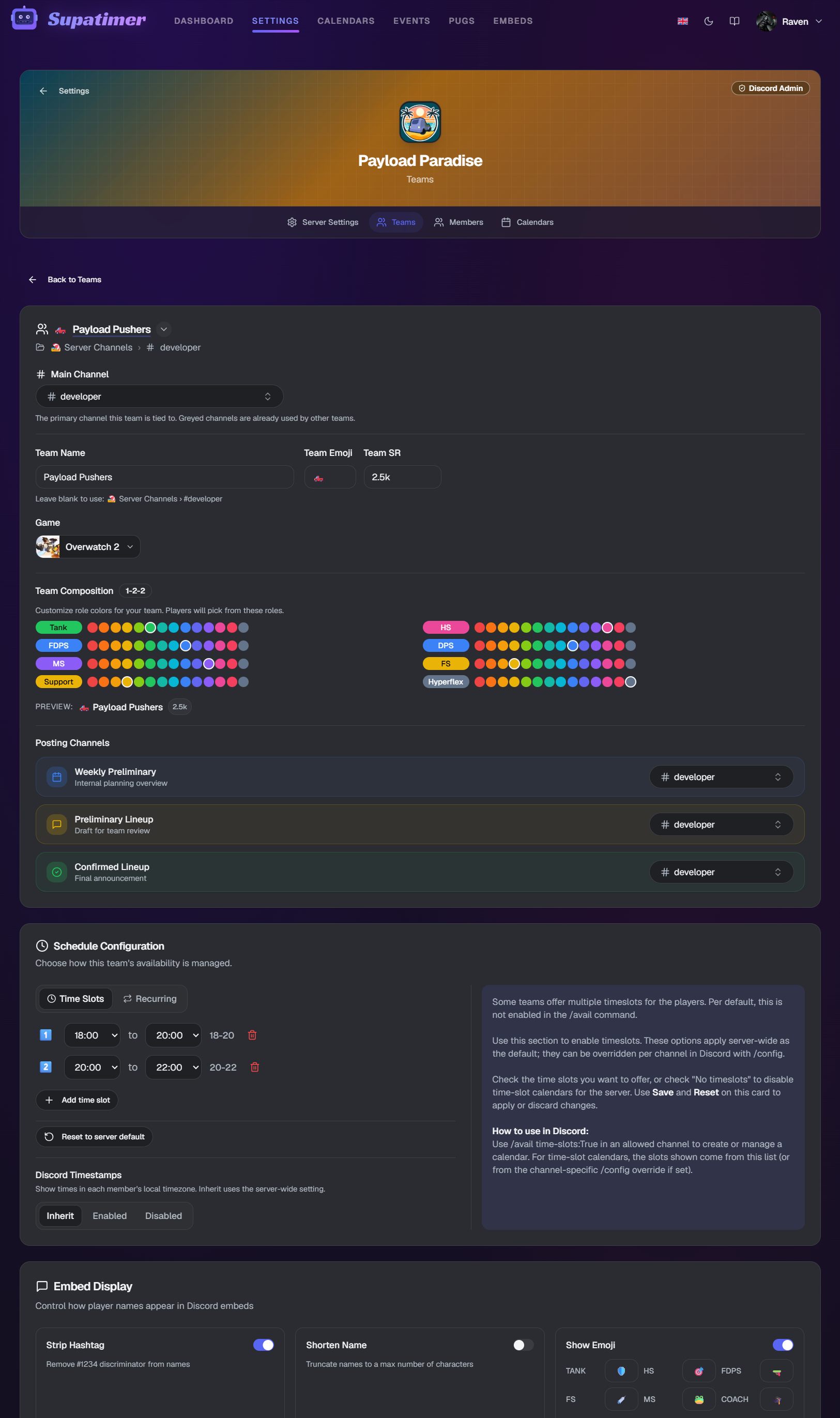
Who the team is - name, Discord channels, game and role colors, scrim exchange info, map pool, opponent discovery, managers and stats access.
- Calendar SettingsTeam Manager
When the team plays and how it looks in Discord - schedule, pings, auto-post, reminders, layouts and footers.
- Roster SettingsTeam Manager
Browse members and configure roster roles, player status, and lineup-related fields for teams you manage.
How to use
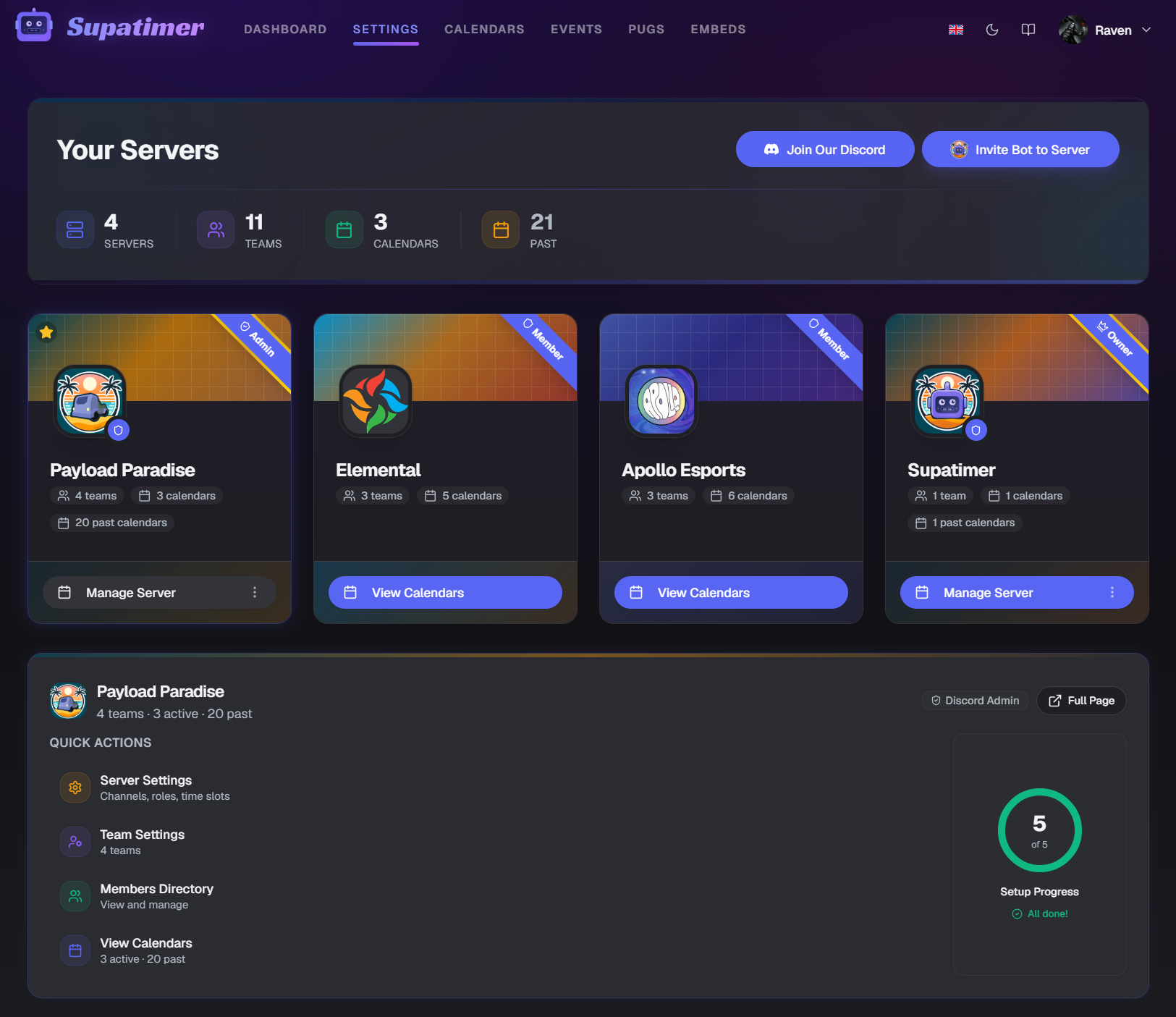
- 1Navigate to 'Settings' from the top nav. Each server is a full-width row in its own colors, showing the server icon, name, and your access level.
- 2The header shows stats: total servers, teams, and active calendars across all servers.
- 3Click the star on a server row to favorite it. Favorited servers appear first, and one row is always expanded - your favorite when you have one.
- 4Click a server's banner to expand it. The fold leads with four large buttons - Server Settings (admins), then Roster Settings, Team Settings and Calendar Settings (team managers and above) - and your teams sit as smaller tiles under a Teams heading below them, where a team opens into its Team, Calendar and Roster settings. Buttons you can't use stay visible but locked.
Watch
Screenshots
Roster Settings
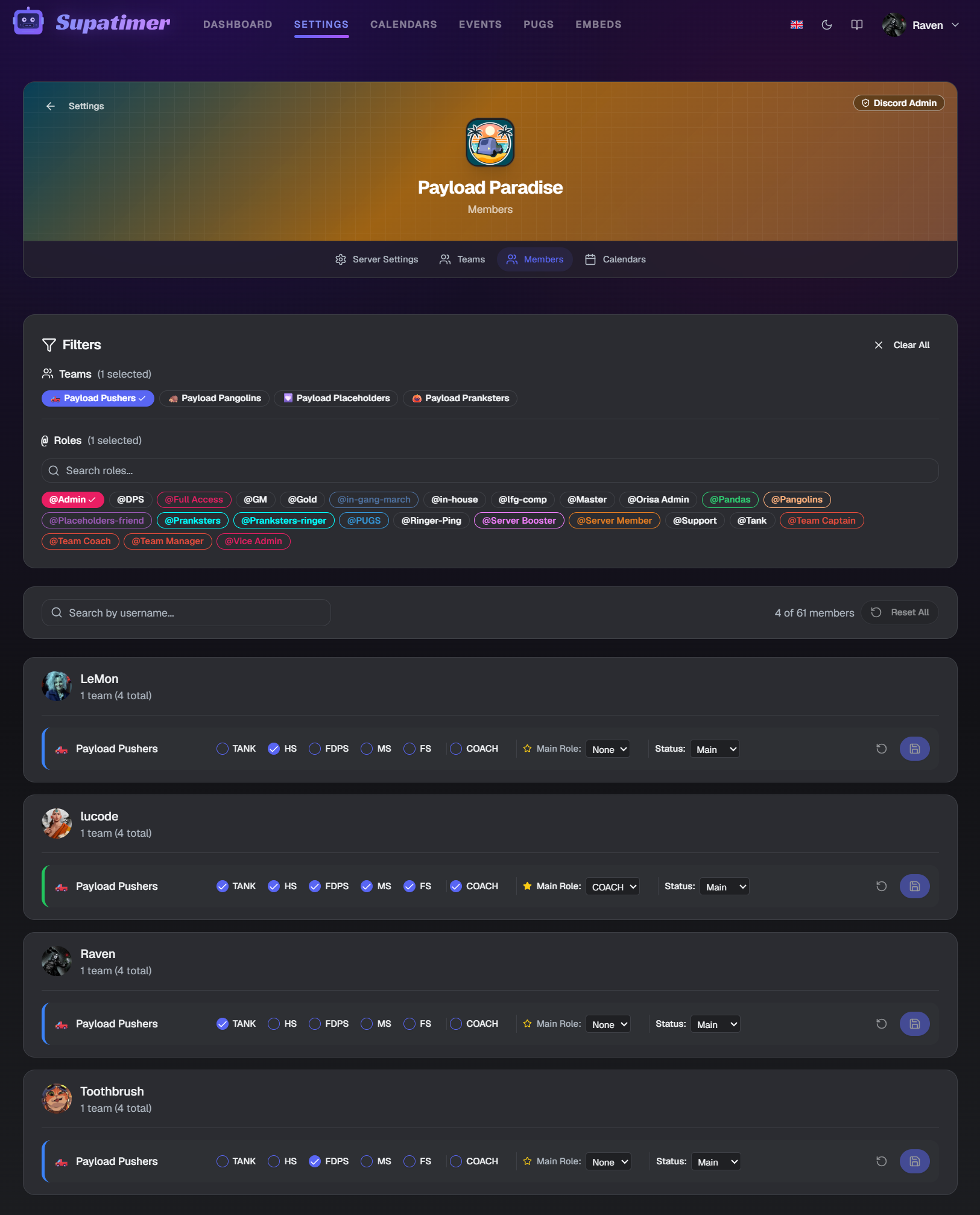
Roster Settings lets team managers and admins configure each Discord member's in-game roles and status. This data drives the bot's automatic lineup generation and weekly preliminary features.
How to use
- 1Open Settings from the top nav, select a server, then open Roster Settings. You'll see all members grouped by team channel.
- 2Each member row has checkboxes for game-specific roles. Overwatch teams show Tank, HS, FDPS, MS, FS. Other role-structured games show their own roles (e.g. Vanguard, Duelist, Strategist for Marvel Rivals). Headcount games like Apex skip role checkboxes entirely.
- 3Set each member's player status using the dropdown: Main, Tryout, Sub, Ringer, or Coach. Coaches can track availability but are excluded from lineups and player counts.
- 4Select a primary role for each member - this is used when auto-generating lineups.
- 5Use the filter bar to search by name, filter by Discord role, or filter by team.
- 6Click 'Copy from above' to quickly duplicate role assignments from the previous channel section.
- 7Changes are not saved automatically. Click the floating 'Save' button at the bottom to save all changes at once.
Watch
Note: Configuring members is essential for the /weekplan command and automatic lineup generation. Without role assignments, the bot cannot create preliminary lineups.
Team Settings
Team Settings is the team's own page: its game and role colors, identity and Discord channels, scrim exchange info with a live Discord preview, map pool, opponent discovery, managers, stats and score access, plus a danger zone.
How to use
- 1Open Settings from the top nav, select a server, then open Team Settings. Each row has two buttons - Team settings and Calendar settings - to jump straight to that team's cards.
- 2Each row shows the team name, rank, a game badge, and a configuration status badge (configured or not configured). Admins get an Add team button here - pick the channel the team lives in and you go straight to its Team settings.
- 3Click a row's Team settings button. The Game card comes first: pick the game, then click a role chip to pick the color it wears - a preset, or any color of your own; Copy from takes another team's colors. Right under it, the Language card sets what the bot posts in for this team - any of the seven languages the dashboard speaks.
- 4Team identity holds the name, emoji and rank, with a preview of how the team shows up. Discord Channels sets the home channel and where lineups, prelims and confirmed posts go - each pick fronted by the emoji its posts carry.
- 5Scrim Exchange Info: every row has a show checkbox and Yes, No or No preference. Add a line gives the team lines of its own, like Stream: On. The Discord block under the rows is exactly what the other team gets from the Info buttons and from Share scrim info.
- 6Map pool: pick the maps your team plays per mode; the preview under the grid shows the map variant of the block, drawn as Discord draws it.
- 7Opponent discovery is On or Off: let this team find, and be found by, other teams in this server when setting scrim opponents.
- 8Team managers, Stats access (who uploads and edits, who sees) and Who can update scores each pair roles with members. Team managers always can do all three.
- 9Share scrim exchange info publicly - use the Share button in the Discord Actions bar to generate a link anyone can view without logging in. Pick the day and detail level, then copy the link to paste in LFG channels or DMs.
- 10Delete a team from the Danger zone at the bottom of its settings - type delete to confirm. This frees up the team's channel and removes its settings; calendars it already posted are left alone. Admins only.
Watch
Screenshots
Calendar Settings
Calendar Settings is the team's second page: when it plays and how its calendar looks in Discord. Every week the team posts follows it.
How to use
- 1Open it from the Calendar Settings tile, tab or the gear on a calendar.
- 2Schedule Configuration sets time slots or a time range, the timezone and clock, Discord timestamps and maybe - with a Discord example under the mode you pick and a live demo of how members answer.
- 3Who gets pinged lists the roles pinged and tracked on every calendar. To change just one week's roles, use the This week menu on the calendar page instead.
- 4Auto-post calendar posts the weekly calendar for you on a schedule (closed beta).
- 5Automated reminders (@pings) pings players who still owe an answer, before the scrim or before the week starts (closed beta).
- 6Availability Calendar, Board Emoji Style and Weekly Preliminaries shape the posts, each with a live preview; Discord Names controls how player names print.
- 7Footers set the text shown under each post the team makes.
Note: The old Calendar Admin page now forwards here. Reposting a deleted calendar and deleting a week moved to the This week menu on the calendar page.
Server Settings
Server Settings is the admin's overview: every team's settings side by side, one Save for all of them, and Copy from to make one team match another.
How to use
- 1Open Settings from the top nav, pick a server, then open Server Settings. Every card lists your teams as rows.
- 2Manage teams - add a team in four quick steps (its channel, its game, its emoji, name and rank, and optionally a team to copy every setting from). Emoji, name and rank are edited right in the row afterwards; Delete asks you to type the word first.
- 3Supatimer Admins and Who can post calendars - roles and members. Discord administrators and the server owner always count.
- 4Team Managers, Stats access and Who can update scores - per team; click Edit to change a row, or Copy from to take another team's picks.
- 5Auto-post, Who gets pinged and Automated reminders (@pings) - each team's own value, edited here or on its Calendar Settings page.
- 6Schedule Configuration, Availability Calendar, Board Emoji Style and Discord Names are view-only here: compare teams and Copy from one to another; change them on the team's Calendar Settings page, where the Discord previews live.
- 7Nothing leaves until you press Save - the bar at the bottom saves every changed team at once and tells you per team if something failed.
- 8If Supatimer needs to hand out Discord roles, drag its role above them in Server Settings > Roles. Discord will not let a bot manage roles listed above its own, even with Administrator. Server settings warns you when this applies.
- 9Playing a game Supatimer does not list? Pick Custom Game in the team's Game row, then name it and add 3 to 16 slots using your game's own position names.
Watch
Note: For first-time setup, the /setup command in Discord provides a guided wizard that covers the same settings.
Need help? Join our Discord server or check the Discord Bot Commands reference.