Web-Anleitung
Anleitung fuer jede Funktion des Supatimer Web-Dashboards. Jeder Abschnitt enthaelt Schritt-fuer-Schritt-Anleitungen.
Fragen oder Feedback? Tritt unserer Discord-Community bei fuer Hilfe.
Discord beitretenHier starten
Erste Schritte
Ein Team einzurichten dauert vier Schritte, und die Einrichtungskarte auf den Seiten deines Servers führt dich durch.
Anleitung
- 1Füge Supatimer zu deinem Server hinzu: Ein Discord-Bildschirm wählt den Server und meldet dich an, und der Bot tritt bei. Danach erscheint eine Einrichtungskarte auf den Seiten des Servers.
- 2Erstelle dein erstes Team: Kanal und Spiel, Name, Rang, Zeitzone und Region - und wer spielt (eine Rolle oder Spieler einzeln) und wer es leitet.
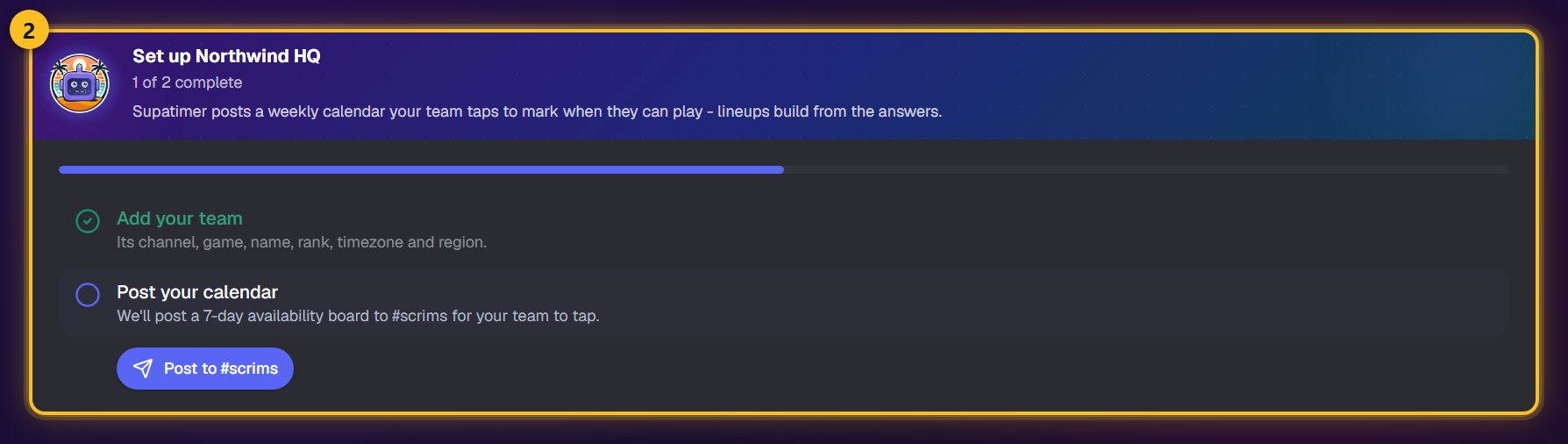
- 3Poste den Kalender im Kanal des Teams. Dein Team tippt die Tage an, an denen es spielen kann, und die Karte zeigt, wie viele geantwortet haben.
- 4Lege das Lineup der Woche fest: Markiere jeden Tag als Scrim, Training, freien Tag und so weiter, und poste dann die Woche in Discord.
- 5Wer spielt und wer leitet, kannst du überspringen und später in den Teameinstellungen festlegen. Ignorieren legt die Karte weg.
- 6Schritte, die woanders erledigt werden - etwa ein mit /avail geposteter Kalender - werden von selbst abgehakt.
Ansehen
Dashboard-Uebersicht
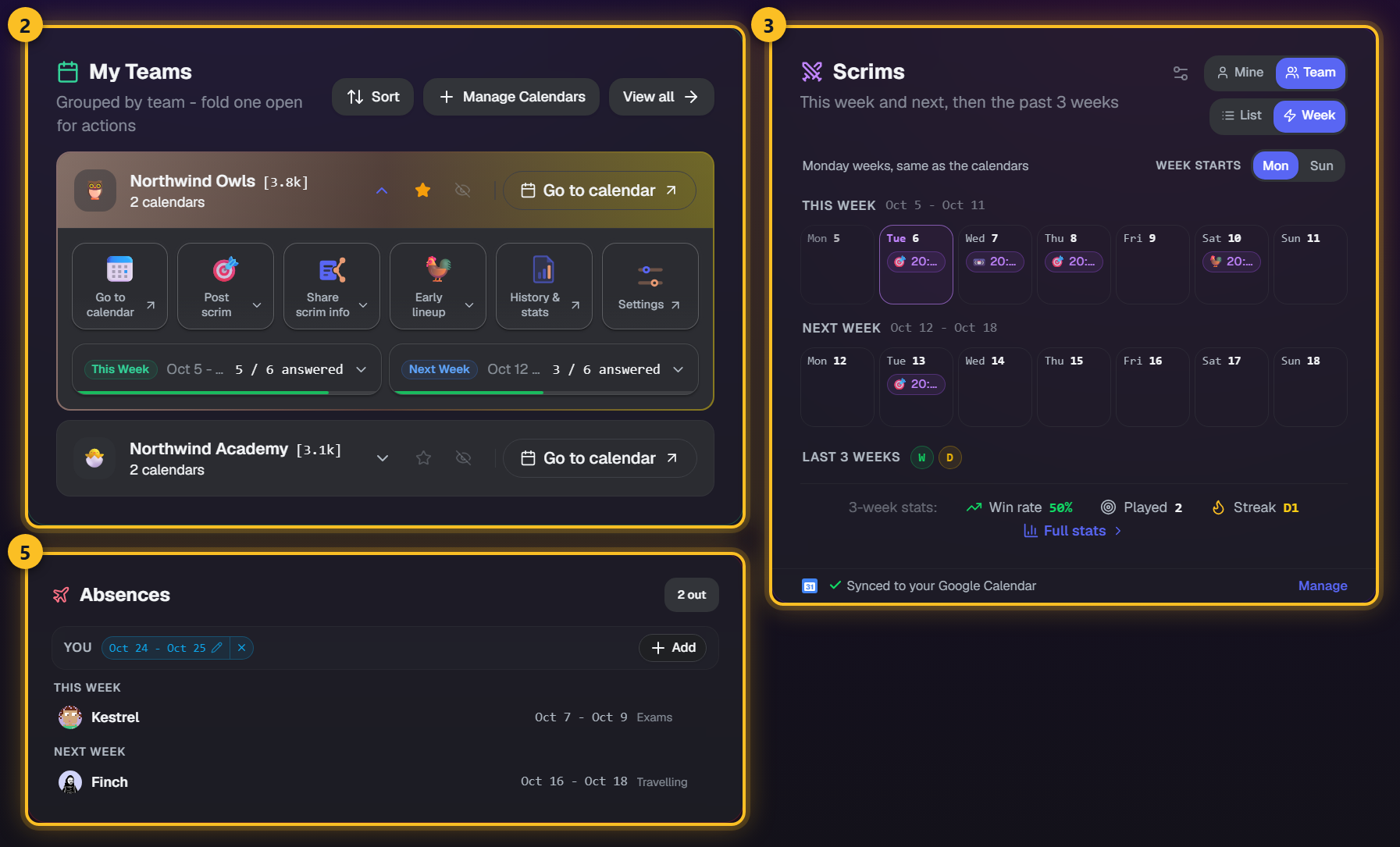
Das Dashboard ist deine Homebase. Es zeigt deine Teams, deine Scrims diese und nächste Woche, wer abwesend ist und welche Umfragen auf dich warten - auf einen Blick.
Anleitung
- 1Oben siehst du ein Aktionsbanner, wenn Kalender deine Antwort brauchen. Klicke darauf, um direkt zum Kalender zu springen.
- 2Die Karte Meine Teams gruppiert deine Kalender nach Team. Öffne ein Team für seine Aktionskacheln und zwei Wochenplätze: diese Woche und nächste Woche, jeweils mit der Zahl der Spieler, die geantwortet haben. Eine Woche, die noch niemand gepostet hat, ist ein gestrichelter Platz - er zeigt, wann das Auto-Posten sie postet, oder bietet Jetzt posten an. Klicke auf eine gepostete Woche, um zu sehen, wer geantwortet hat, und die übrigen anzupingen.
- 3Die Scrims-Karte zeigt diese und nächste Woche als Tageszellen - jedes Scrim, jede Aufstellung und Aktivität, die für deine Teams gepostet wurde, drei pro Tag und dann '+n mehr'. Schalte auf Liste für eine Zeitleiste: Anstehendes oben mit Countdown, gespielte Scrims darunter mit Ergebnis. Klick auf ein anstehendes Scrim zeigt, wer dabei ist und wer auf den Post reagiert hat, und pingt die Fehlenden; Klick auf ein gespieltes Scrim zeigt deine eigene Zeile aus dem Log - Helden, Elims, Tode, Schaden, Map für Map; Klick auf einen Tag zeigt alles an diesem Tag und deine Verfügbarkeitsantwort. Meine zeigt nur Posts, in denen du getaggt bist; Team jedes Team, in dem du bist, mit deinem Avatar auf den Zeilen, in denen du dabei bist, und den anderen abgeblendet, plus ein Zahnrad, um Teams abzuwählen, die nicht auf der Karte sein sollen - ein Ausgeblendet-Zähler unter der Überschrift sagt, wie viele fehlen (auf diesem Gerät gespeichert). Woche beginnt Mo / So verschiebt den Streifen auf deine eigene Woche und wird in deinem Konto gespeichert.
- 4Unter der Leiste: die letzten drei Wochen als Formkurve sowie Siegquote, gespielte Scrims und Serie für die gewählte Auswahl, mit Alle Statistiken zu deinen Statistikseiten. Ein gespielter Scrim mit angehängtem Log zeigt ein Diagrammzeichen, einer ohne ein Upload-Zeichen, und die Karte zählt die fehlenden. Die Unterkante der Karte verbindet deinen Google Kalender oder sagt, dass er synchronisiert ist.
- 5Die Seitenspalte hat die Abwesenheiten-Karte - deine eigene Zeile oben mit Hinzufügen, dann abwesende Teamkollegen gruppiert nach dieser Woche, nächster Woche und später - und Umfrageanfragen. Auf einem breiten Bildschirm rückt die Scrims-Karte neben Meine Teams.
Ansehen
Suche
Finde jede Seite und jede Einstellung von überall im Dashboard - über den Namen oder über das, was sie tut.
Anleitung
- 1Drücke Ctrl+K (Cmd+K auf dem Mac) oder klicke auf Suche in der oberen Leiste. Auf kleineren Bildschirmen steckt sie im Menü.
- 2Tippe, was du ändern willst. Die Suche versteht auch, was eine Einstellung tut - nicht nur ihren Namen.
- 3Die Ergebnisse umfassen Seiten, Einstellungsbereiche, einzelne Einstellungen, Guide-Kapitel und Bot-Befehle. Team- und Kalendereinstellungen erscheinen einmal pro Team oder Kalender - nur für Teams, die du verwaltest.
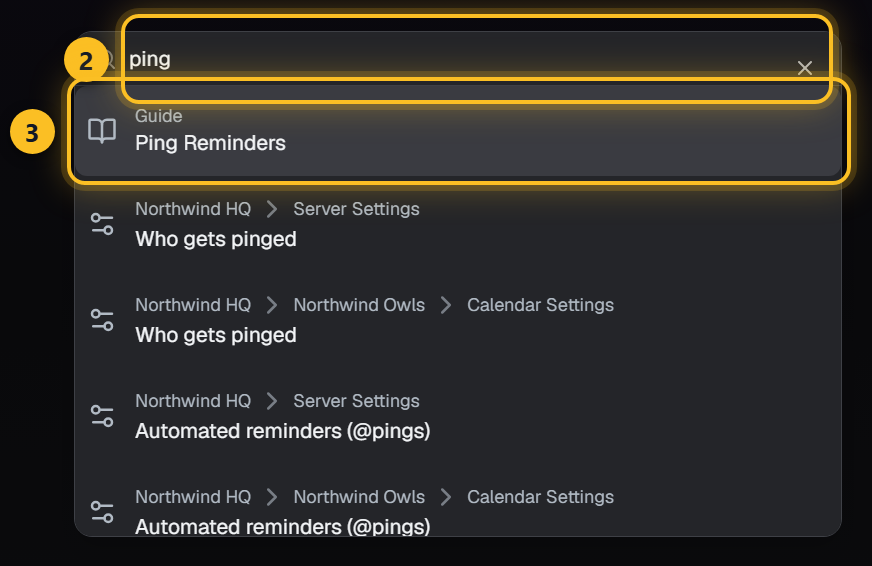
- 4Wähle ein Ergebnis und du landest genau an der richtigen Stelle, kurz hervorgehoben, damit du sie sofort siehst.
Hinweis: Die Suche gehört zum Dashboard und funktioniert dort auf jeder Seite, sobald du angemeldet bist. Die öffentlichen Doku-Seiten haben sie nicht.
Verfügbarkeit & Kalender
Kalender
Woechentliche Verfuegbarkeitskalender werden vom Bot in Discord gepostet und sind im Web sichtbar.
Anleitung
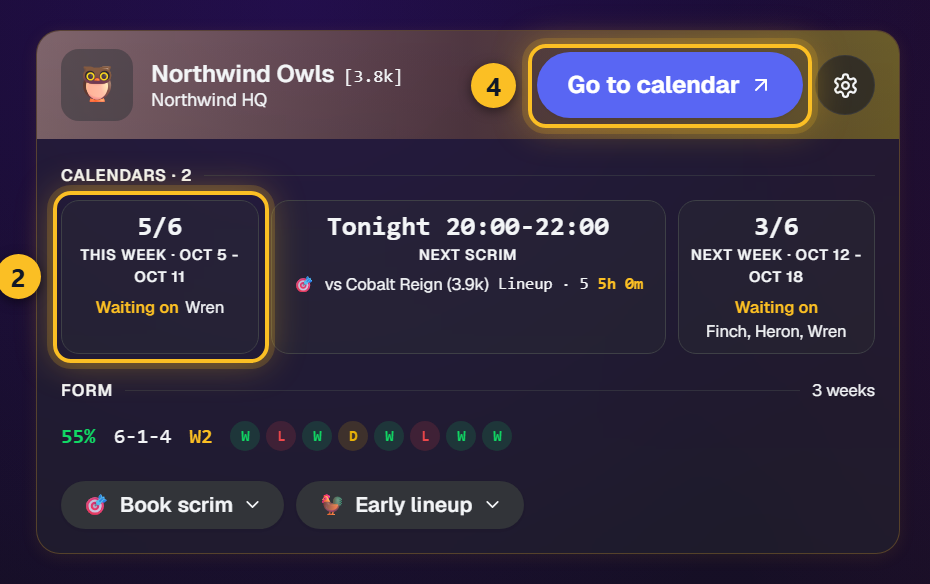
- 1Navigiere zu 'Kalender' im oberen Menue. Jedes Team bekommt eine Karte: seine Form, diese und naechste Woche, den naechsten Scrim und die Aktionen des Teams.
- 2Jede Team-Karte beginnt mit Diese Woche und Naechste Woche - wie viele geantwortet haben und wer noch fehlt - und dem naechsten Scrim dazwischen, dann die Form des Teams in einer Zeile: Siegquote, Bilanz und Serie der letzten drei Wochen und die letzten acht Ergebnisse. Fahre ueber die Zeile, um die Zahlen ausgeschrieben zu sehen.
- 3Klicke auf die Kachel Diese Woche oder Naechste Woche, um den Kalender dieser Woche mit dem vollen Verfuegbarkeitsraster zu oeffnen. Eine Woche, die noch niemand gepostet hat, sagt, wann Auto-Post sie postet, oder bietet Jetzt posten an.
- 4Das Banner jeder Karte traegt ein grosses Zum Kalender (Kalender posten, fuer ein Team ohne Kalender) und ein Zahnrad mit Zur Statistik, Mitglieder, Team-Einstellungen, Kalender-Einstellungen sowie Nach oben, Nach unten und Team ausblenden - die Reihenfolge gilt auch fuer Meine Teams auf dem Dashboard; bei zwei oder mehr Servern bekommt jeder Server ein eigenes Band, das sich ebenso sortieren und verstecken laesst. Scrim buchen und Fruehe Lineup stehen unten auf der Karte.
- 5Vergangene Kalender sind unten eingeklappt. Klicke zum Aufklappen.
- 6Oeffne die Einstellungen eines Kalenders (das Zahnrad auf der Kalenderseite), um Ping-Rollen und Zeitplan zu aendern. Der Bereich Discord-Look verlinkt direkt zu den Post-Nachrichten, Discord-Namen und Kalender-/Post-Layouts des Teams in den Teameinstellungen - sie gelten fuer das ganze Team und leben deshalb an einem Ort.
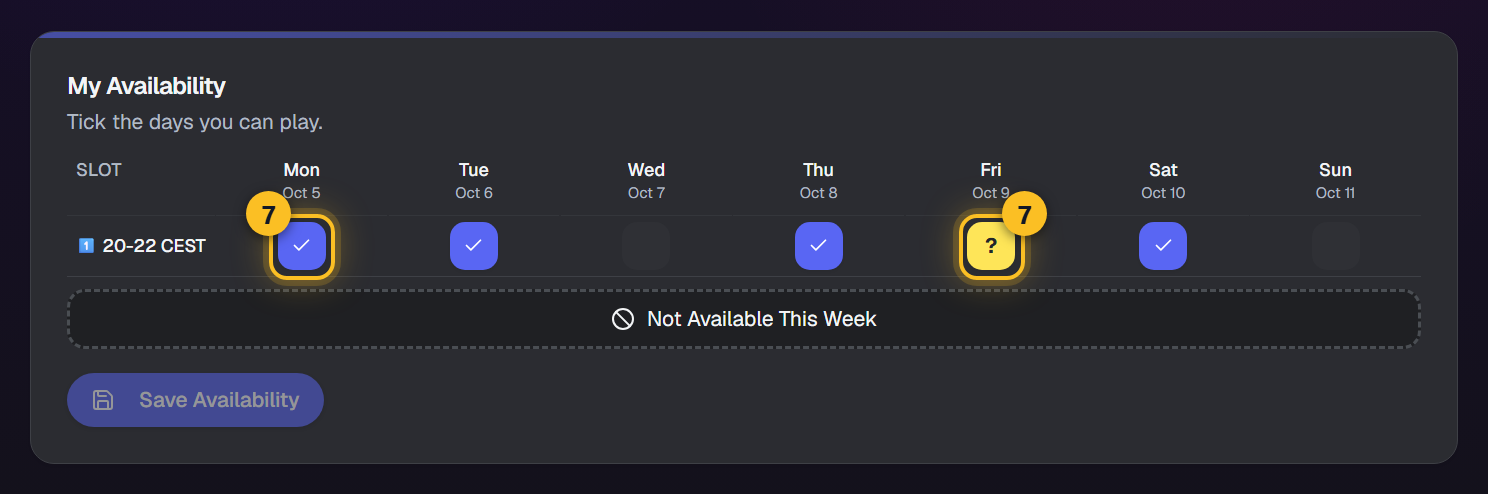
- 7Klicke auf ein Feld in Meine Verfuegbarkeit, um deine Antwort durchzuschalten: leer, ja, dann vielleicht. Vielleicht erscheint nur, wenn dein Team "Vielleicht" erlauben aktiviert hat, und es zaehlt weiterhin fuer eine Aufstellung, wird also mit einem Fragezeichen statt einem Haken angezeigt. Team-Manager koennen dieselben drei Antworten fuer jeden in der Verfuegbarkeitsuebersicht setzen.
- 8Wenn du eine bereits gepostete Scrim-Bestätigung oder ein Event (Team QP, VOD-Review, Meeting...) über die Post-Zeile des Kalenders öffnest, beginnt das Fenster mit denen, die noch nicht bestätigt haben - eine Zeile mit ihren Namen, ein Gesicht pro Spieler mit Haken oder Uhr - und einem Pingen-Button, der genau diese Spieler in Discord erwähnt. Dieselbe Zahl und derselbe Button stehen in der Zeile des Posts auf der Startseite. Einmal pro Stunde und Post, und es werden nur Reaktionen auf Supatimers eigenen Post gelesen.
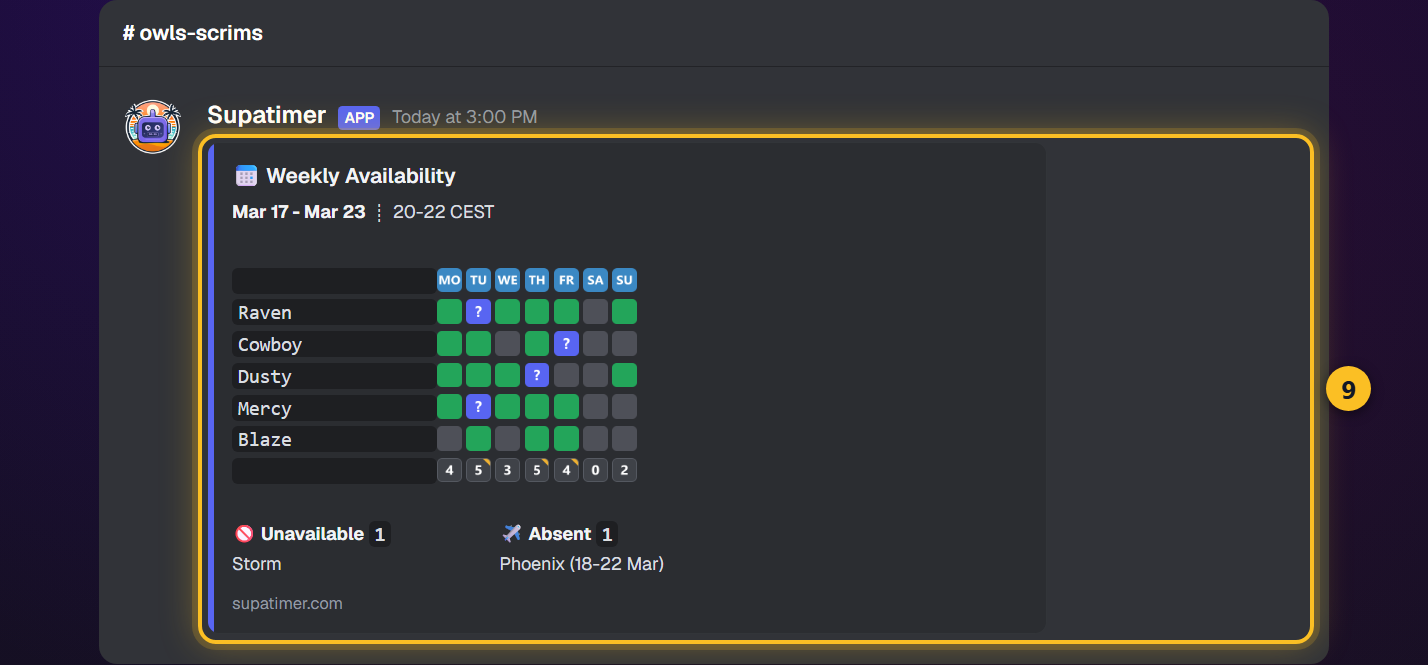
- 9In Discord ist das Verfügbarkeits-Board eine Nachricht pro Woche. Supatimers eigene Emoji-Kacheln beschriften oben die Spalten (die tatsächliche Stunde, bei einem Kalender mit einem Zeitfenster pro Tag der Wochentag), und die Zellen sind die Standard-Quadrate: grün für Ja, gelb für Vielleicht und schwarz für Nein. Die Summenzeile unten zählt alle, die spielen können, und diese Zahl steht auf einer grünen Kachel, wenn der Tag oder die Stunde für eine vollständige Aufstellung reicht - dieselbe Regel, die einen Tag im Dashboard grün markiert. Grün mit gelber Ecke heißt, die Aufstellung steht nur, wenn die Vielleicht-Antworten kommen; eine gelbe Ecke ohne Grün heißt, die Zahl enthält ein Vielleicht, das die Aufstellung nicht braucht. Farbe der Stundenkacheln (Blurple, Violett oder Dunkel) und Spaltenbeschriftung wählst du auf der Karte Emoji-Stil des Boards in den Kalender-Einstellungen.
Ansehen
Kalendertypen
Jeder Kalender läuft in einem von drei Modi. Wähle den, der zur Planung deines Teams passt - wechseln kannst du auf der Karte Zeitplan-Konfiguration.
Anleitung
- 1Zeitfenster - der klassische Wochenkalender. Mitglieder geben ihre Verfügbarkeit für benannte Zeitfenster an (z. B. 20:00-22:00), und der Kalender zeigt einen Tab pro Fenster.
- 2Zeitspanne - ein durchgehendes Stundenraster, jetzt in der offenen Beta. Mitglieder markieren die Stunden, in denen sie spielen können, und Manager buchen Scrims, Trainings und Events auf exakte Spannen und ziehen dann Spieler hinein. Klicke im Raster auf einen beliebigen Spieler, um ihn gegen einen Ringer oder ein anderes Servermitglied zu tauschen oder ihn herauszunehmen. Innerhalb eines gebuchten Blocks gilt es für diesen Block; bei einer Stunde ohne Block wirst du gefragt, ob du diese Stunde oder den ganzen Abend meinst. Postest du ein Scrim von Home an einem Tag ohne Block, fragt das Fenster nach den Stunden Von und Bis und bucht sie für dich.
- 3Wiederkehrend - feste Trainingstage. Lege Wochentage und ein Standard-Zeitfenster fest; Mitglieder bestätigen jede Woche oder melden Änderungen, statt ihre volle Verfügbarkeit einzutragen.
- 4Den Modus wechselst du auf der Karte Zeitplan-Konfiguration - sie liegt in den Servereinstellungen, den Teameinstellungen und im Kalender-Admin.
Hinweis: Zeitspanne ist in der offenen Beta - sie funktioniert schon heute und bekommt laufend neue Funktionen und Feinschliff. Sieht etwas seltsam aus, oder hast du eine Idee? Sag es uns auf unserem Discord (Einladung unten auf dieser Seite).
Wöchentliche Aufstellungen
Supatimer macht aus der Verfügbarkeit aller einen Aufstellungsvorschlag für jeden Tag der Woche. Nichts wird in Discord gepostet, bis du es sagst.
Anleitung
- 1Öffne den Kalender und suche die Karte Weekly Preliminaries. Bei einem brandneuen Kalender ist sie leer - drücke Auto Calculate Weekly Preliminaries, um die Woche zum ersten Mal zu erstellen.
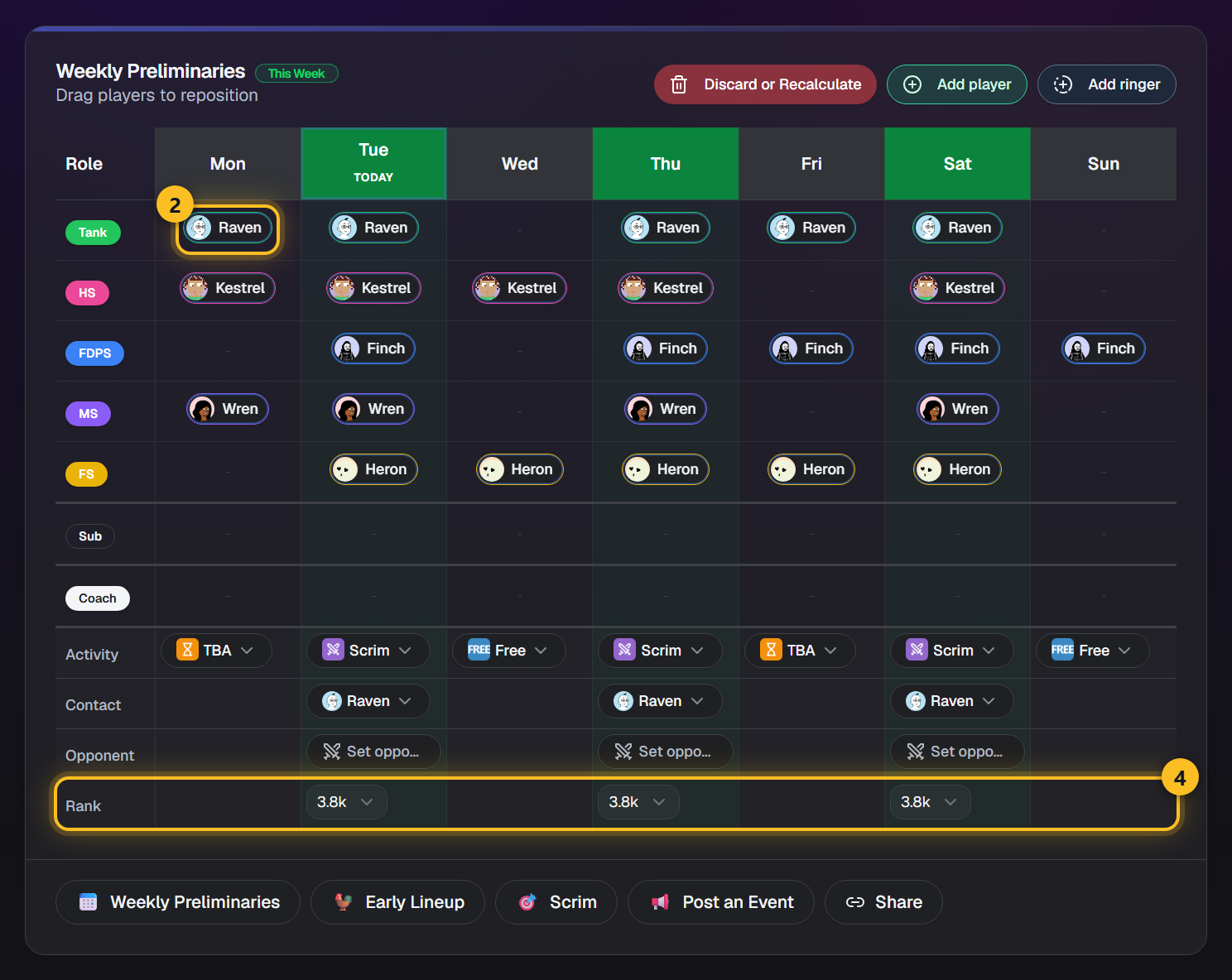
- 2Du bekommst einen Entwurf, eine Aufstellung pro Tag, gebaut aus denen, die sich als verfügbar eingetragen haben. Klicke auf eine Person, um sie gegen einen Ringer oder ein anderes Servermitglied zu tauschen, sie zu entfernen oder ihre Rollen zu ändern - deine Änderungen bleiben bis zur nächsten Neuberechnung. Zieh eine Person auf eine andere, um Tauschen oder Beide behalten zu wählen; am Computer behältst du mit gedrückter Strg-Taste beim Ablegen direkt beide.
- 3Ein Tag mit Team Meeting bekommt unter seinem Typ einen Chip Zeit festlegen: Wähle die Uhrzeit des Meetings und hake an, wer kommt. Der Post zeigt dann diese Zeit und diese Namen statt der Zeit des Slots und der Aufstellung. Schalte Teilnehmer anzeigen aus, um ihn ohne Namen zu posten.
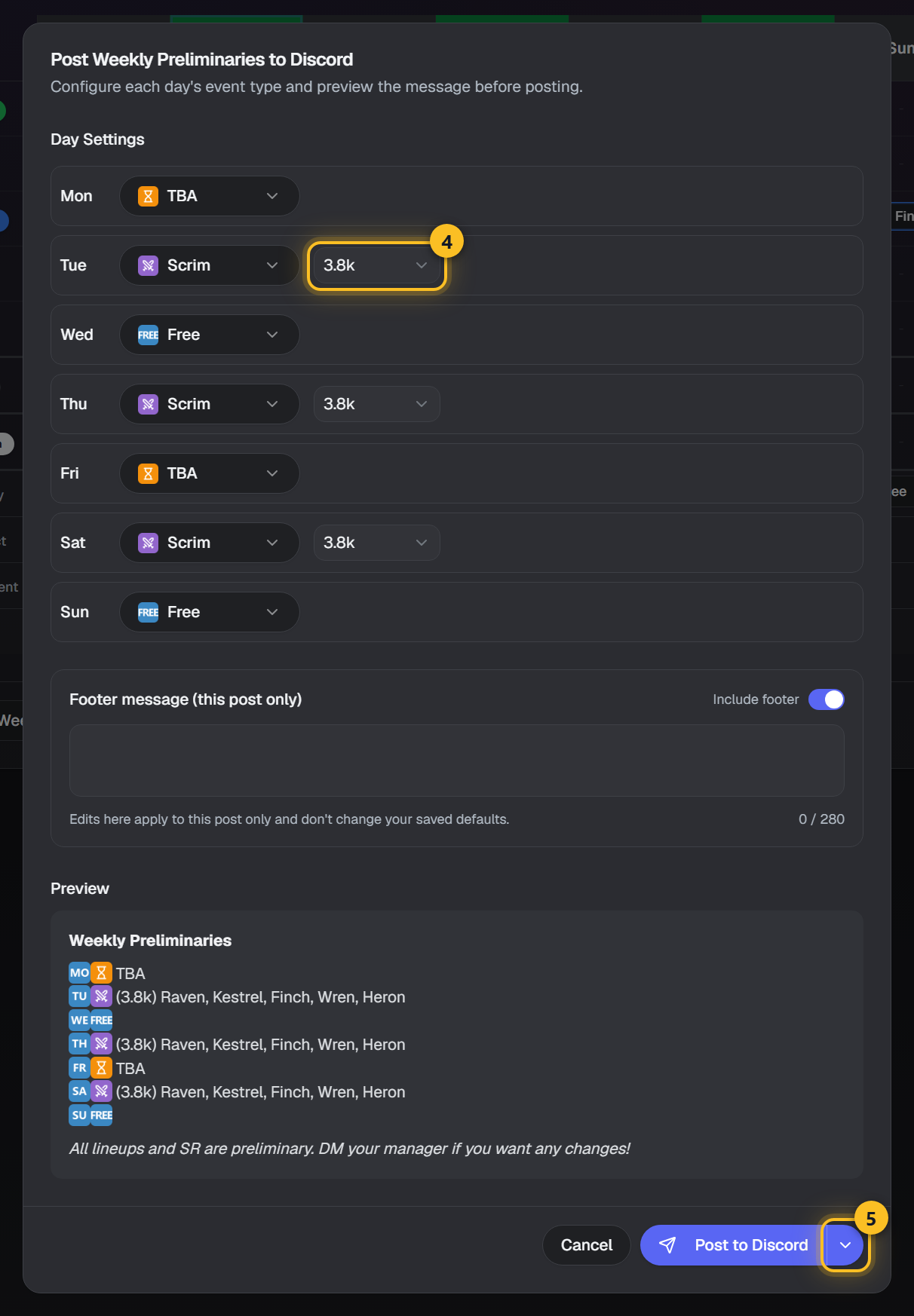
- 4Tage mit Scrim, Maybe Scrim, Match und FACEIT bekommen eine Zeile Rang, die beim Teamrang beginnt. Wähle einen anderen Rang für einen Tag, an dem ihr höher oder tiefer spielt, oder Teamrang, um zurückzugehen. Post to Discord zeigt denselben Rang.
- 5In Post to Discord speichert der Pfeil neben dem Post-Button die Tagestypen und Ränge, ohne zu posten. Ist die Woche schon gepostet, zeigt der Discord-Post die alte Version, bis du ihn aktualisierst.
- 6In einem Kalender mit Zeitbereich zeigt Auf Discord posten jeden Tag. Gib einem freien Tag ein Event, und der ganze Abend wird gebucht, jeder Platz TBA - die Stunden passt du später im Kalender an. Wähle Free auf einem gebuchten Block, um ihn abzusagen.
- 7Du kannst die Woche erstellen, bevor irgendjemand geantwortet hat. Die Plätze starten leer und füllen sich, sobald Leute eintragen, wann sie können.
- 8Neu berechnen baut die ganze Woche aus den aktuellen Antworten neu auf. Buchungen und von Hand gesetzte Spieler werden dabei bewusst gelöscht - sieh es als Neustart der Woche.
- 9Das Posten kommt danach. Ein Scrim-Confirmed-, Aufstellungs- oder Event-Post braucht zuerst die Aufstellung dieses Tages - deshalb schicken dich diese Dialoge hierher, wenn die Woche noch nicht erstellt ist. Einen Scrim für einen späteren Tag gebucht? Wähle diesen Tag im Scrim-Confirmed-Dialog und drücke Speichern & später posten: der Bot postet ihn an dem Tag zur gewählten Stunde, oder behält ihn, damit du ihn selbst postest. Im Post-Fenster zeigt ein Custom-Tag dein eigenes Emoji und deinen Text - schalte seinen Lineup-Schalter aus, um ihn ohne die Namen zu posten.
Ansehen
Hinweis: Nur Team-Manager können Aufstellungen erstellen oder neu berechnen. Alle anderen sehen die Woche, sobald es sie gibt.
Abwesenheiten
Das Abwesenheitssystem laesst Teammitglieder kommende Nichtverfuegbarkeit melden.
Anleitung
- 1Deine Abwesenheiten erscheinen in der Abwesenheiten-Karte auf dem Dashboard und in der Karte Meine Abwesenheiten auf der Kalenderseite.
- 2Klicke 'Hinzufuegen', um eine neue Abwesenheit zu erstellen.
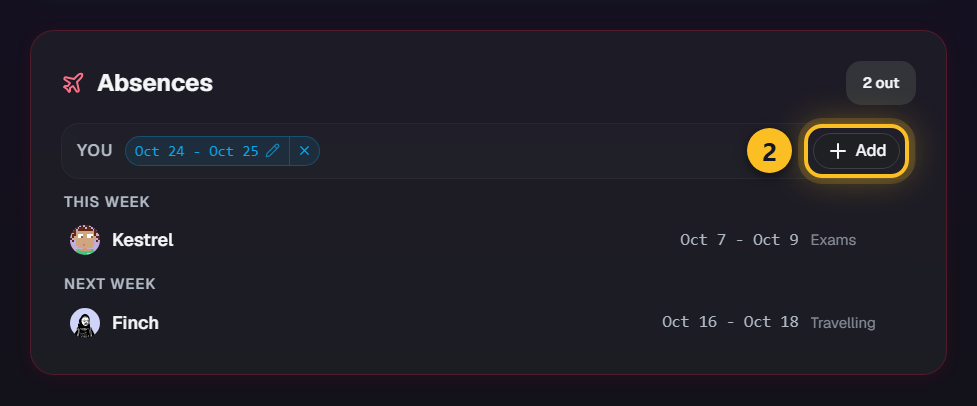
- 3Bearbeite oder loesche Abwesenheiten durch Klicken in der Liste.
- 4Team-Manager sehen eine 'Team-Abwesenheiten'-Karte.
- 5Abwesenheiten werden in der Kalenderverfuegbarkeit beruecksichtigt. Eine Abwesenheit unterdrueckt die Erinnerungen nur, wenn sie die ganze Woche abdeckt - kommst du mitten in der Woche zurueck, wirst du weiterhin nach den Tagen gefragt, an denen du spielen kannst.
Google Kalender-Synchronisierung
Gebuchte Scrims landen automatisch in deinem eigenen Google Kalender. Supatimer erstellt einen eigenen "Supatimer"-Kalender in deinem Google-Konto und hält ihn synchron - er kann nichts anderes in deinem Konto sehen oder verändern.
Anleitung
- 1Öffne deine Kontoseite (Benutzermenü, oben rechts) und klicke auf "Google Kalender verbinden" auf der Google-Kalender-Karte - oder nutze das Google-Kalender-Band unten an der Scrims-Karte auf deinem Dashboard.
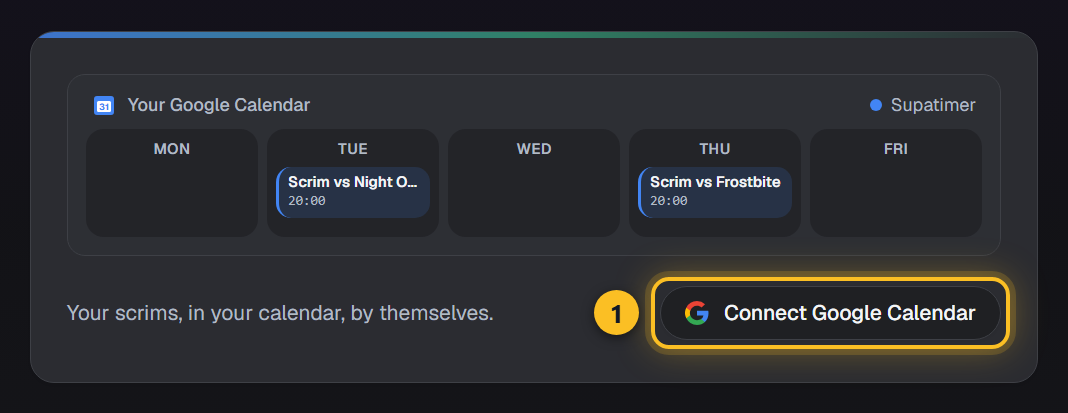
- 2Bestätige den Google-Zustimmungsbildschirm. Supatimer bittet nur um das Recht, selbst erstellte Kalender zu verwalten, sowie deine E-Mail-Adresse zur Anzeige.
- 3Das war's. Jeder anstehende Scrim, in dem du markiert bist, erscheint innerhalb einer Minute im neuen "Supatimer"-Kalender, und neue Buchungen erscheinen Sekunden nach der Veröffentlichung.
- 4Änderungen werden übernommen: ein verschobener Scrim aktualisiert seinen Termin, eine geänderte Aufstellung fügt dich hinzu oder entfernt dich, und ein abgesagter Scrim verschwindet aus deinem Kalender.
- 5Trenne die Verbindung jederzeit über dieselbe Karte. Die Synchronisierung stoppt, aber der Supatimer-Kalender und seine Termine bleiben in deinem Google Kalender - lösche sie dort, wenn du sie loswerden willst.
Hinweis: Der Supatimer-Kalender ist ein normaler zweiter Kalender in Google: Zeige, verberge oder färbe alle deine Scrims als eine Einheit, auf jedem Gerät, auf dem du Google Kalender nutzt.
Auto-Posting
Supatimer postet den wöchentlichen Verfügbarkeitskalender für dich, nach Zeitplan - kein /avail mehr vergessen.
Anleitung
- 1Öffne die Team-Einstellungen und finde die Karte Kalender automatisch posten in der Planungsgruppe.
- 2Schalte ein und wähle Tag und Uhrzeit (in der Zeitzone des Teams). Die Karte zeigt genau, wann der nächste Post landet und welche Woche er abdeckt.
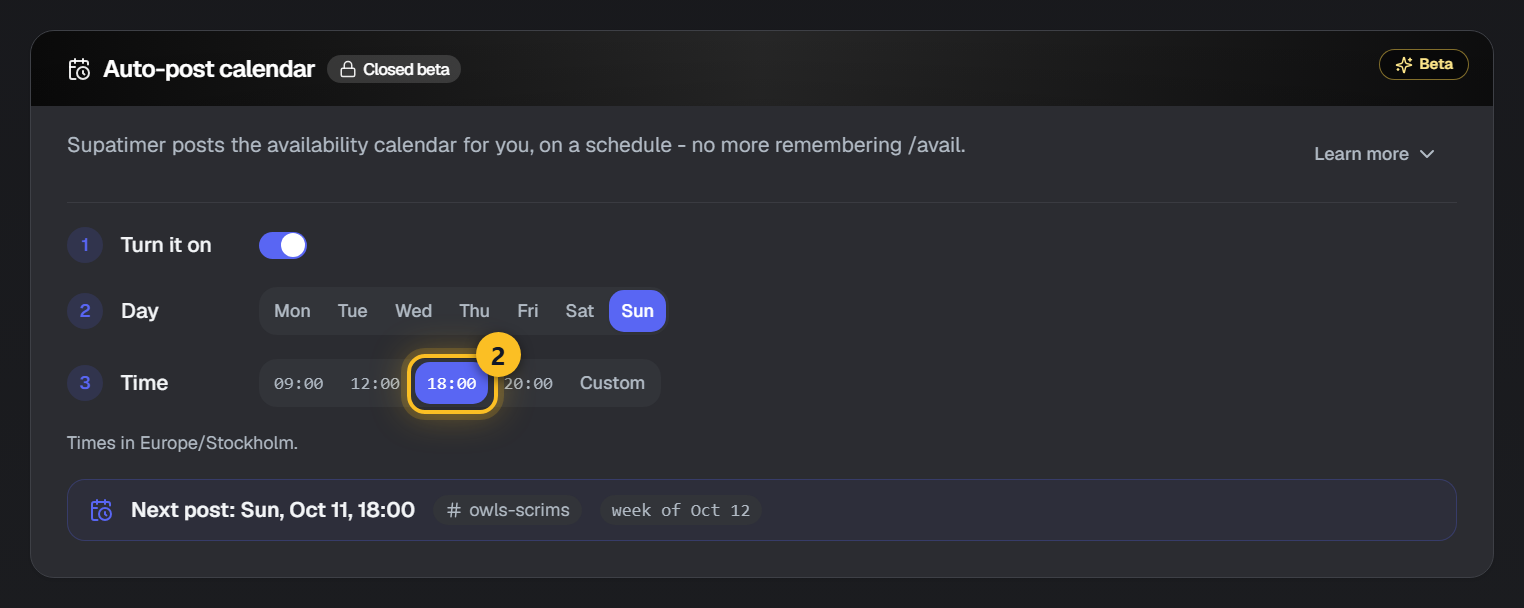
- 3Ein Post am Montag postet die Woche, die an diesem Montag beginnt; jeder andere Tag postet die kommende Woche, damit die Spieler vor Wochenbeginn eintragen können.
- 4Ist der Kalender der Woche bereits gepostet, wird der Auto-Post übersprungen - nie ein Duplikat. Schlägt das Posten fehl, erhalten die Team-Manager eine DM mit dem Grund und der Bot versucht es 3 Stunden später noch einmal.
Hinweis: Auto-Posting ist in geschlossener Beta - tritt unserem Discord-Server bei (Einladung unten auf dieser Seite), frag in #help nach Zugang und markiere Raven, und wir schalten deinen Server frei.
Scrims & Statistiken
Ping-Erinnerungen
Supatimer verfolgt, wer auf jede Scrim-Bestätigung reagiert hat, und hilft dir, den Rest zu erinnern - manuell kostenlos oder automatisch in der geschlossenen Beta.
Anleitung
- 1Reaktions-Tracking ist für jedes Team aktiv: Der Bot zählt Reaktionen auf seine eigenen Scrim-Bestätigungen, und der Dialog des Posts auf der Kalenderseite zeigt, wie viele der markierten Spieler bestätigt haben.
- 2Öffne den Post über die Post-Zeile des Kalenders: Der Dialog beginnt mit denen, die noch nicht reagiert haben, und sein Pingen-Button (er nennt, wen er pingt) erwähnt genau sie in Discord. Jeder, der auf Kalender antworten kann, darf ihn nutzen.
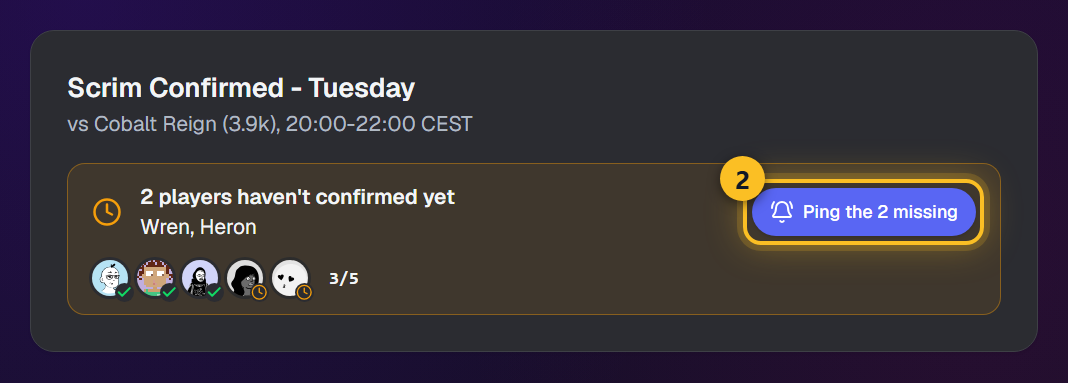
- 3Der Button prüft die Reaktionen vor dem Senden live nach, und zwei 1-Stunden-Abklingzeiten (Alter des Posts und Zeit seit dem letzten Ping) verhindern Spam im Kanal.
- 4Automatische Erinnerungen findest du auf der Karte Ping-Erinnerungen in den Team-Einstellungen: bis zu 3 für Scrim-Starts, als Vorlaufzeit gewählt (ein Scrim um 20:15 mit einer 1-Stunden-Erinnerung pingt um 19:00), und bis zu 3 für den Wochenbeginn, als Tag und volle Stunde in der Zeitzone des Teams gewählt - Samstag, Sonntag oder der Montag, an dem die Woche beginnt, für Teams, die ihren Plan erst kennen, wenn die Woche begonnen hat.
- 5Schalte Automatische Bereinigung ein (empfohlen), damit Supatimer jede Erinnerung eine Stunde nach dem Posten löscht - der Kanal behält den Scrim-Post und das Gespräch.
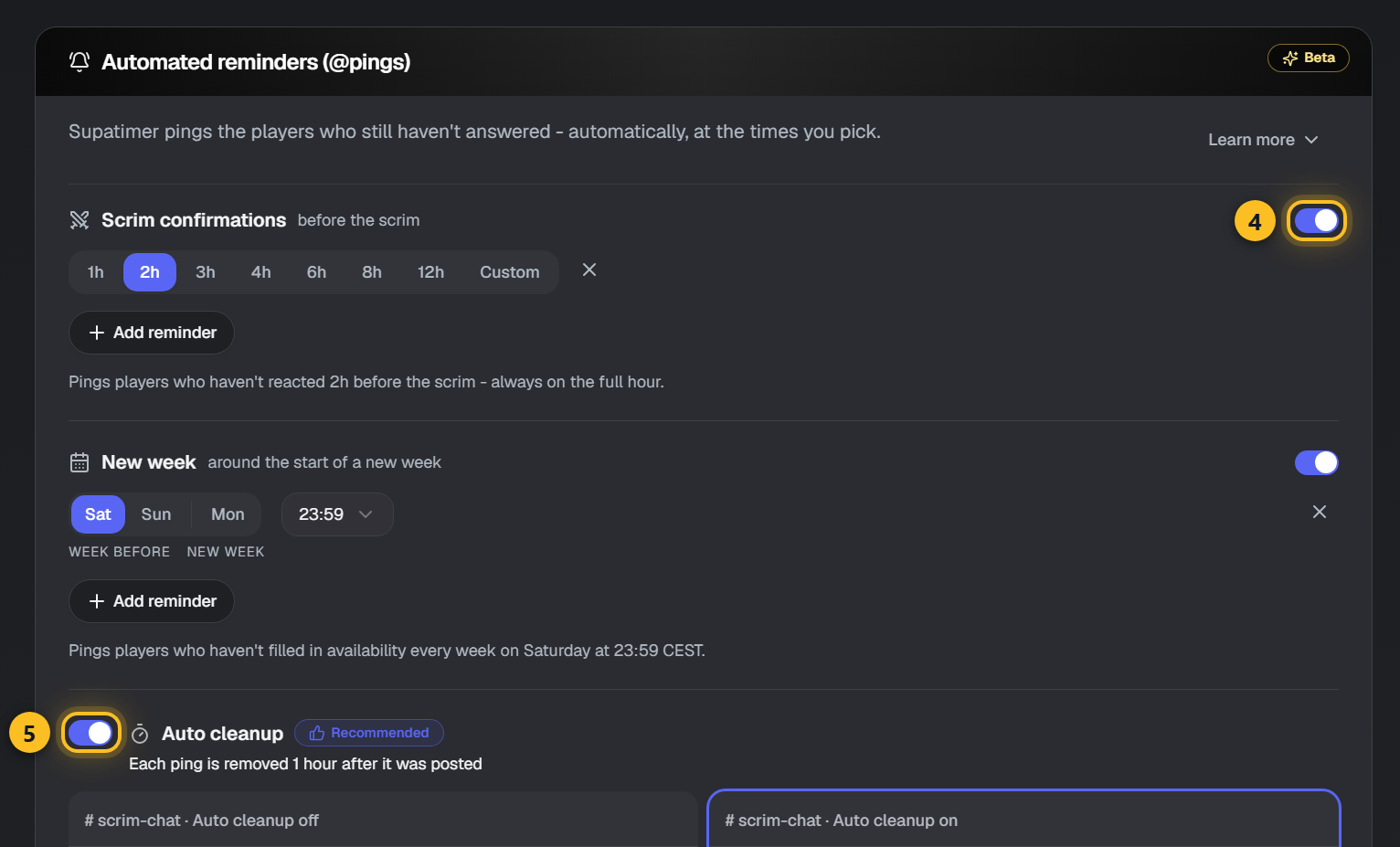
Hinweis: Automatische Erinnerungen sind in geschlossener Beta - frag auf unserem Discord-Server nach Zugang (Einladung unten auf der Seite), und wir schalten deinen Server frei. Reaktions-Tracking und manuelle Pings sind für alle kostenlos.
Scrim-Infos teilen
Kopiere die Angaben, nach denen ein gegnerisches Team fragt - direkt aus deinem Dashboard, ohne Discord zu öffnen.
Anleitung
- 1Öffne im Dashboard unter Meine Teams ein Team und klicke auf Scrim-Infos teilen.
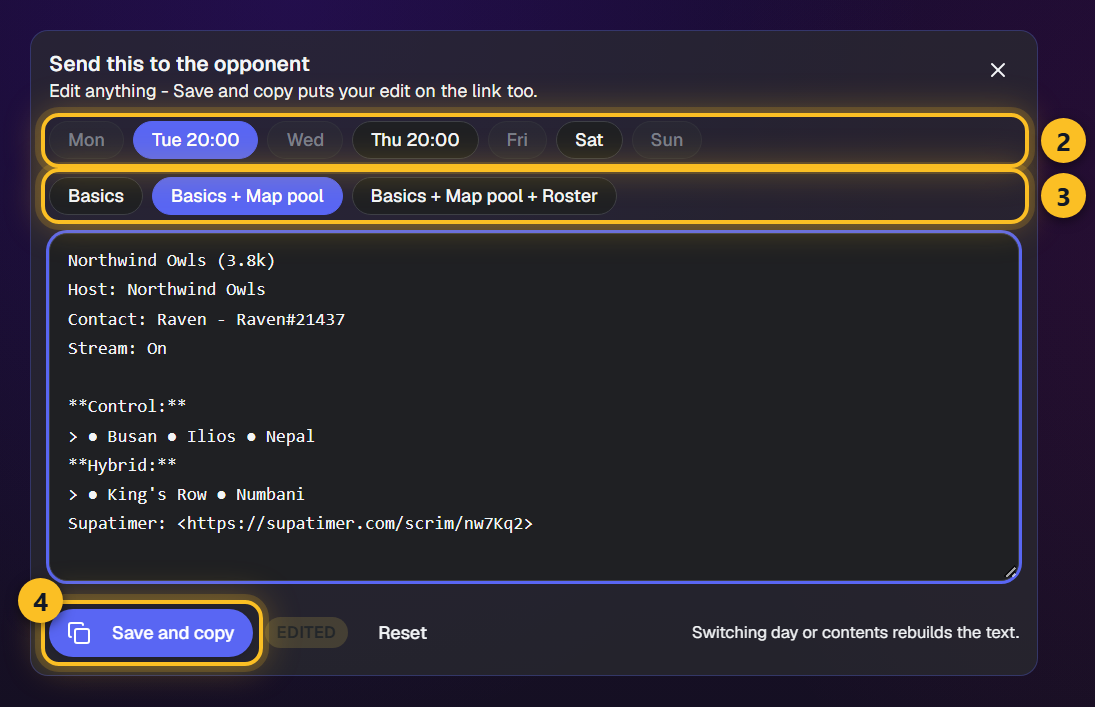
- 2Wähle den Tag. Tage ohne Aufstellung sind ausgegraut.
- 3Wähle den Umfang. Ein gespeicherter Map-Pool ist bereits enthalten - nimm die Aufstellung dazu oder geh zurück auf die Basis.
- 4Bearbeite den Text, wenn du etwas ergänzen willst, und klicke dann auf Speichern und kopieren. Deine Änderung wird auch auf dem Link am Ende des Textes gespeichert, sodass der Gegner sie dort sieht - Zurücksetzen holt den generierten Text zurück.
- 5Um festzulegen, an wen sich das andere Team wenden soll, öffne die Team-Einstellungen, gehe zu Scrim-Austauschinfos und fülle "Wer ist unsere Kontaktperson?" aus. Füge Teammitglieder mit verknüpftem BattleTag in der gewünschten Reihenfolge hinzu, oder drücke Selbst eintragen für jemanden ohne Konto: BattleTag und Discord-Benutzername. Jeder Scrim bekommt die erste Person der Liste, die spielt, dann den eingetragenen Kontakt - und euren Tank nur, wenn es keins von beiden gibt.
Hinweis: Es ist derselbe Text, den die Buttons einer geposteten frühen Aufstellung in Discord erzeugen - beide Wege senden also dasselbe. Er endet mit der Supatimer-ID eures Teams, damit das andere Team euch finden kann, und einem Link zu einer teilbaren Seite mit denselben Angaben. Ein Verborgenes Team bekommt nur den Link.
Supatimer-ID
Früher Zugang, mehr kommt demnächst. Findet einen Gegner auf jedem Server über seine Supatimer-ID und seht dann, wann beide Teams Zeit haben.
Anleitung
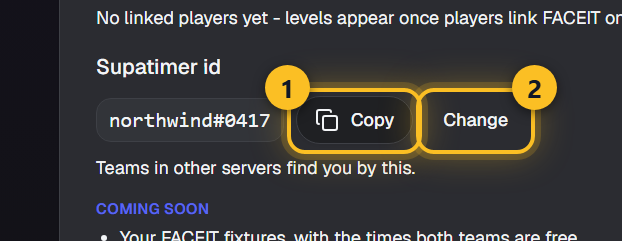
- 1Öffnet die Team-Einstellungen und sucht Scrim-Suche. Dort steht die Supatimer-ID eures Teams - ein Name und vier Ziffern, etwa pranksters#3253. Klickt auf Kopieren und schickt sie dem anderen Team.
- 2Klickt auf Ändern, um einen eigenen Namen zu wählen. Hakt "Gebt uns eine neue Nummer" an, wenn eine ID irgendwo gelandet ist, wo sie nicht hingehört - die alte ID funktioniert sofort nicht mehr. Ihr habt eine Änderung pro Monat - fragt uns auf unserem Discord, wenn ihr früher eine braucht.
- 3Wenn ihr in Weekly Preliminaries einen Gegner festlegt, gebt seine ID statt eines Namens in das Gegnerfeld ein. Das Team erscheint mit Rang und Kontaktperson - wählt es aus.
- 4Klickt unter dem Gegner auf "Wann haben wir beide Zeit?", um die Zeiten dieser Woche zu sehen, in denen beide Teams ein Lineup stellen können - in eurer eigenen Uhrzeit.
Hinweis: Beide Teams brauchen Gegner finden an - ein verborgenes Team wird nicht gefunden und kann niemanden nachschlagen. Gezeigt werden nur gemeinsame Zeitfenster: nie, wer Zeit hat, und nie der Kalender des anderen Teams. Abfragen sind pro Person begrenzt und werden protokolliert. Neu: Ein Team, das ihr schon kennt, könnt ihr nach einem Termin fragen, auch wenn es verborgen ist - siehe Einen Termin mit einem Gegner finden. Neu: Teams in der Nähe eures Rangs an euren offenen Scrim-Tagen - siehe Scrim-Suche. Demnächst: eure FACEIT-Spiele.
Einen Termin mit einem Gegner finden
Ihr wisst, gegen wen ihr spielt, aber nicht wann? Fragt deren Team nach einem Termin. Einer ihrer Manager bekommt eine Discord-DM, und sobald sie annehmen, seht ihr beide die Zeiten, zu denen ihr in dieser Woche beide frei seid - sonst wird nichts über die Woche eines Teams geteilt.
Anleitung
- 1Öffne den Kalender dieser Woche und such die Karte Termin finden, direkt über Weekly Preliminaries.
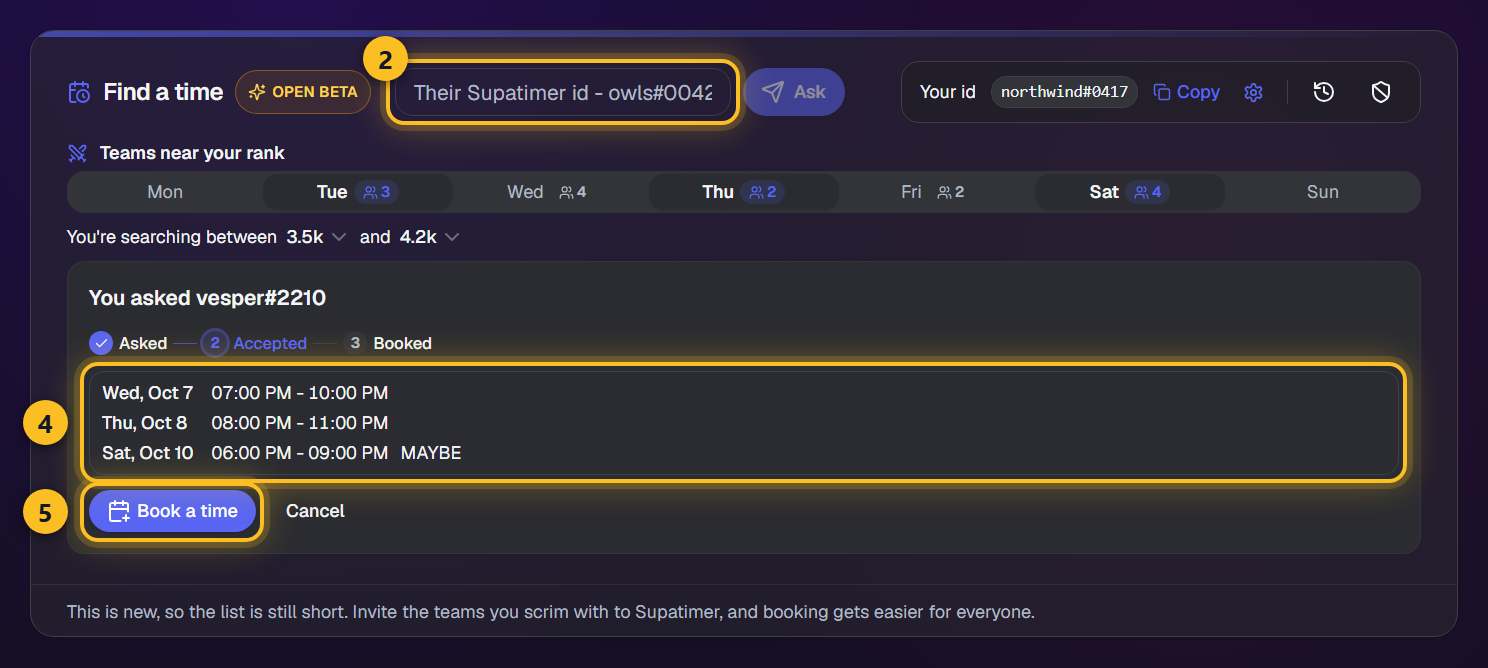
- 2Gib die Supatimer-ID des anderen Teams ein (zum Beispiel owls#0042) und drücke Anfragen. Derselbe Button erscheint im Gegnerfeld einer Scrim-Zeile, sobald du dort eine ID eingibst. Eure eigene ID steht rechts in derselben Kopfzeile, mit Kopieren - schickt sie dem anderen Team, damit es euch anfragen kann. Hat kein Team diese ID, sagt das Feld es, statt zu senden.
- 3Einer ihrer Team Manager bekommt eine Discord-DM mit Annehmen und Ablehnen. Die Anfrage erscheint auch auf ihrem eigenen Kalender, in ihrer Karte Termin finden, und auf ihrem Dashboard unter Terminanfragen - ein Manager kann an allen drei Stellen annehmen.
- 4Wenn sie annehmen, geht die Anfrage in ihren zweiten Schritt und die Zeiten, zu denen ihr beide frei seid, stehen direkt dort - auf eurem Kalender und auf eurem Dashboard, dieselbe Karte an beiden Stellen. Ihr bekommt auch eine Discord-DM mit dem Ergebnis. Ein Tag zählt, wenn eure Aufstellung in Weekly Preliminaries voll ist, der Tag nicht auf Frei steht und kein anderer Gegner gebucht ist - auf beiden Seiten.
- 5Drückt auf Zeit buchen, und das Formular öffnet sich IN der Karte: welche Zeit, wie lang das Scrim ist, und die Startzeit. Das ist EINE Zeit - das Fenster sagt schon, wann ihr beide frei seid, also muss jemand die Stunde festlegen, zu der ihr beide einloggt. Seid ihr das Team, das gefragt hat, überlässt Flexibler Start zwischen... ihnen die Wahl. Das Formular zeigt auch eure Lobby-Einstellungen und euren Kartenpool aus den Teameinstellungen: Lasst den Kartenpool eingeschaltet, um ihn mitzusenden, oder drückt Bearbeiten, um ihn zu ändern.
- 6Sie nehmen an, schlagen einen anderen Start vor oder lehnen ab. Eine Annahme trägt das Scrim in beide Kalender ein - Tag, Gegner, Zeit und Lobby-Angaben. Ein Tag kann bis zu 3 offene Anfragen gleichzeitig haben: Die erste angenommene bucht ihn, die anderen werden geschlossen. Ein gebuchter Scrim kann trotzdem abgesagt werden: Ein Manager drückt Scrim absagen, schreibt den Grund und hakt ab, dass er dem anderen Team eine DM geschickt hat - beide Kalender geben den Tag frei, und das andere Team bekommt den Grund per DM. Anfrage ansehen zeigt zuerst alles - wann, die Lobby, den Kartenpool und einen Link, um ihrem Manager auf Discord zu schreiben - und Annehmen oder Ablehnen fragt nach einer Bestätigung. Änderungen vorschlagen schickt ein Gegenangebot: einen anderen Beginn, andere Lobby-Einstellungen oder einen anderen Kartenpool (ihren, euren, die gemeinsamen Karten oder alle Karten beider). Die Zeile zeigt, wenn ein Gegenangebot auf euch wartet. Alles, was das andere Team auf Keine Präferenz gelassen hat, entscheidet ihr beim Annehmen - ein anderer Kartenpool bleibt ein Gegenangebot. Sobald gebucht, erscheint der Scrim-Confirmed-Post von selbst im Scrim-Kanal beider Teams, mit Rang und Kontakt des anderen Teams. Bei einem Scrim an einem späteren Tag wählt jedes Team beim Senden, beim Gegenangebot oder beim Annehmen, wann sein eigener Post erscheint: Jetzt posten, der Bot postet ihn am Tag zu einer Stunde in eurer Teamzeit (anfangs 10:00), oder Ich poste ihn selbst. Scrim absagen - auch am gebuchten Tag in eurem Kalender - entfernt beide Posts. Solange dein Kalender offen ist, bekommt ein Manager für jede neue Anfrage, Antwort, jeden Gegenvorschlag oder jede Absage des anderen Teams eine Meldung - sie bleibt, bis du sie schließt. Ein Scrim, den das andere Team abgesagt hat, bleibt auf deiner Karte Termin finden und auf der Karte Terminanfragen auf der Startseite, mit wer ihn abgesagt hat und warum, bis du OK drückst - einmal, für beide. Um ihn am selben Tag auf eine andere Zeit zu verlegen, drückt ein Manager Zeit ändern: das andere Team nimmt an oder lehnt ab, und bis dahin bleibt der Scrim zu seiner Zeit.
Ansehen
Hinweis: Offene Beta: Jedes Team kann sie nutzen, während wir sie verfeinern. Es funktioniert auch, wenn eines der Teams Gegner finden ausgeschaltet hat: Wer die ID eines Teams hat, kennt es bereits. Du kannst 5 Anfragen pro Tag und 10 pro Woche senden, und eine Anfrage gilt, bis ihre Woche endet. Ein verstecktes Team wird von dieser Prüfung ebenfalls nicht gefunden, also sendet Trotzdem fragen sie doch. Ist eine Anfrage einmal raus, sehen eine falsche ID und ein Team, das nicht geantwortet hat, absichtlich gleich aus. Mit Zurückziehen nimmst du eine Anfrage zurück. Nach dem Annehmen kann ein Manager auf beiden Seiten sie noch absagen, bis eine Zeit gebucht ist - das andere Team bekommt eine DM, und die Anfrage wandert in den Verlauf. Der Verlauf neben eurer ID behält jede beantwortete Anfrage - angenommen, gebucht, abgelehnt oder abgesagt - unter der aktuellen ID des anderen Teams. Ein Manager kann ein Team blockieren, das immer wieder fragt: Öffnet das ...-Menü an seiner Anfrage und wählt Team blockieren. Das Team erfährt es nicht, und Blockierte Teams, der Button neben Verlauf, listet alle blockierten Teams. Der Verlauf listet auch eure beantworteten Buchungen aus der Scrim-Suche und zeigt, wer einen Scrim abgesagt hat und warum.
Scrim-Suche
Teams in der Nähe eures Rangs, auf jedem Server, die Zeit haben, wenn ihr Zeit habt. Markiert einen Tag als Scrim, und die Karte Einen Termin finden listet sie Tag für Tag - und ihr könnt dort eines buchen.
Anleitung
- 1Ein Manager legt in den Teameinstellungen den Rang eures Teams fest und zwischen welchen Rängen ihr sucht. Gegner finden muss an sein, und jeder Scrim-Tag braucht eine Kontaktperson, für diesen Tag in Wöchentliche Aufstellungen gewählt. Ein fehlender Rang, eine fehlende Region oder Plattform wird in einem Fenster abgefragt, gleich nachdem ein Manager den Kalender gepostet hat. Ein Manager kann sich im Kontaktmenü eines Tages mit Mich als Kontakt festlegen selbst eintragen.
- 2Markiert in den Wochen-Vorplanungen einen Tag als Scrim oder Vielleicht Scrim. Ein Tag mit vollem Lineup und ohne Typ zählt auch. Ein markierter Tag wird gelistet, sobald das Lineup voll ist.
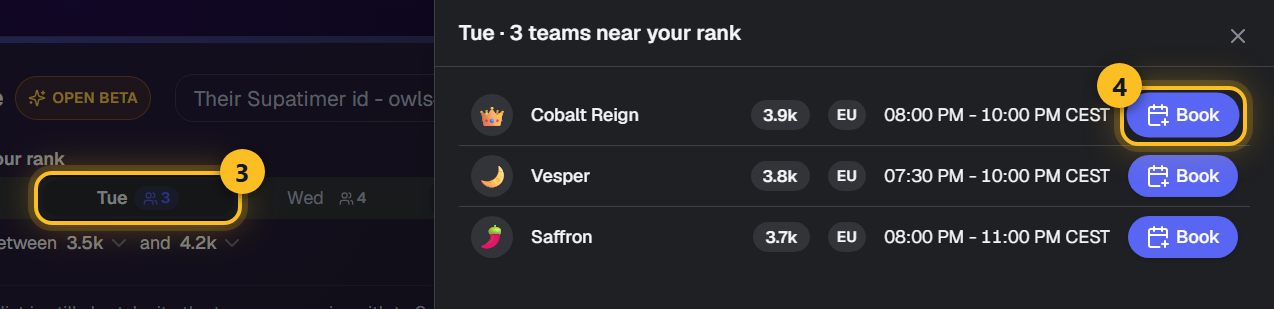
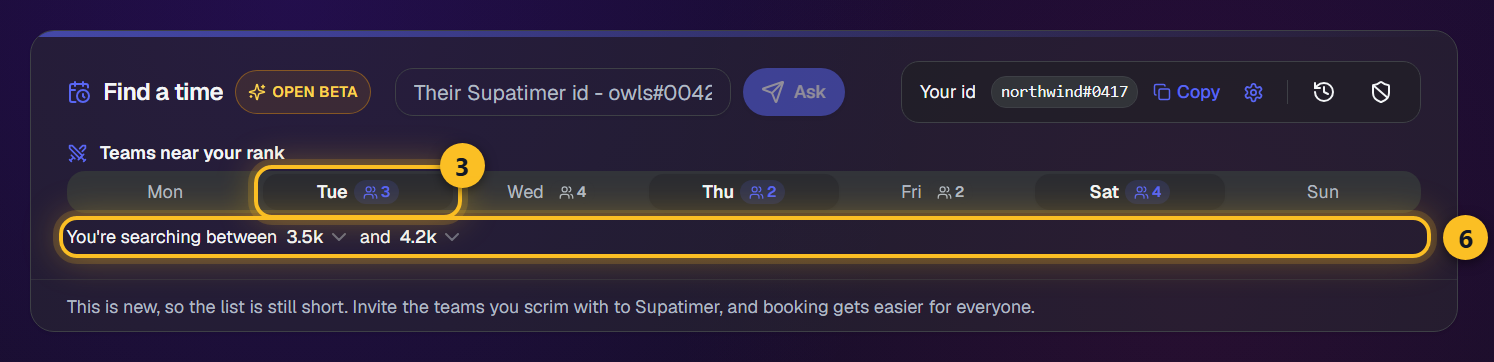
- 3Die Karte Einen Termin finden zeigt die sieben Tage der Woche und wie viele Teams in der Nähe eures Rangs an jedem Tag offen sind. Tippt auf einen Tag, um sie zu sehen: den Rang jedes Teams an diesem Tag und die Zeit, in der ihr beide Zeit habt. Ein vergangener Scrim-Tag oder einer, an dem alle eure Scrim-Slots gebucht sind, zeigt seine Zahl ausgegraut. Euer Dashboard zeigt dieselben Zahlen für alle eure Teams in einem Raster, Teams in der Nähe eures Rangs: Tippt auf eine Zahl, um diesen Tag zu öffnen.
- 4Tippt bei einem Team auf Buchen, und das Formular öffnet sich direkt darunter: wählt Dauer und Beginn und sendet. Eure Anfrage steht dann oben in der Liste des Tages, mit ihrer Antwort und Abbrechen. Einer ihrer Manager bekommt eine Discord-DM mit Annehmen und Ablehnen, und die Anfrage erscheint in ihrem Kalender und Dashboard. Das Formular zeigt auch eure Lobby-Einstellungen und euren Kartenpool aus den Teameinstellungen: Lasst den Kartenpool eingeschaltet, um ihn mitzusenden, oder drückt Bearbeiten, um ihn zu ändern.
- 5Ein Tag kann bis zu 3 offene Anfragen haben. Die erste angenommene bucht ihn in beiden Kalendern, die anderen schließen als Mit einem anderen Team gebucht. Ein Manager auf beiden Seiten kann einen gebuchten Scrim mit Scrim absagen und einem Grund absagen - der Tag ist dann wieder in der Scrim-Suche offen. Wird das Team oder sein Kalender gelöscht oder das Spiel gewechselt, wird er für euch abgesagt und das andere Team erfährt warum. Anfrage ansehen zeigt zuerst alles - wann, die Lobby, den Kartenpool und einen Link, um ihrem Manager auf Discord zu schreiben - und Annehmen oder Ablehnen fragt nach einer Bestätigung. Änderungen vorschlagen schickt ein Gegenangebot: einen anderen Beginn, andere Lobby-Einstellungen oder einen anderen Kartenpool (ihren, euren, die gemeinsamen Karten oder alle Karten beider). Die Zeile zeigt, wenn ein Gegenangebot auf euch wartet. Alles, was das andere Team auf Keine Präferenz gelassen hat, entscheidet ihr beim Annehmen - ein anderer Kartenpool bleibt ein Gegenangebot. Jede gesendete oder erhaltene Anfrage, offen oder gebucht, ist eine Zeile unter der Woche - drück darauf, um ihren Tag zu öffnen. Sobald gebucht, erscheint der Scrim-Confirmed-Post von selbst im Scrim-Kanal beider Teams, mit Rang und Kontakt des anderen Teams. Bei einem Scrim an einem späteren Tag wählt jedes Team beim Senden, beim Gegenangebot oder beim Annehmen, wann sein eigener Post erscheint: Jetzt posten, der Bot postet ihn am Tag zu einer Stunde in eurer Teamzeit (anfangs 10:00), oder Ich poste ihn selbst. Scrim absagen - auch am gebuchten Tag in eurem Kalender - entfernt beide Posts. Deine Karte und die Startseite behalten einen Scrim, den das andere Team abgesagt hat, mit seinem Grund, bis du OK drückst. Um ihn am selben Tag auf eine andere Zeit zu verlegen, drückt ein Manager Zeit ändern: das andere Team nimmt an oder lehnt ab, und bis dahin bleibt der Scrim zu seiner Zeit.
- 6Zu wenige Teams? Ein Manager erweitert den Bereich im Satz unter der Woche - jeder Rang zeigt, wie viele Teams er hinzufügen würde.
Ansehen
Hinweis: Offene Beta: Jedes Team kann sie nutzen, während wir sie verfeinern. Gelistet werden nur Spiele mit einer Rangleiter, in denen zwei Teams gegeneinander scrimmen. Ein Team sieht euren Tag nur, wenn euer Rang an diesem Tag in seinem Bereich liegt und seiner in eurem. Ein Team, das eures blockiert hat, sieht euch nicht. Ihr könnt 10 Scrim-Anfragen pro Tag senden. Schaltet Gegner finden aus, um nicht mehr gelistet zu werden und diese DMs nicht mehr zu bekommen, oder blockiert ein Team über seine Anfrage. Jedes Team zeigt seine Region und Plattform; ein Manager kann die abwählen, die euch Anfragen schicken dürfen, und ein Team ohne gewählte Region und Plattform kann keine senden.
KI-Autofill
Füge die Discord-DM eines Gegners ein und lass die KI Teamname, Rang, BattleTag und Map-Pool ausfüllen - nichts abtippen.
Anleitung
- 1Öffne eine Scrim-Bestätigung (oder das Popover Gegner festlegen im Wochenkalender) und finde den KI-Autofill-Bereich.
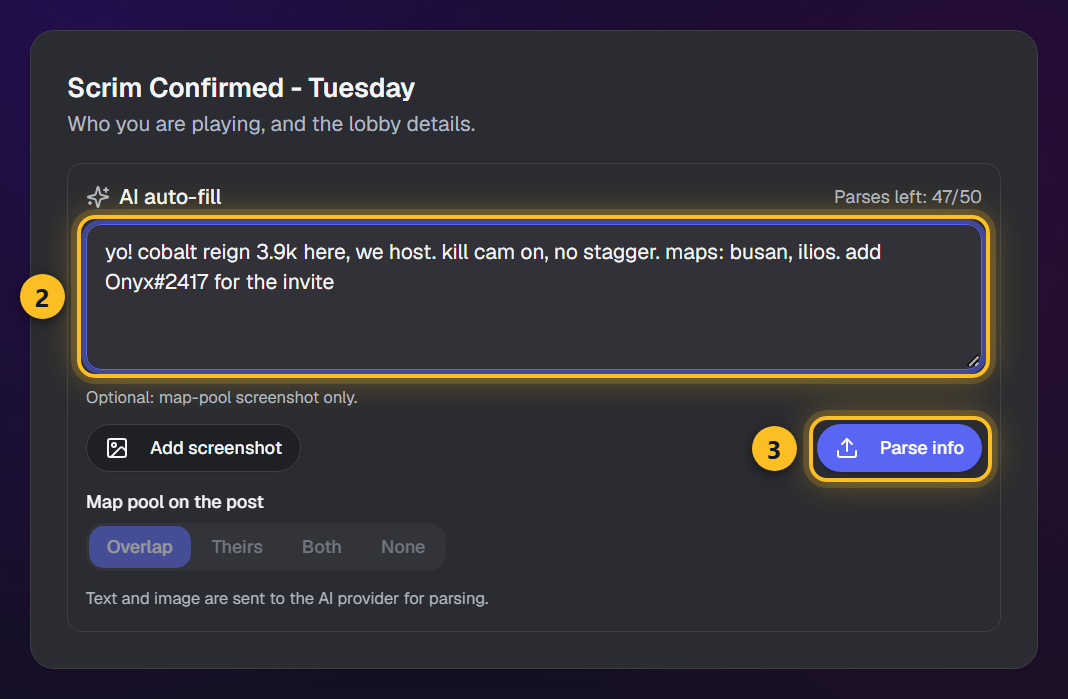
- 2Füge die Nachricht des Gegners ein. Du kannst auch einen Screenshot ihres Map-Pools anhängen (bis 5 MB).
- 3Klicke auf 'Infos analysieren'. Die Gegnerfelder werden vorausgefüllt, alles, was die KI nicht zuordnen konnte, wird zum manuellen Nachtragen aufgelistet, und ein Map-Pool kommt in die Notizen. Wähle welcher: Gemeinsam, Ihrer, Beide oder Keiner. Ein Rang, der nicht in der Liste deines Spiels steht, wartet darauf, dass du einen wählst.
- 4Prüfe die vorausgefüllten Felder vor dem Speichern - die KI ist ein Vorsprung, keine Quelle der Wahrheit.
Hinweis: KI-Autofill ist in geschlossener Beta für Overwatch- und Marvel-Rivals-Teams - tritt unserem Discord-Server bei (Einladung unten auf der Seite), um auf die Beta-Liste zu kommen. Eingefügter Text und Bilder werden zum Auslesen an den KI-Anbieter gesendet, und ein Zähler auf der Karte zeigt deine verbleibenden Auslesungen.
Scrim-Statistiken
Macht SupaScrim-Aufzeichnungen eurer Overwatch-Scrims zu Ergebnissen und Spielerstatistiken - ohne manuelle Buchhaltung.
Von der Lobby zur Statistik
- Einmalige EinrichtungAlle
Eine einzige Einstellung im Overwatch-Client, einmal pro aufzeichnendem Spieler - ohne sie funktioniert nichts in diesem Abschnitt.
- 1Oeffnet in Overwatch Options > Gameplay und aktiviert 'Enable Workshop Inspector Log File'. Standardmaessig ist sie aus - ohne sie schreiben eigene Spiele gar kein Log.
- 2Die Einstellung gilt pro Spieler: Nur Spieler mit aktivierter Option speichern Dateien, und nur fuer Maps, in denen sie dabei sind. Stellt sicher, dass mindestens euer ueblicher Lobby-Host sie aktiviert.
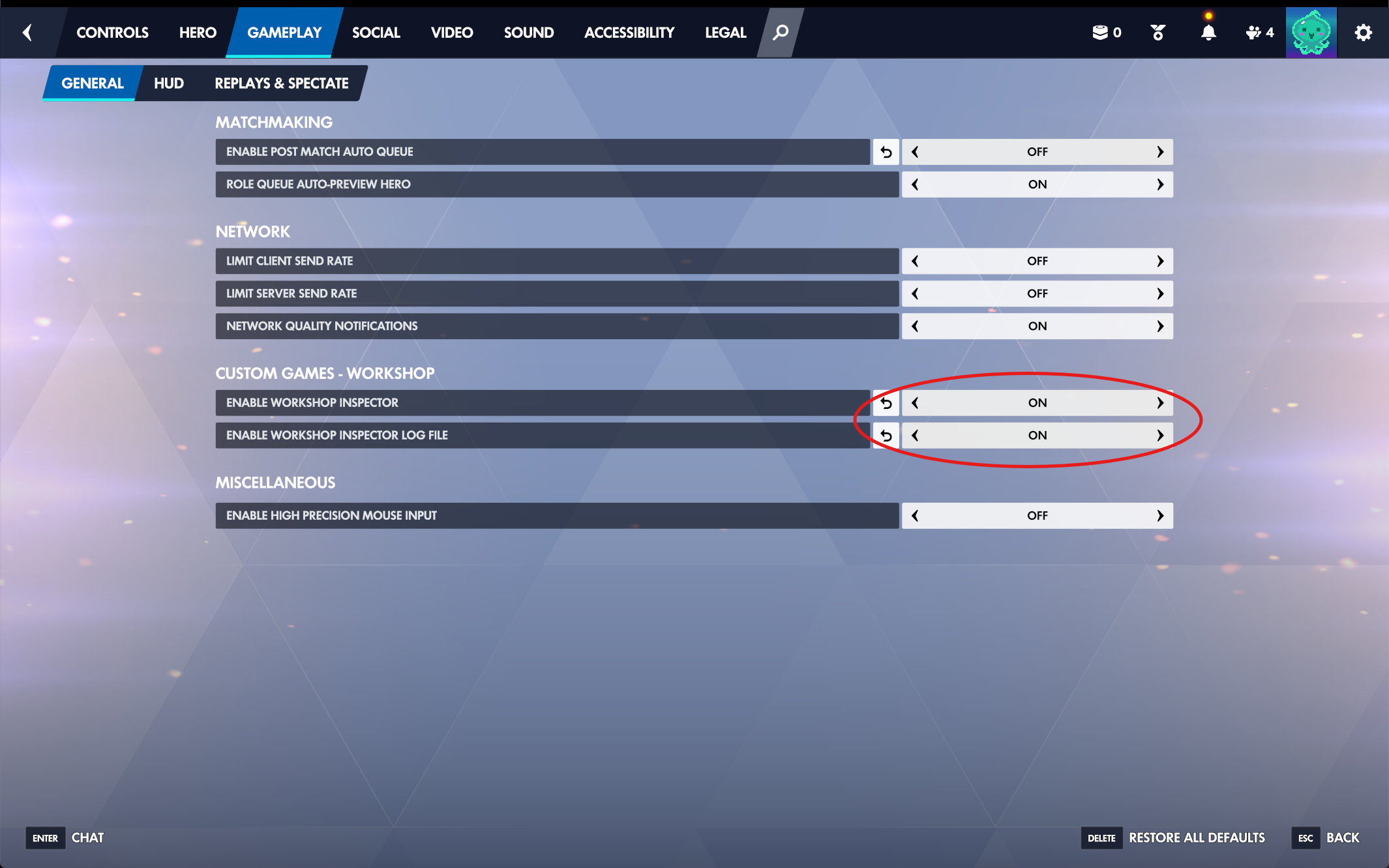
Options → Gameplay → General: Unter Custom Games - Workshop beide Einstellungen Enable Workshop Inspector und Enable Workshop Inspector Log File auf On stellen. - Jede Map aufzeichnenAlle
Pro Scrim hostet ein Spieler die Lobby mit der Workshop-Mod SupaScrim - das ist die ganze Aufnahmearbeit.
- 1Hostet das eigene Spiel mit dem Workshop-Import-Code M3FFX (SupaScrim, unsere eigene Workshop-Mod). Alles ist bereits eingestellt: Log-Generator an, 1% Payload- und 5% Punkt-Schritte, Kill Cam aus - vor einer Lobby gibt es nichts umzuschalten.
- 2Spielt wie gewohnt und bleibt die ganze Map in der Lobby - jede beendete Map speichert eine Log_*.txt unter Documents\Overwatch\Workshop auf dem PC des Hosts.
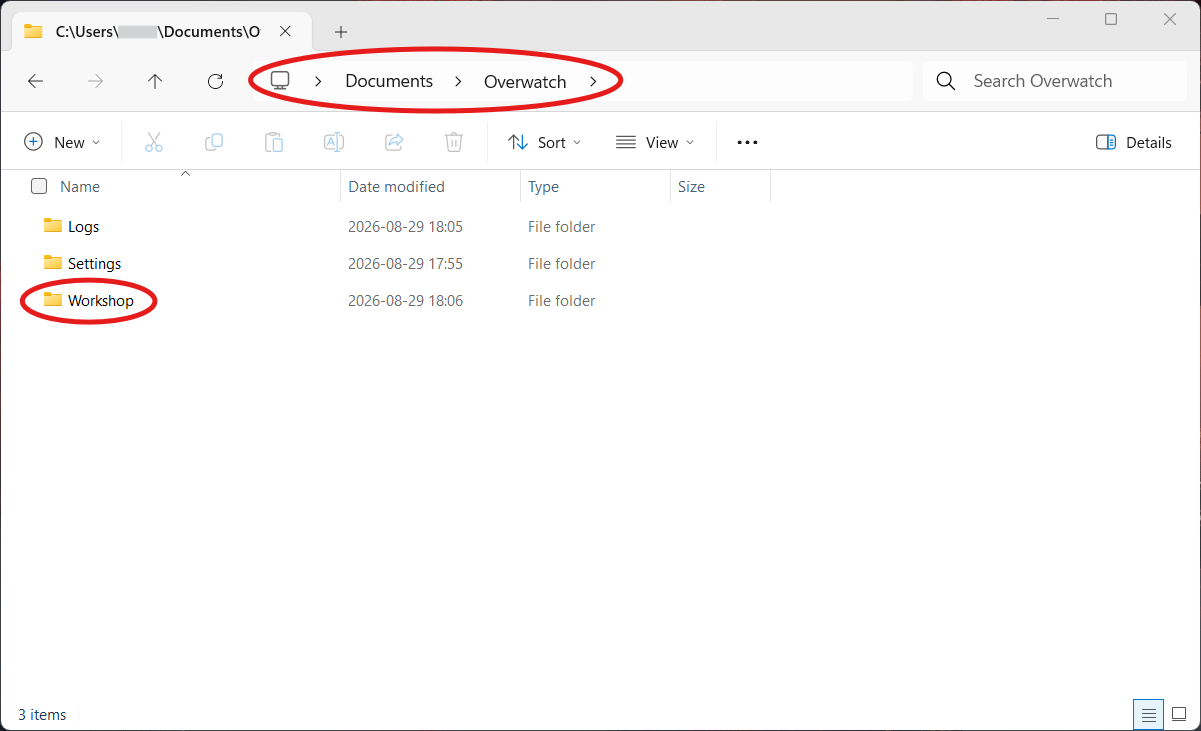
Nach dem Scrim liegen die Logdateien in Documents\Overwatch\Workshop - im Ordner Workshop, nicht im Ordner Logs daneben. Eine Datei pro gespielter Karte. - Hochladen und auswertenTeam-Manager
Nach dem Scrim werden die Dateien des Abends zu Ergebnissen und Spielerstatistiken im Dashboard.
- 1Oeffnet Statistiken in der Hauptnavigation, waehlt euer Team und klickt auf Logs hochladen (der Statistik-Button in der Teamliste funktioniert weiterhin). Direkt aus Discord oeffnet der Button Stats & logs unter einem Scrim Confirmed!-Post die Statistik dieses Scrims, sobald die Logs da sind, und davor die Statistikseite des Teams.
- 2Zieht die Dateien des Abends hinein - jede Map wird zu Ergebnis und Spielerstatistiken ausgelesen, Duplikate und abgeschnittene Logs werden markiert.
- 3Bestaetigt die Spielerzuordnungen - verknuepfte Battle.net-Konten matchen automatisch; den Rest einmal zuordnen, das Team merkt es sich.
- 4Ordnet den Upload dem Scrim in eurem Plan zu - bei eindeutigem Datum automatisch vorgeschlagen, sonst wird euer letztes Scrim angenommen und als Vermutung markiert. Der Import wartet, bis ein Scrim gewaehlt ist, und ein leeres Scrim-Ergebnis fuellt sich aus den ausgelesenen Maps.
- 5Lest die Ergebnisse: erst die Map-Uebersicht, dann die Abend-Gesamtwerte, dann Tabellen pro Map fuer beide Teams. Jede Verlaufszeile hat ein Score/Log-Segment, das nur das orange zeigt, was ihr selbst noch eintragen koennt - klickt Score zum Eintragen (dasselbe Formular wie im Dashboard) - und die gruene Statistik-Zelle neben dem Ergebnis oeffnet die volle Analyse. In einem Upload klickt ihr auf das Ergebnis oder den Score einer Map, um sie zu korrigieren, und auf eine unvollstaendige Statistik-Markierung (+ oder ?), um zu sehen, welche Helden die Workshop-Mod nie erfasst.
- 6Eine Karte nach Hälften aufteilen: über der Kartentabelle bieten Eskorte und Hybrid Angriff und Verteidigung, Modi ohne angreifende Seite bieten Runde 1, 2 und 3. Es erscheint nur, wenn für eine Karte eine Aufteilung gespeichert ist - ältere Karten bekommen sie nach einer Neuauswertung, solange ihr ursprüngliches Log noch in deinem Verlaufsfenster liegt.
- 7Poste die Ergebnisse zurück nach Discord: trage für jede Karte den Replay-Code ein und drücke dann im Kopf des Scrims den Button Auf Discord posten. Supatimer sendet unter der Nachricht Scrim Confirmed! einen Codeblock mit jeder Karte, ihrem Ergebnis, ihrem Replay-Code und W, D oder L. Postest du später erneut, wählst du zwischen dem Aktualisieren dieser Nachricht und dem Löschen und Neuposten. Push-Karten zeigen 0-0, so wie Overwatch sie anzeigt - es sei denn, ein Team hat den Roboter ganz durchgeschoben, dann steht dort 1-0; eine Karte, die das Log nicht entscheiden konnte, zeigt (?) statt einer Vermutung. Sobald alle Codes eingetragen sind, fragt Supatimer, ob gepostet werden soll - und akzeptiert ein Nein. Die Ergebniszeile der Scrim-Confirmed-Nachricht wird im selben Zug aktualisiert, damit sie dem Block darunter nicht mehr widerspricht: Die Karten entscheiden sie, sofern du nicht im Ergebnis-Banner Manuelles behalten gewählt hast. Der Dialog zeigt dir diese Zeile und das Ergebnis, das sie ersetzt, vor dem Posten.
- 8Teile es mit dem Team, gegen das ihr gespielt habt: Drücke unter der Kopfzeile des Scrims auf Mit ... teilen oder auf Per Supatimer-ID teilen - siehe Statistiken mit dem anderen Team teilen.
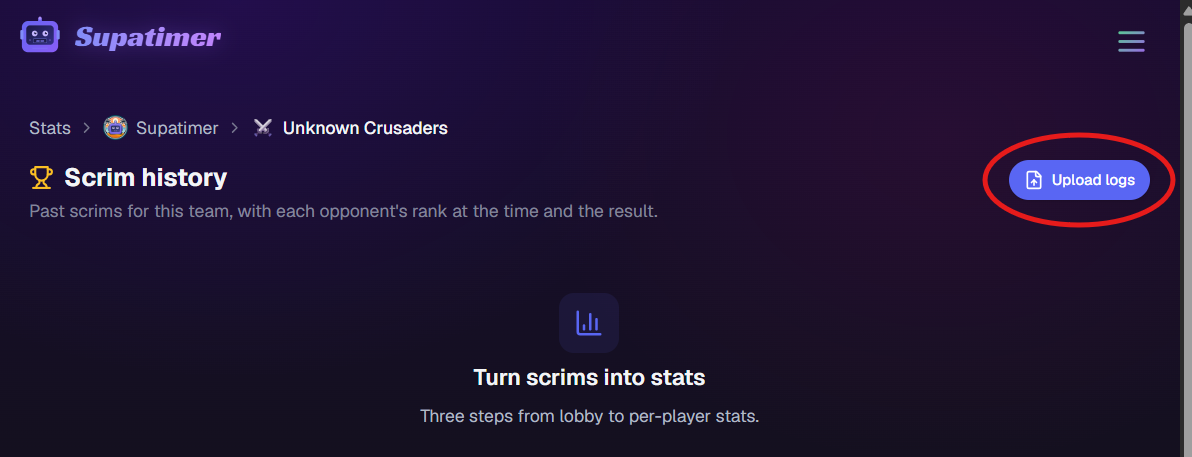
Auf der Statistikseite des Teams auf Upload logs klicken und die Dateien des Abends ablegen.
Ansehen
Hinweis: Probelauf-Tipp: Ladet vor dem ersten echten Scrim die M3FFX-Lobby eine Minute allein, beendet das Match und prueft, ob eine Log_*.txt aufgetaucht ist. Verknuepft Battle.net-Konten auf der Konto-Seite (Avatar-Menue), damit Statistiken automatisch Spielern zugeordnet werden. Rohe Logdateien werden 60 Tage aufbewahrt; jedes Team behält die vollen Statistiken seiner letzten 50 Scrims, und das Ergebnis eines Scrims bleibt dauerhaft. Der Abschnitt Statistik-Zugriff in den Team-Einstellungen entscheidet, wer die Statistiken eines Teams sieht und wer Logs hochladen darf - vergebt beides an eine Rolle oder an eine Person, etwa einen Coach oder einen Zuschauer.
Notizen
Dein eigener Outliner für Strats, Comps und VOD-Notizen: Punkte, die sich verschachteln, einklappen und zoomen lassen. Eine Datei gehört zu einem deiner Server und bleibt deine, bis du sie teilst.
Anleitung
- 1Öffne Notizen im oberen Menü und drücke Neue Datei. Wähle den Server, zu dem sie gehört, und gib ihr einen Namen.
- 2Schreib, dann Enter für den nächsten Punkt. Tab rückt ein, Shift+Tab rückt aus, und Rücktaste auf einem leeren Punkt entfernt ihn. Alles speichert sich beim Schreiben, und Strg+S (Cmd+S auf dem Mac) speichert sofort.
- 3Fahr mit der Maus über eine Zeile: das - links vom Punkt klappt ihn ein, das + öffnet eine Ebene. Ein eingeklappter Punkt hat einen Ring. Das Menü ☰ daneben klappt den Zweig Ebene für Ebene oder ganz aus und ein und bietet, was / bietet, eine Zeile je Art: Überschriftgröße, fett, kursiv und unterstrichen, Text- und Zeilenfarbe, Emoji und in einer Overwatch-Datei Chips und Comp-Zeilen. Es kopiert den Zweig auch als Text. Über der Gliederung tun dieselben vier Knöpfe das für die ganze Datei oder den gezoomten Zweig. Was du einklappst, gilt nur für dich.
- 4Klick auf den Punkt vor einem Eintrag, um hineinzuzoomen - der Pfad darüber führt wieder hinaus. Zieh den Punkt oder das ☰ daneben, um einen Eintrag mit allem darunter zu verschieben, oder drück Strg+Shift+Hoch und Runter. In einem hineingezoomten Punkt verlässt Esc den Text, und ein zweites Esc fragt, ob du dorthin zurück willst, wo du herkamst; Enter geht zurück in den Text. Strg+F (Cmd+F auf einem Mac) oder die Lupe oben durchsucht die ganze Datei, auch eingeklappte Zeilen: Enter springt zur Zeile und öffnet, was sie verdeckt. Inhalt - neben der Datei auf einem breiten Bildschirm, oder der Listen-Knopf oben - zeigt die Zeilen der ersten Ebene und jede Karte darunter: drück eine, um dorthin zu springen.
- 5Tippe / nach einem Leerzeichen oder drücke Strg+/ oder Strg+' (Cmd auf dem Mac) für Überschriften, Stile, Farben und Symbole - und in einer Overwatch-Datei für Karten- und Helden-Chips mit Bild und für Teilkarten-Chips. Ein Chip landet dort, wo der Cursor steht, mit Wörtern davor und danach: Die Zeile, in der du tippst, zeigt ihn als kurzen Code in geschweiften Klammern, jede andere Zeile als sein Bild. Strg+B, Strg+I und Strg+U machen die markierten Wörter fett, kursiv oder unterstrichen; ohne Markierung die ganze Zeile.
- 6Strg+Shift+Rücktaste löscht einen Punkt mit allem darunter. Er wartet 30 Tage im Papierkorb der Datei, im Dateimenü. Strg+Z macht deine eigenen Änderungen rückgängig und Strg+Shift+Z stellt sie wieder her, überall auf der Seite. Strg+A markiert alle sichtbaren Zeilen: Strg+Hoch und Runter klappen dann eine Ebene ein oder aus, und Strg+C kopiert sie mit ihren Stilen. Strg+L markiert die Wörter einer Zeile. Drücke ? für alle Tastenkürzel.
- 7/ Comp-Zeile fügt fünf Heldenplätze hinzu: + in einem Platz für einen Helden, und noch einmal für eine Alternative. Fahre über eine Heldenzeile für ihr Menü: eine Comp-Zeile darunter hinzufügen, Notizen für genau diese Zeile, oder sie löschen. Eine neue, leere Datei kann mit dem Kartenpool deines Teams beginnen - eine Überschrift pro Modus und ein Punkt pro Karte. Das + unter der letzten Zeile fügt eine neue Zeile hinzu. Eine Comp-Zeile klappt mit ihrem - zu wie jede Zeile, und die Pfeiltasten gehen an ihr vorbei.
- 8Füg eine Liste aus Dynalist, Workflowy, Notion, Google Docs oder einer anderen Notiz-App in einen Punkt ein, und sie kommt als Punkte an, genauso verschachtelt. Datei importieren im Dateimenü liest einen Export als OPML, Markdown, Text oder HTML - entpacke einen Notion-Export zuerst. Die Farben und Überschriften aus Dynalist kommen mit. Strg+Z nimmt einen Import zurück. Als Markdown exportieren oder Als OPML exportieren, im selben Menü, lädt die Datei - oder den gezoomten Zweig - mit allen Zeilen herunter, auch eingeklappten. Jeder, mit dem die Datei geteilt ist, kann sie exportieren.
- 9Teilen oben in einer Datei, die du erstellt hast, fügt Personen ihres Servers, ein ganzes Team - alle aus dessen Roster - oder eine Discord-Rolle - alle, die sie haben - als Bearbeiten oder Lesen hinzu, jede Änderung sofort gespeichert. Kopiere dort den Link und schick ihn: Er öffnet sich nur für die, mit denen du geteilt hast, angemeldet mit Discord. Übertragen, in deiner eigenen Zeile dort, gibt die Datei an eine Person, mit der sie namentlich geteilt ist, und du bleibst mit Bearbeiten-Rechten dabei.
Hinweis: Offene Beta - sag uns auf unserem Discord, was dir fehlt. Auf dem Handy rückt eine Leiste über der Tastatur ein, verschiebt und macht rückgängig. Eine Datei, die 300 Tage niemand öffnet, wird gelöscht - der Eigentümer bekommt zwei Wochen vorher eine DM auf Discord, und die Liste zeigt das Datum.
Battle.net-Konten
Verknüpfe deine Battle.net-Konten mit deinem Supatimer-Profil, damit Scrim-Statistiken dir automatisch zugeordnet werden - einmal verifiziert, für immer zugeordnet.
Anleitung
- 1Öffne deine Kontoseite (Benutzermenü, oben rechts) und klicke auf 'Battle.net-Konto verbinden' auf der Karte Battle.net-Konten.
- 2Melde dich auf Blizzards eigener Seite an. Supatimer sieht dein Passwort nie - Blizzard bestätigt nur, welcher BattleTag dir gehört.
- 3Du landest zurück auf der Kontoseite, mit dem Konto als verifiziert gelistet. Wiederhole das für Zweitkonten - du kannst so viele verknüpfen, wie du spielst.
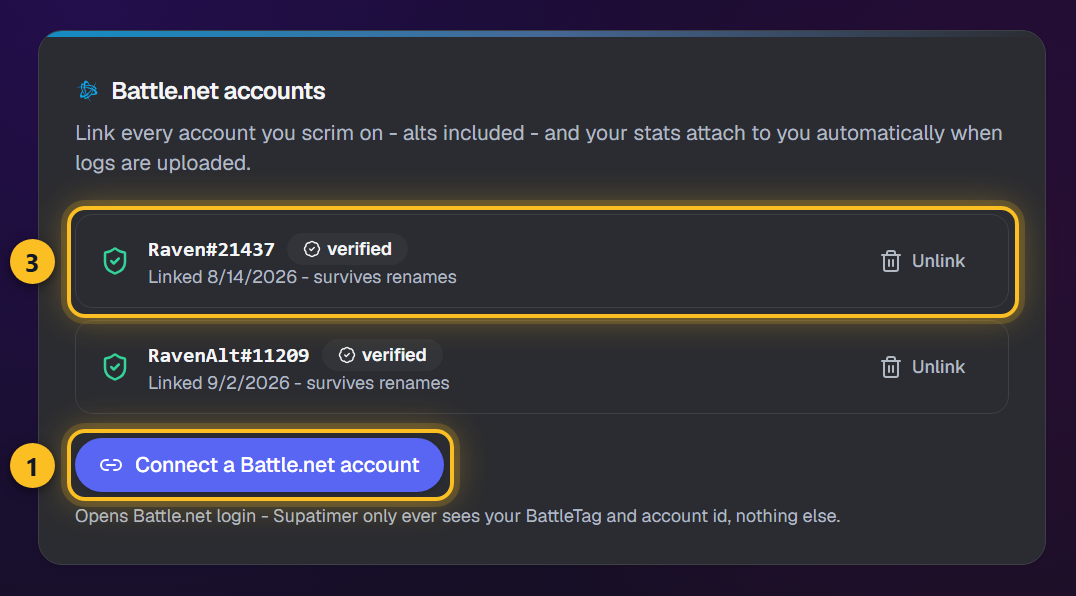
- 4Ab dann werden hochgeladene Scrim-Logs automatisch dir zugeordnet, und verifizierte BattleTags gewinnen überall gegen von Hand eingetippte.
Hinweis: Ein Battle.net-Konto kann nur mit einem Supatimer-Nutzer verknüpft sein. Beim Trennen stoppt die künftige Zuordnung, bereits zugeordnete Statistiken bleiben. Discord bleibt der einzige Login - die Battle.net-Verknüpfung dient der Identifikation, nicht der Anmeldung.
FACEIT
Verknüpfe dein FACEIT-Konto einmal. Dein Level erscheint dann im Roster deines Teams und in der Gegnersuche, und ein FACEIT-Abend ist ein weiterer Ereignistyp im Kalender.
Anleitung
- 1Öffne deine Kontoseite (Nutzermenü oben rechts) und klicke auf 'FACEIT-Konto verknüpfen'. Melde dich auf FACEITs eigener Seite an - Supatimer sieht nur deinen Nickname und deine Level.
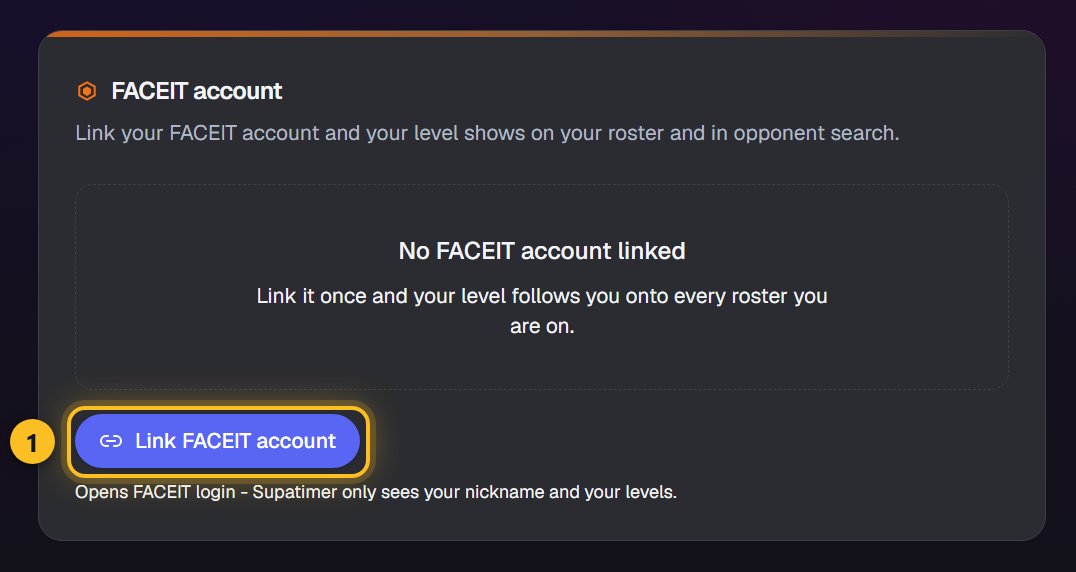
- 2Dein Level für das Spiel des Teams erscheint auf der Mitgliederseite neben deinem Namen, und der Levelbereich des Teams steht unter Scrim-Suche in den Teameinstellungen.
- 3Die Gegnersuche zeigt den FACEIT-Levelbereich jedes Teams mit Gegner finden an - wenn es ihn teilt. Ein Klick füllt das Rangfeld als verifiziert aus.
- 4Wähle im Kalender FACEIT als Ereignistyp, dann die FACEIT-Warteschlange oder ein Match gegen ein Team, besetze die Plätze und poste. Ein Platz, dessen Spieler FACEIT nicht verknüpft hat, ist umrandet - so siehst du, wer nicht in die Warteschlange kann.
Hinweis: FACEIT erscheint nur bei Spielen, die FACEIT betreibt: Overwatch, CS2, VALORANT, League of Legends, Dota 2, Rainbow Six Siege, Rocket League, Deadlock, PUBG. Ein FACEIT-Konto pro Person; das Trennen entfernt dein Level aus jedem Roster.
Events, PUGs & Extras
Event-Planer
Im Event-Planer koennen Admins Fragen stellen und Stimmen sammeln. Umfragen erscheinen in Discord und im Web.
Anleitung
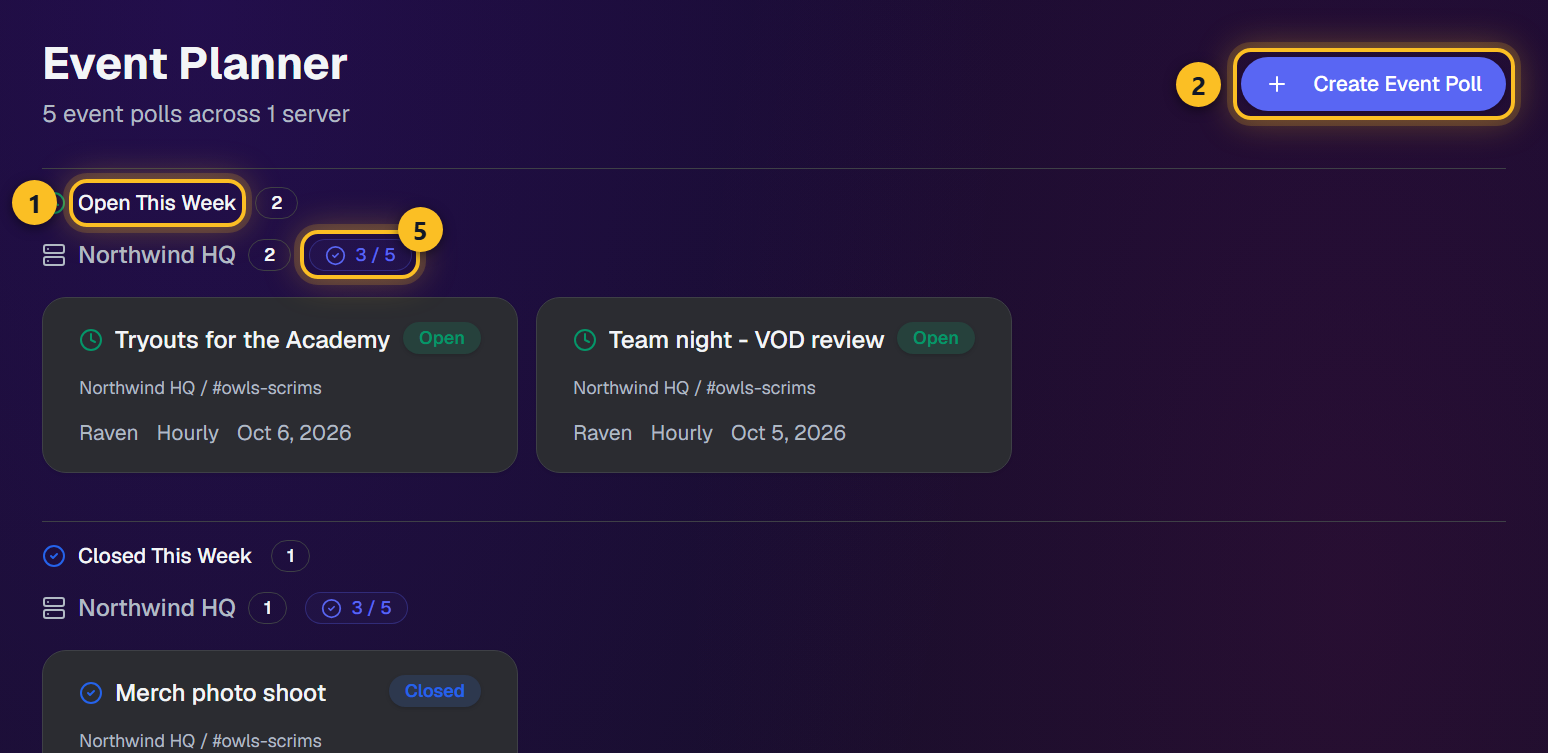
- 1Navigiere zu 'Event-Planer'. Umfragen sind nach Status gruppiert: offen, geschlossen und vergangen.
- 2Klicke 'Umfrage erstellen', um eine neue zu starten. Tagge Rollen oder Personen, und der Beitrag pingt sie an. 'Nicht-Antworter pingen' erinnert danach alle, die noch nicht abgestimmt haben, höchstens einmal pro Stunde.
- 3Teammitglieder koennen direkt im Web abstimmen oder 'Jetzt abstimmen' auf dem Discord-Embed klicken.
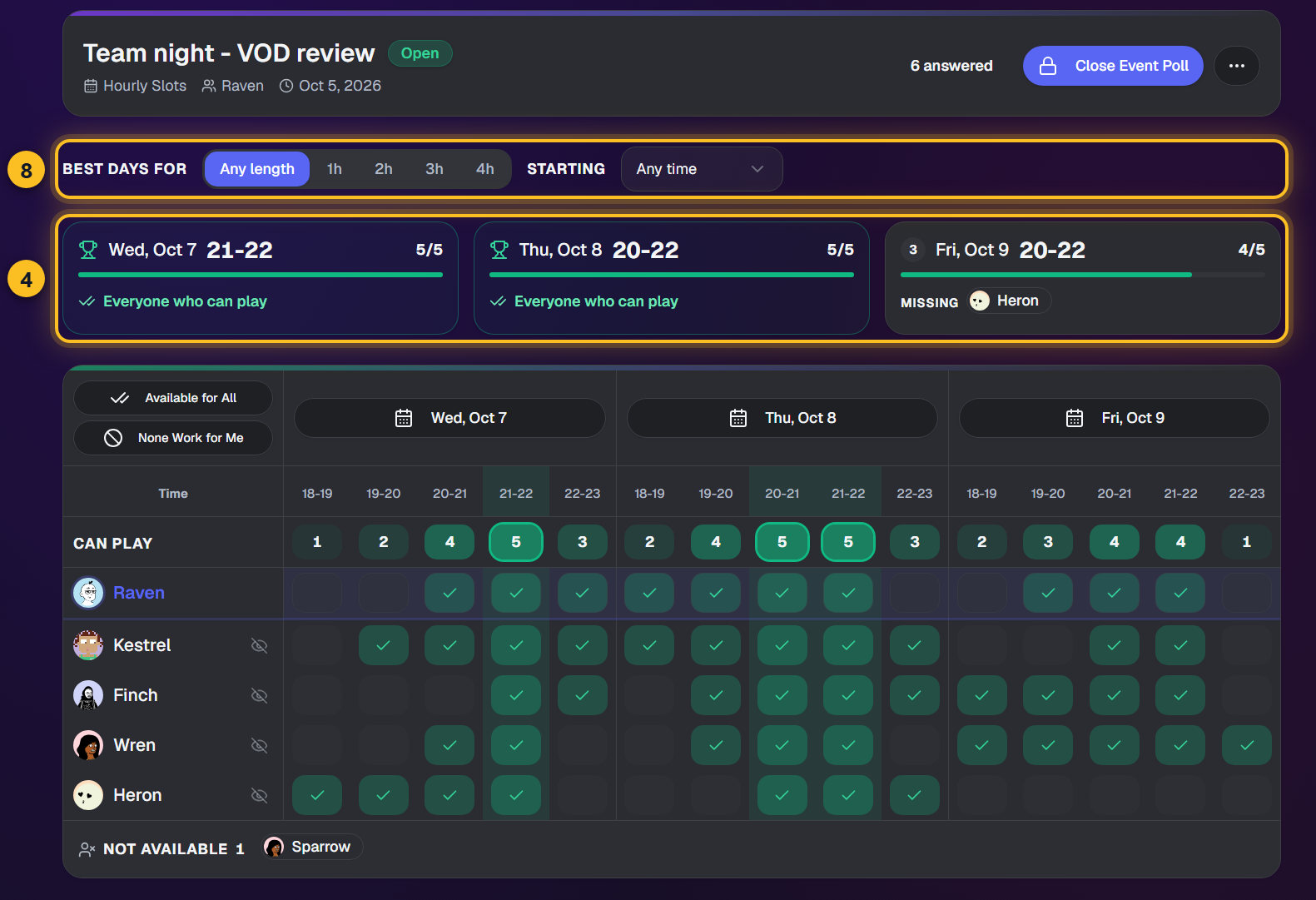
- 4Klicke auf eine Umfragekarte, um die Detailseite zu öffnen. Die besten Zeiten stehen oben: für jeden Tag die beste zusammenhängende Stundenfolge, wie viele spielen können und wer fehlt. Im Raster darunter stehen die am häufigsten Verfügbaren zuerst, und die Zeile "Können spielen" zählt jede Zeit.
- 5Jeder Server hat ein Umfragekontingent als Badge (z.B. 3/5).
- 6Auf der Detailseite einer Umfrage klicken Sie auf das Augensymbol in der Zeile eines Abstimmenden, um Abstimmende auszublenden, die Sie nicht sehen müssen. Eine Leiste über dem Raster zeigt, wen Sie ausgeblendet haben, sodass Sie einzelne oder alle wieder einblenden können. Das ändert nur Ihre eigene Ansicht (im Browser gespeichert) und wirkt sich nie auf die Stimmenzahl aus.
- 7Abstimmende, die zu jedem Termin Nein gesagt haben, belegen keine eigene Zeile mehr. Sie stehen unter "Nicht verfügbar" unter dem Raster, sodass die Zeilen, die Sie lesen, die Personen sind, die wirklich können - und der beste Termin zählt unter denen, die spielen können.
- 8Braucht ihr eine bestimmte Dauer? Wähle über den besten Zeiten eine Länge, zum Beispiel "2 Std.", um für jeden Tag die besten zwei Stunden am Stück zu sehen, und füge einen Beginn hinzu, um nach einem festen Fenster zu fragen - 2 Std. ab 20:00 ordnet die Tage für 20-22. Ein Fenster zählt nur die Personen, die die ganze Zeit können, und das Raster markiert die Stunden des besten Tages. Deine Auswahl wird für diese Umfrage in deinem Konto gespeichert, in jedem Browser.
- 9Sobald ein Event mit einer Gewinnerzeit geschlossen ist, kann ein Teammanager auf seiner Seite 'In den Teamkalender eintragen' drücken. Der Tag wird dann ein Teammeeting im Wochenkalender des Teams, mit den gewinnenden Stunden und allen, die die ganze Zeit können. Ist an dem Tag schon etwas anderes geplant, wirst du vor dem Ersetzen gefragt.
Ansehen
PUGs-Planer
Der PUGs-Planer hilft beim Organisieren von Pickup-Spielsitzungen.
Anleitung
- 1Navigiere zum 'PUGs-Planer' im Utilities-Menue.
- 2Klicke 'PUG erstellen', um eine neue Sitzung zu starten.
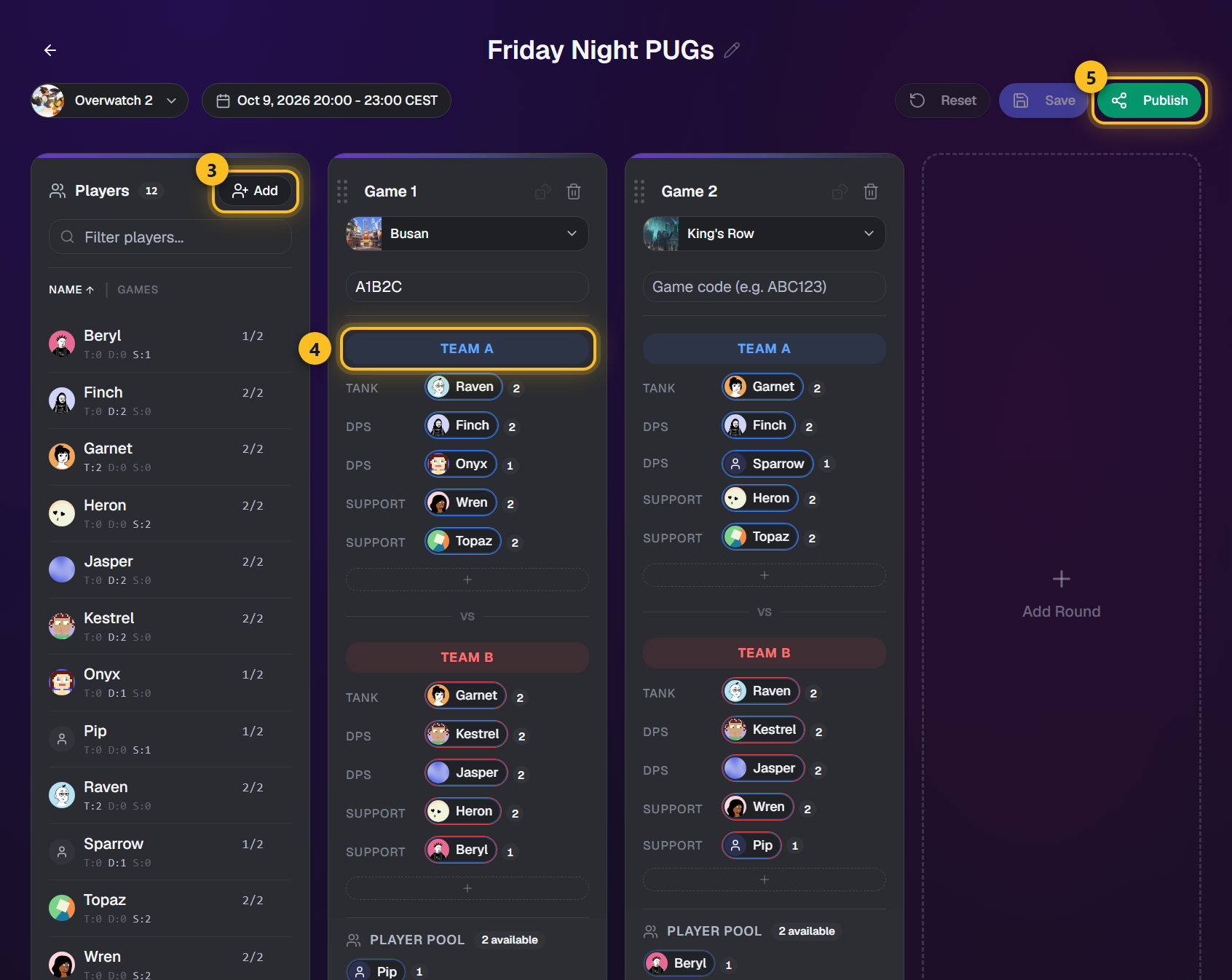
- 3Fuege Spieler aus deinem Server zum Sitzungsroster hinzu.
- 4Erstelle Runden und weise Spieler per Drag-and-Drop den Team-Slots zu. Die Zahl neben jedem Spieler zeigt, in wie vielen Runden er dabei ist, und der Pool jeder Runde listet zuerst, wer am wenigsten gespielt hat. Klicke auf einen Spieler, in einer Runde oder in der Spielerliste, um die Seite bis auf jeden Slot abzudunkeln, in dem er spielt. Das + unter einem Team fügt einen Slot hinzu, das X an einem leeren Slot entfernt ihn. Eine Overwatch-Runde fragt vor ihrem 13. Slot nach, denn eine Lobby fasst 12 Spieler.
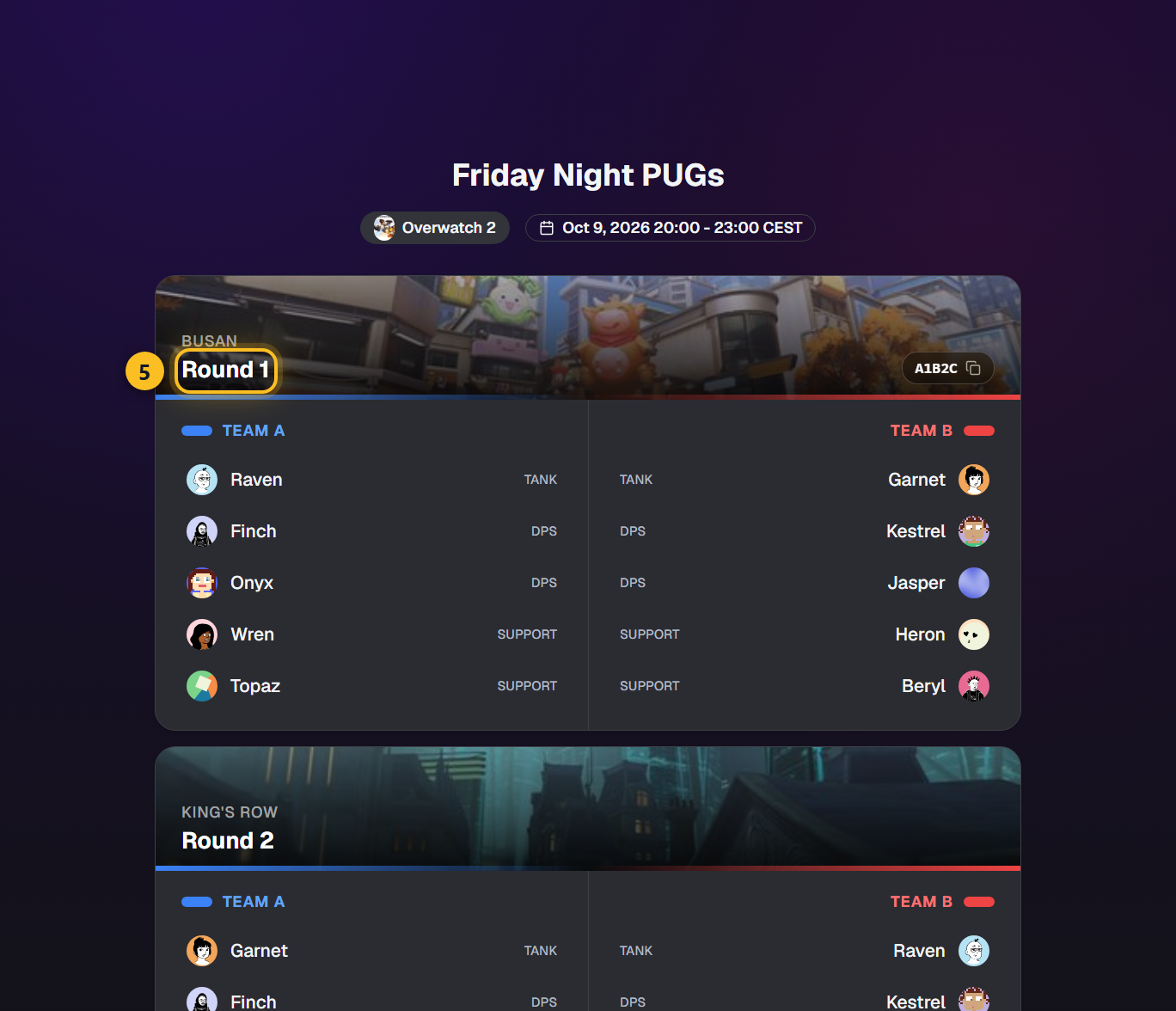
- 5Klicke den Teilen-Button, um einen oeffentlichen Link zu generieren. Wenn du eingeloggt bist, wird deine eigene Zeile in der Farbe deines Teams gefüllt, und eine Zeile unter dem Titel listet die Runden auf, die du spielst.
- 6Nutze 'In Discord posten', um ein Embed in einen Kanal zu senden.
Ansehen
Spassbefehle
Supatimer bietet lockere soziale Befehle, die du in jedem Kanal verwenden kannst. Serveradministratoren koennen jeden Befehl in den Servereinstellungen ein- oder ausschalten.
Anleitung
- 1Tippe /roast und waehle ein Servermitglied bei der Option target. Der Bot postet einen zufaelligen Spruch, der den Spieler oeffentlich im Kanal erwaehnt.

- 2Die Sprueche werden zufaellig aus ueber 700 Zeilen ausgewaehlt - eine Mischung aus Gaming- und Alltagshumor. Jeder beginnt mit der @Erwaehnung des Ziels.
- 3Administratoren koennen /roast fuer einen Server unter Servereinstellungen > Spassbefehle deaktivieren. Wenn deaktiviert, erhaelt jeder, der es versucht, einen Hinweis.
- 4Neue Server haben /roast standardmaessig aktiviert. Schalte es jederzeit aus, wenn du eine ernstere Atmosphaere bevorzugst.
Einrichtung & Admin
Einstellungen
Einstellungen listet alle Discord-Server, in denen du und der Bot Mitglied seid. Waehle einen Server, um dessen Bereiche zu oeffnen. Je nach Rolle siehst du unterschiedliches: Alle koennen Kalender ansehen; Team-Manager und Admins erhalten zusaetzliche Werkzeuge.
Bereiche innerhalb eines Servers
- Server-EinstellungenAdmin
Erlaubte Kanaele, Rollen, Zeitslots und botweite Optionen. Entspricht /config im Web.
- Team-EinstellungenTeam-Manager
Wer das Team ist - Name, Discord-Kanäle, Spiel und Rollenfarben, Scrim-Austauschinfo, Kartenpool, Scrim-Suche, Manager und Statistikzugriff.
- Kalender-EinstellungenTeam-Manager
Wann das Team spielt und wie es in Discord aussieht - Zeitplan, Pings, Auto-Post, Erinnerungen, Layouts und Fußzeilen.
- Roster-EinstellungenTeam-Manager
Mitglieder durchsuchen und Rollen, Spielerstatus und Lineup-Felder fuer verwaltete Teams einstellen.
Anleitung
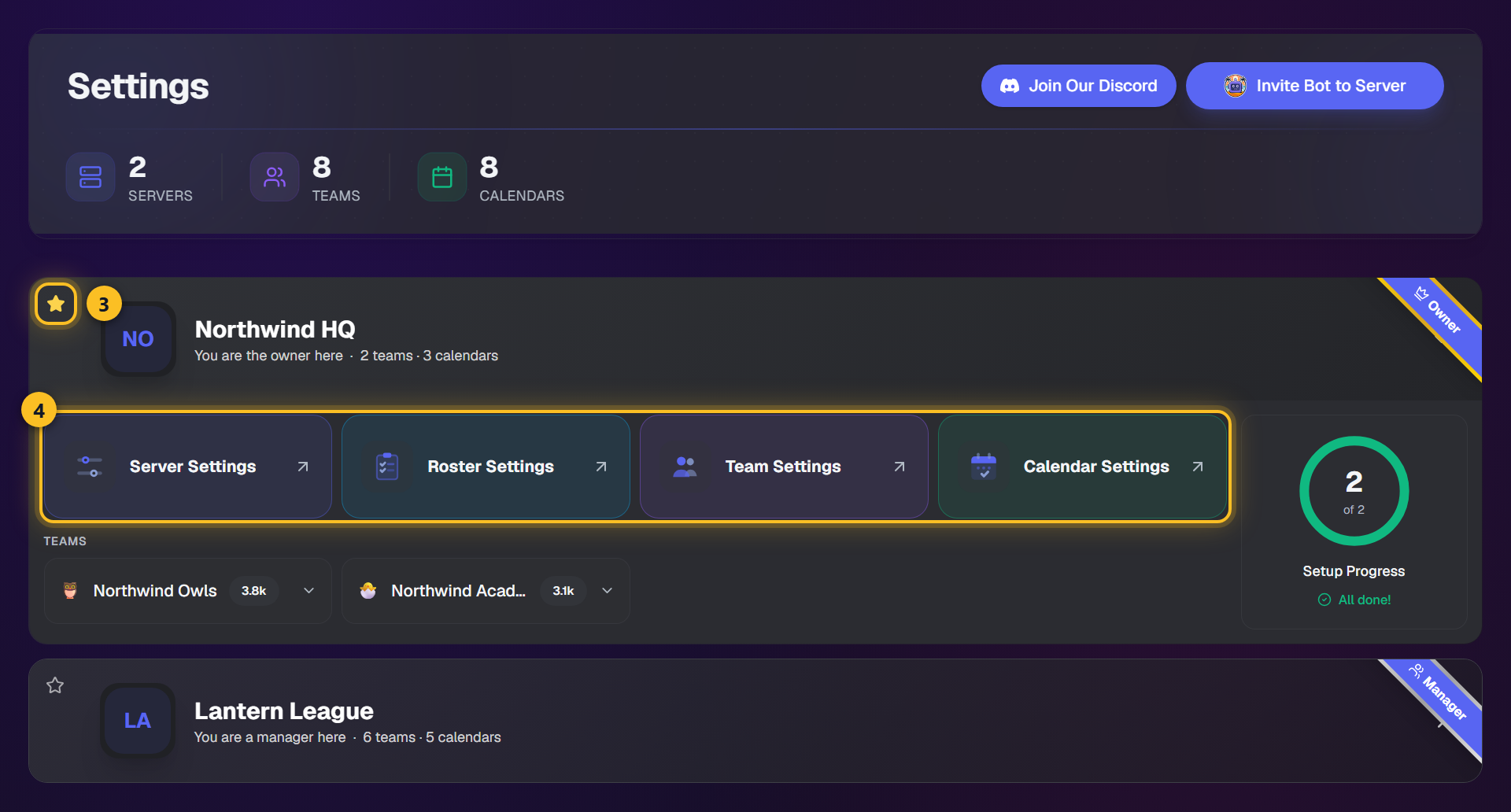
- 1Navigiere zu 'Einstellungen' im oberen Menue. Jeder Server ist eine eigene Zeile in seinen Farben mit Icon, Name und deiner Zugriffsstufe.
- 2Der Bereich oben zeigt Statistiken: Gesamtzahl Server, Teams und aktive Kalender.
- 3Klicke das Stern-Icon auf einer Serverzeile, um einen Favoriten zu markieren. Favoriten stehen oben, und eine Zeile ist immer ausgeklappt - dein Favorit, wenn du einen hast.
- 4Klicke auf das Banner eines Servers, um ihn auszuklappen. Der Bereich beginnt mit vier großen Buttons - Server-Einstellungen (Admins), dann Roster-Einstellungen, Team-Einstellungen und Kalender-Einstellungen (Team-Manager und höher) - und deine Teams sitzen darunter als kleinere Kacheln unter der Überschrift Teams, wo sich ein Team zu seinen Team-, Kalender- und Roster-Einstellungen öffnet. Buttons ohne Zugriff bleiben sichtbar, aber gesperrt.
Einstellungs-Navigator
Jede Einstellungsseite hat links einen Navigator, der alle Einstellungen auflistet - auch die der anderen Einstellungsseiten - damit du mit einem Klick überall hinspringen kannst.
Anleitung
- 1Öffne Server-Einstellungen, Team-Einstellungen oder Kalender-Einstellungen. Der Navigator hebt beim Scrollen den Abschnitt hervor, den du gerade liest.
- 2Die anderen Einstellungsseiten stehen darunter. Öffne eine, um ihre Teams oder Kalender aufzuklappen, und klicke dann auf einen Abschnitt, um direkt dorthin zu springen.
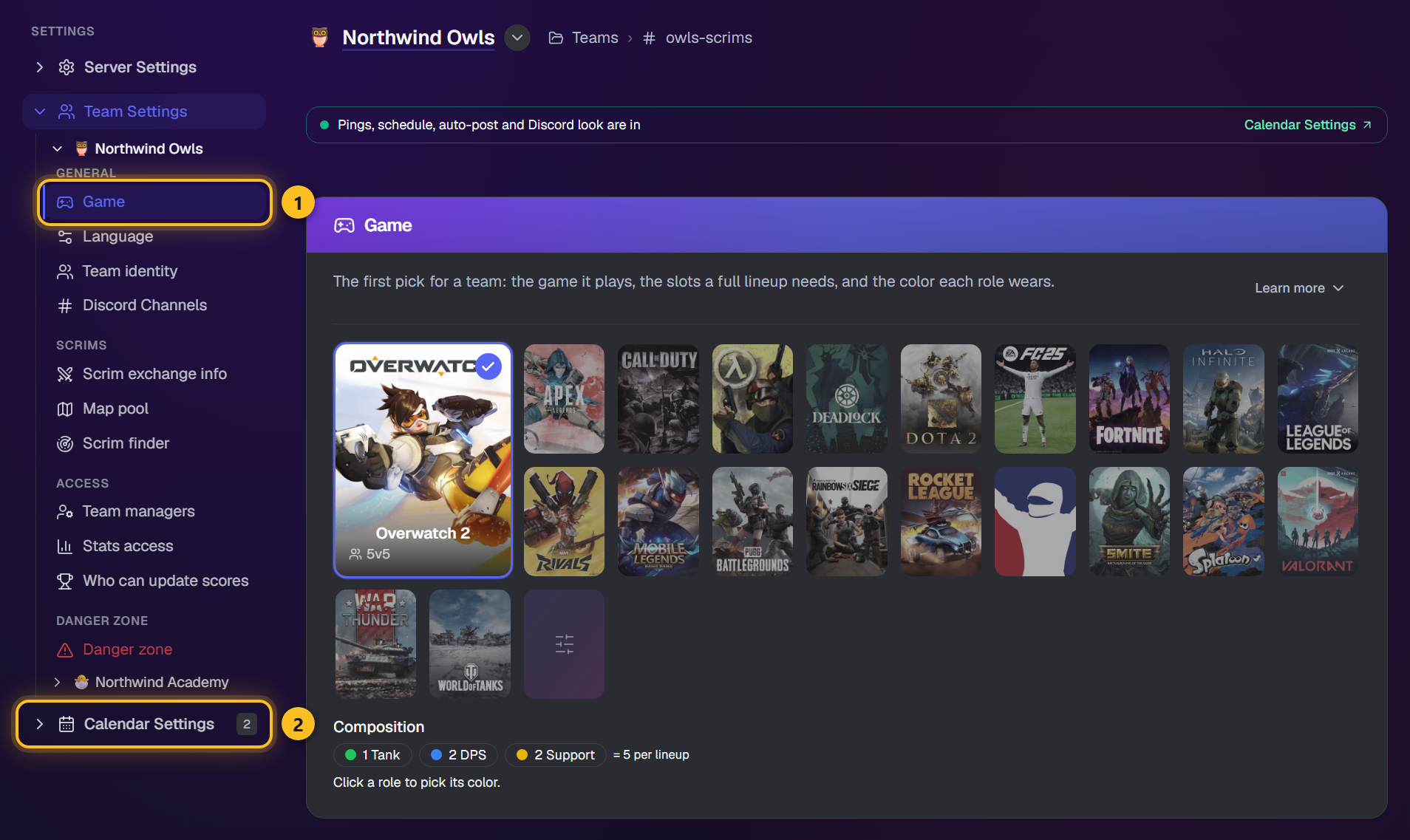
- 3Hat der Server nur ein Team oder einen Kalender, werden dessen Abschnitte direkt gelistet - ohne Zwischenschritt.
- 4Nach einem Sprung wird der gewählte Abschnitt kurz hervorgehoben.
Hinweis: Der Navigator erscheint auf Bildschirmen ab etwa 890 Pixeln Breite. Auf kleineren Bildschirmen nutzt du die Suche (Ctrl+K), um zu einer Einstellung zu springen.
Roster-Einstellungen
In den Roster-Einstellungen konfigurieren Team-Manager und Admins die Spielrollen und den Status jedes Discord-Mitglieds.
Anleitung
- 1Oeffne 'Einstellungen' im oberen Menue, waehle einen Server, dann oeffne die Roster-Einstellungen.
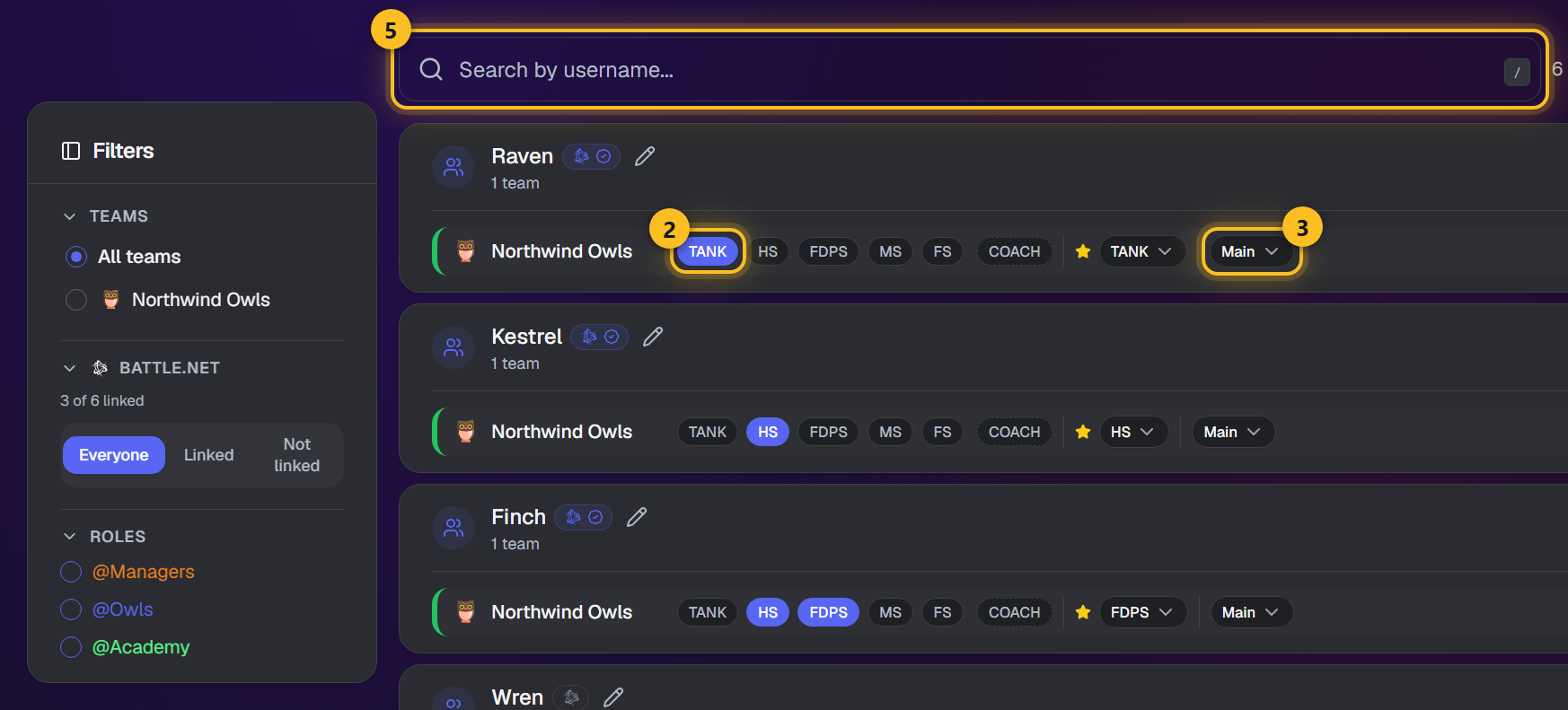
- 2Jede Zeile hat Kontrollkaestchen fuer spielspezifische Rollen.
- 3Stelle den Spielerstatus ein: Main, Tryout, Sub, Ringer oder Coach.
- 4Waehle eine Primaerrolle fuer jedes Mitglied.
- 5Nutze die Filterleiste zum Suchen nach Name, Discord-Rolle oder Team.
- 6Klicke 'Von oben kopieren', um Rollenzuweisungen schnell zu duplizieren.
- 7Aenderungen werden nicht automatisch gespeichert. Klicke den schwebenden 'Speichern'-Button.
Hinweis: Mitglieder zu konfigurieren ist essentiell fuer /weekplan und automatische Lineup-Generierung.
Team-Einstellungen
Team-Einstellungen ist die eigene Seite des Teams: sein Spiel und seine Rollenfarben, Identität und Discord-Kanäle, Scrim-Austauschinfo mit einer Live-Discord-Vorschau, Kartenpool, Scrim-Suche, Manager, Statistik- und Ergebniszugriff, plus eine Gefahrenzone.
Anleitung
- 1Öffne Einstellungen in der oberen Navigation, wähle einen Server und öffne dann Team-Einstellungen. Jede Zeile hat zwei Buttons - Team-Einstellungen und Kalender-Einstellungen - um direkt zu den Karten dieses Teams zu springen.
- 2Jede Zeile zeigt Teamname, Rang, ein Spiel-Badge und ein Konfigurationsstatus-Badge (konfiguriert oder nicht konfiguriert). Admins erhalten hier einen Team hinzufügen-Button - wähle den Kanal, in dem das Team lebt, und du gelangst direkt zu seinen Team-Einstellungen.
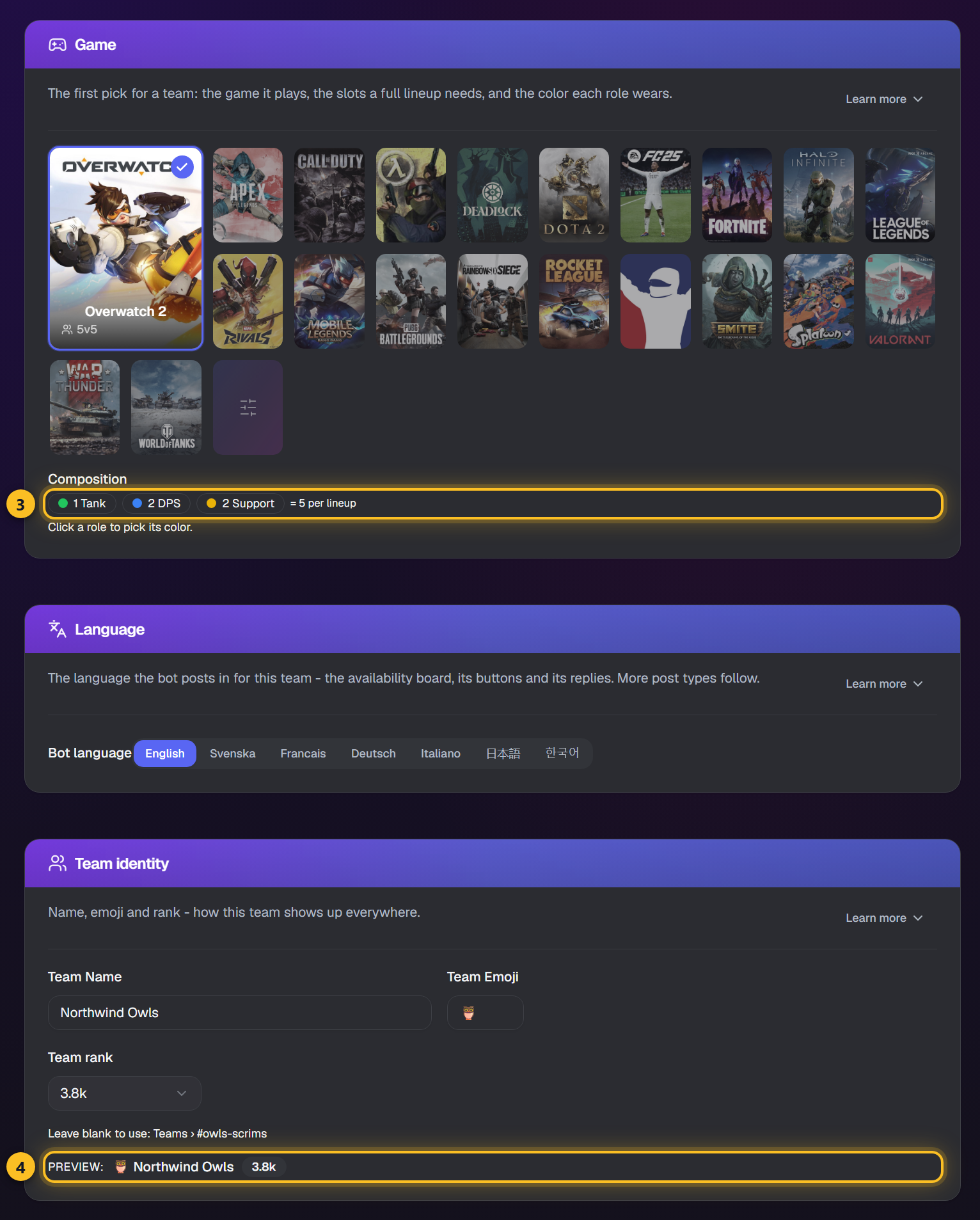
- 3Klicke auf den Button Team-Einstellungen einer Zeile. Die Spiel-Karte kommt zuerst: wähle das Spiel, klicke dann auf eine Rollen-Chip, um die Farbe zu wählen, die sie trägt - eine Voreinstellung oder eine ganz eigene Farbe; Kopieren von übernimmt die Farben eines anderen Teams. Direkt darunter legt die Karte Sprache fest, in welcher Sprache der Bot für dieses Team postet - eine der sieben Sprachen des Dashboards.
- 4Team-Identität enthält Name, Emoji und Rang - gewählt aus der Rangliste des Spiels, mit dem Gegnerbereich daneben - und eine Vorschau, wie das Team überall erscheint. Discord-Kanäle legt den Hauptkanal fest und wohin Aufstellungen, Vorläufe und bestätigte Posts gehen - jede Wahl vorangestellt vom Emoji, das ihre Posts tragen.
- 5Scrim-Austauschinfo: jede Zeile hat eine Anzeigen-Checkbox und Ja, Nein oder Keine Präferenz. Zeile hinzufügen gibt dem Team eigene Zeilen, wie Stream: An. Der Discord-Block unter den Zeilen ist genau das, was das andere Team über die Info-Buttons und über Scrim-Info teilen bekommt.
- 6Kartenpool: wähle die Karten, die dein Team pro Modus spielt; die Vorschau unter dem Raster zeigt die Karten-Variante des Blocks, gezeichnet wie Discord sie zeichnet.
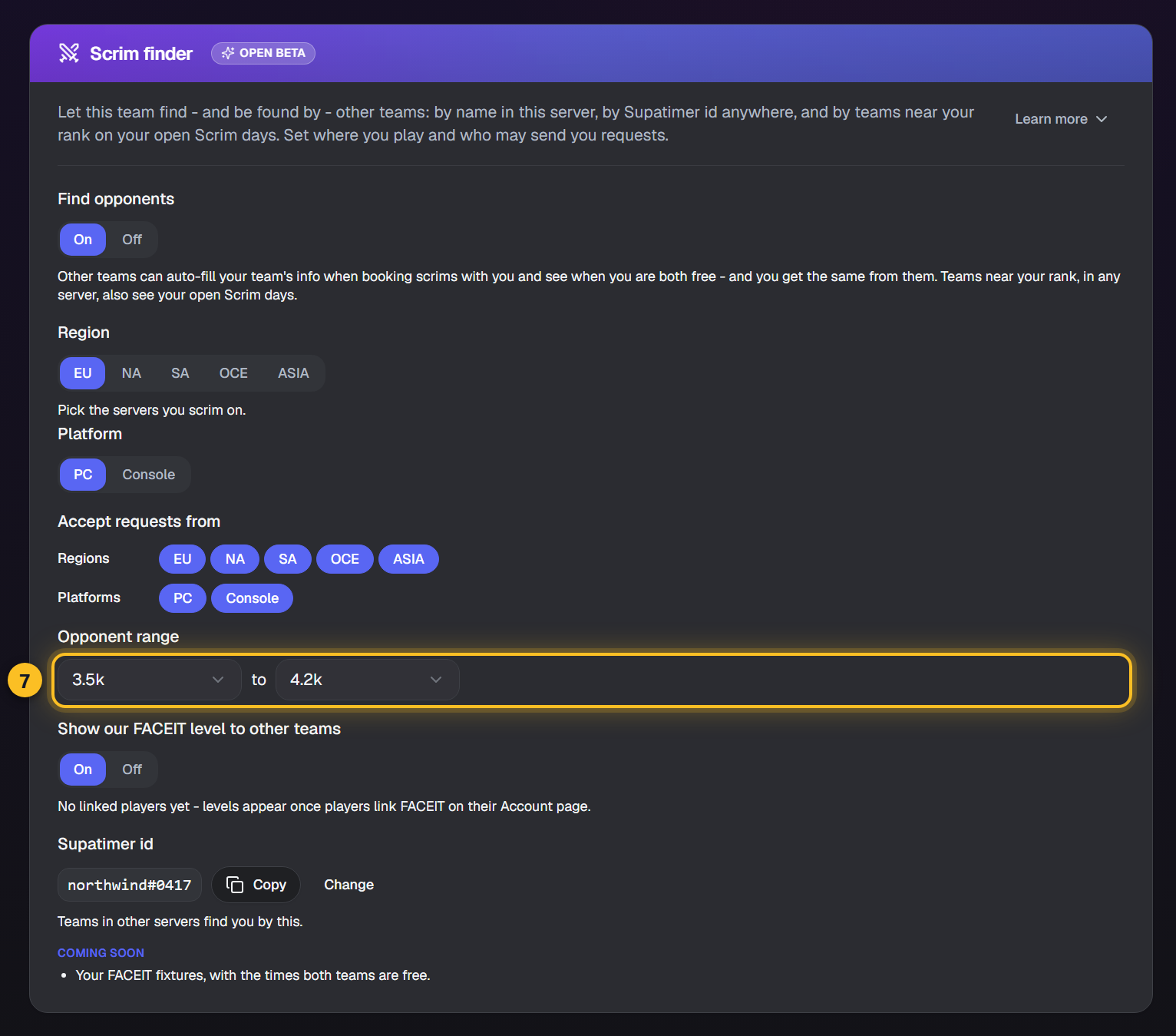
- 7Scrim-Suche: Gegner finden an oder aus, eure Region und Plattform, welche Regionen und Plattformen euch Anfragen schicken dürfen, und der Gegner-Rangbereich, den die Suche durchsucht.
- 8Team-Manager, Statistikzugriff (wer hochlädt und bearbeitet, wer sieht) und Wer Ergebnisse aktualisieren kann verbinden jeweils Rollen mit Mitgliedern. Team-Manager können immer alle drei.
- 9Teile Scrim-Austausch-Infos oeffentlich ueber den Teilen-Button.
- 10Loesche ein Team in der Gefahrenzone unten in seinen Einstellungen - tippe delete zum Bestaetigen. Das gibt den Kanal des Teams frei und entfernt seine Einstellungen; bereits gepostete Kalender bleiben erhalten. Nur Admins.
Ansehen
Kalender-Einstellungen
Kalender-Einstellungen ist die zweite Seite des Teams: wann es spielt und wie sein Kalender in Discord aussieht. Jede Woche, die das Team postet, folgt dieser Seite.
Anleitung
- 1Öffne sie über die Kachel Kalender-Einstellungen, den Tab oder das Zahnrad auf einem Kalender.
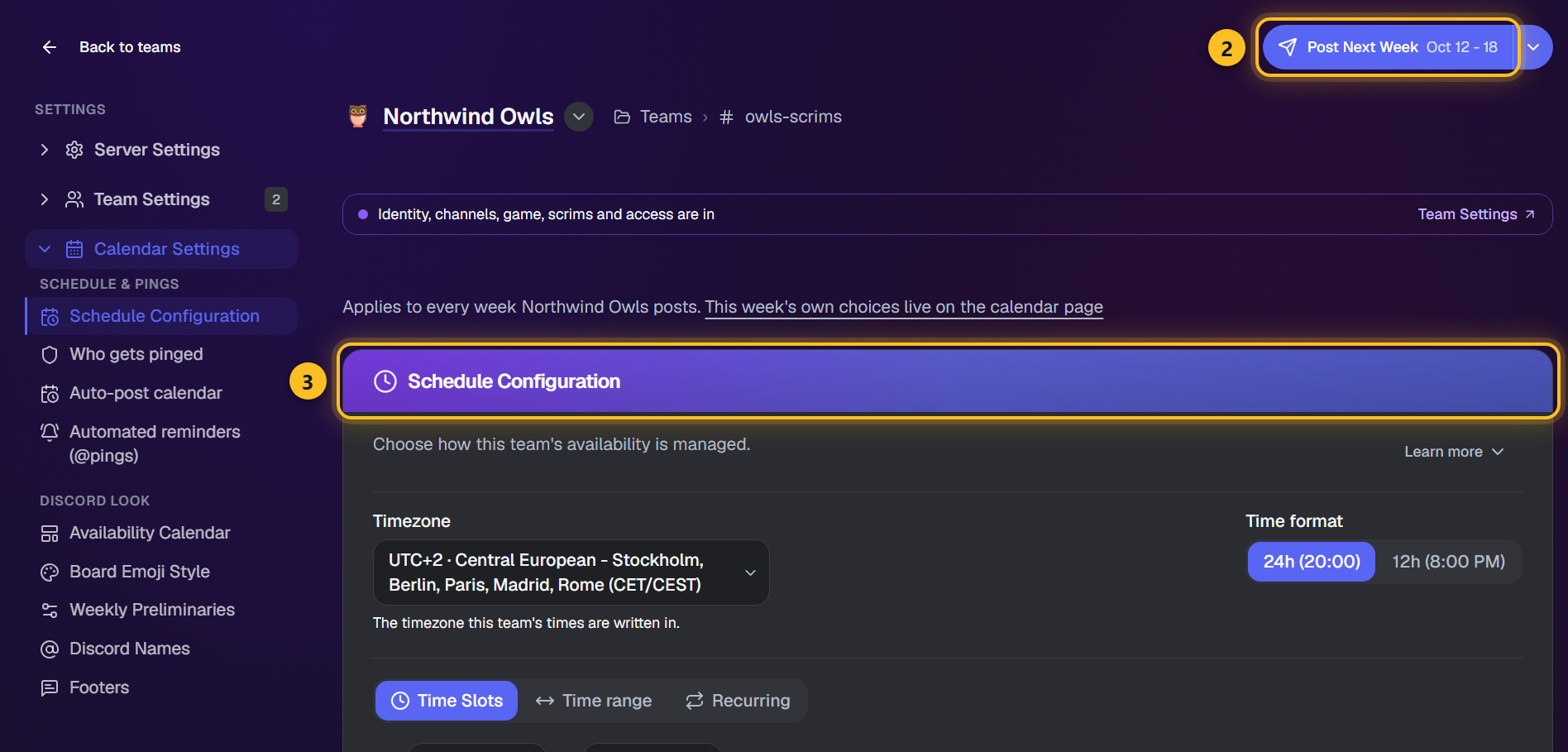
- 2Poste eine Woche direkt aus der Kopfzeile: Die Schaltfläche nennt die Woche, der eine fehlt, und ihr Pfeil enthält die beiden anderen sowie einen Link zum veröffentlichten Kalender.
- 3Zeitplan-Konfiguration legt Zeitfenster oder eine Zeitspanne fest, die Zeitzone und Uhrzeitanzeige, Discord-Zeitstempel und Vielleicht - mit einem Discord-Beispiel unter dem gewählten Modus und einer Live-Demo, wie Mitglieder antworten.
- 4Wer wird gepingt listet die Rollen, die bei jedem Kalender gepingt und verfolgt werden. Um nur die Rollen einer einzelnen Woche zu ändern, nutze stattdessen das Menü Diese Woche auf der Kalenderseite.
- 5Kalender automatisch posten veröffentlicht den Wochenkalender für dich nach Zeitplan (geschlossene Beta).
- 6Automatische Erinnerungen (@Pings) pingt Spieler, die noch nicht geantwortet haben, vor dem Scrim oder vor Wochenbeginn (geschlossene Beta).
- 7Verfügbarkeitskalender, Board-Emoji-Stil und Wöchentliche Vorrunden gestalten die Beiträge, jeweils mit einer Live-Vorschau; Discord-Namen steuert, wie Spielernamen gedruckt werden.
- 8Fußzeilen legen den Text fest, der unter jedem Post des Teams angezeigt wird.
Hinweis: Die alte Seite Kalenderverwaltung leitet jetzt hierher weiter. Das erneute Posten eines gelöschten Kalenders und das Löschen einer Woche sind ins Menü Diese Woche auf der Kalenderseite umgezogen.
Server-Einstellungen
Server-Einstellungen ist der Überblick für Admins: die Einstellungen aller Teams nebeneinander, ein Speichern für alle, und Kopieren von, um ein Team an ein anderes anzugleichen.
Anleitung
- 1Öffne Einstellungen im oberen Menü, wähle einen Server, dann öffne Server-Einstellungen. Jede Karte listet deine Teams als Zeilen. Die Karten stehen in drei Stufen: Wichtig, Nützlich und Weitere Einstellungen - eingeklappt, bis du es öffnest; eine Suche oder ein Link dorthin öffnet es auch.
- 2Teams verwalten - füge ein Team in vier schnellen Schritten hinzu (Kanal, Spiel, Emoji, Name, Rang, Zeitzone und Region, und optional ein Team, von dem alle Einstellungen kopiert werden). Spiel, Emoji, Name und Rang werden danach direkt in der Zeile bearbeitet, die Zeitzone in den Kalendereinstellungen; Löschen fragt zuerst nach dem eingetippten Wort.
- 3Supatimer-Admins und Wer darf Kalender posten - Rollen und Mitglieder. Discord-Administratoren und der Server-Owner zählen immer.
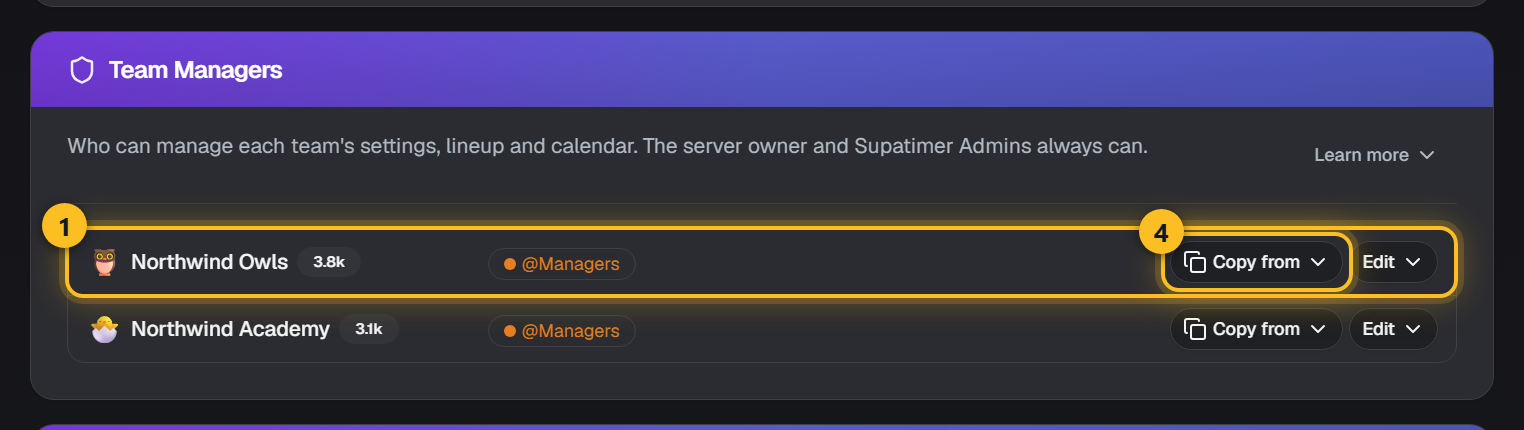
- 4Team-Manager, Statistikzugriff und Wer Ergebnisse aktualisieren kann - pro Team; klicke Bearbeiten, um eine Zeile zu ändern, oder Kopieren von, um die Auswahl eines anderen Teams zu übernehmen.
- 5Auto-Post, Wer gepingt wird und Automatische Erinnerungen (@pings) - der eigene Wert jedes Teams, bearbeitbar hier oder auf seiner Kalendereinstellungen-Seite.
- 6Zeitplan-Konfiguration, Verfügbarkeitskalender, Board-Emoji-Stil und Discord-Namen sind hier nur zur Ansicht: vergleiche Teams und kopiere von einem zum anderen; ändere sie auf der Kalendereinstellungen-Seite des Teams, wo die Discord-Vorschauen liegen.
- 7Nichts geht raus, bevor du Speichern drückst - die Leiste unten speichert alle geänderten Teams auf einmal und sagt dir pro Team, falls etwas fehlgeschlagen ist.
- 8Wenn Supatimer Discord-Rollen vergeben soll, ziehe seine Rolle in Servereinstellungen > Rollen ueber diese. Discord laesst einen Bot keine Rollen verwalten, die ueber seiner eigenen stehen, auch nicht mit Administrator. Die Servereinstellungen warnen dich, wenn das zutrifft.
- 9Ihr spielt ein Spiel, das Supatimer nicht auflistet? Wähle Eigenes Spiel als Spiel des Teams in seiner Zeile unter Teams verwalten, benenne es und füge 3 bis 16 Plätze mit den Positionsnamen deines Spiels hinzu.
Hinweis: Neue Teams kommen hier dazu, mit Neues Team hinzufügen: Jedes bekommt einen Kanal, ein Spiel, einen Namen, einen Rang, eine Zeitzone und eine Region.
Brauchst du Hilfe? Tritt unserem Discord-Server bei oder schau in die Discord-Bot-Befehle Referenz.